

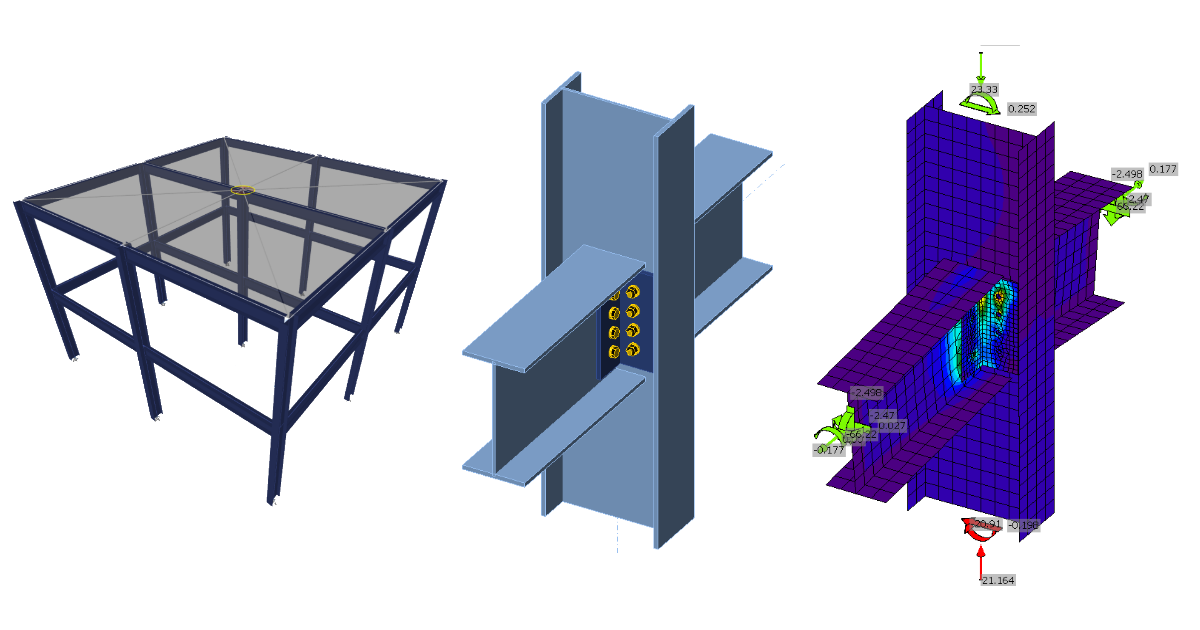
ETABS BIM link for steel connection design (AISC)
1 How to activate the link
- Install the latest version of IDEA StatiCa
- Make sure you are using a supported version of ETABS – updates are published in the BIM section of the main website
After installation of both programs, start ETABS and Click Tools > Add/Show Plugins to open the Plugin Manager dialog. This option lets you install and add add-ins (programs) to the appropriate places in the ETABS menu.
Browse for
C:\Program Files\IDEA StatiCa\StatiCa 20.0\ETABSv18PlugIn_IDEAStatiCa.dll
and click Add

2 How to use the link
Open the attached project in ETABS and run the analysis.
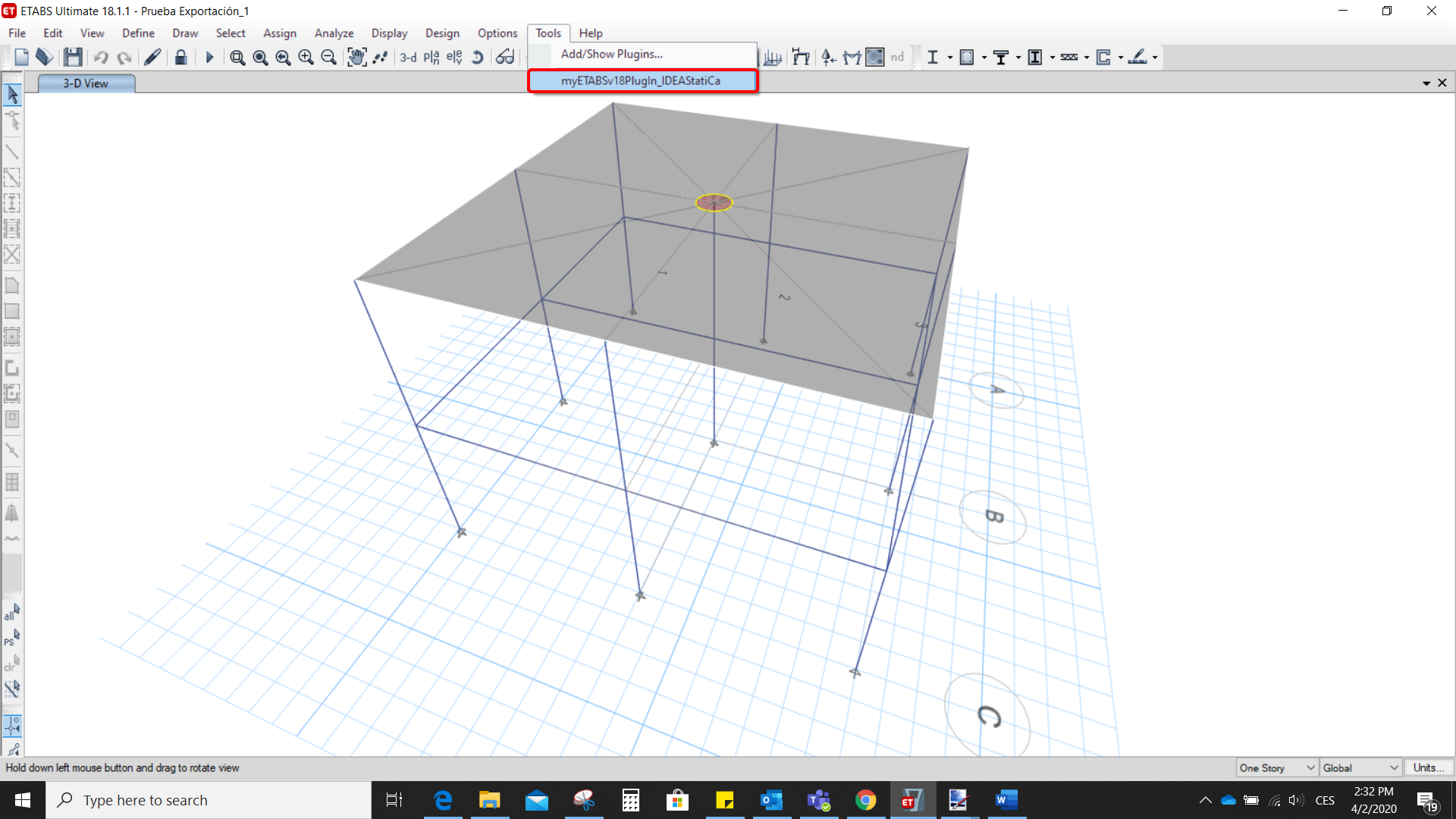
Go to the menu item Tools and run the export command you have just defined.
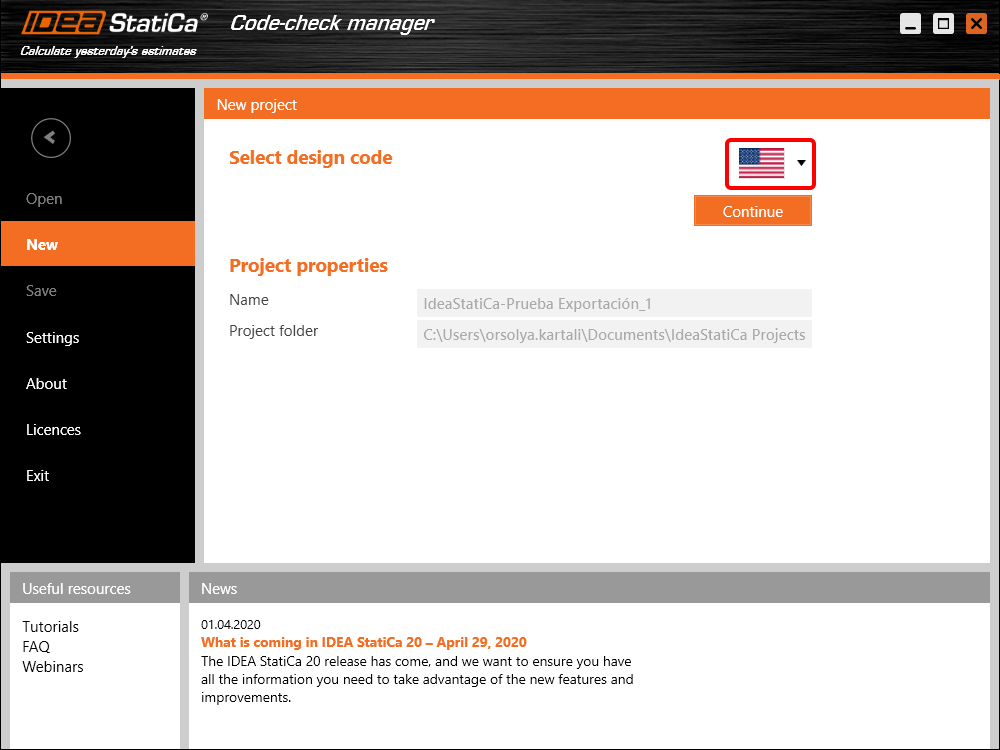
The Code-check manager opens and at first, you need to choose the code.
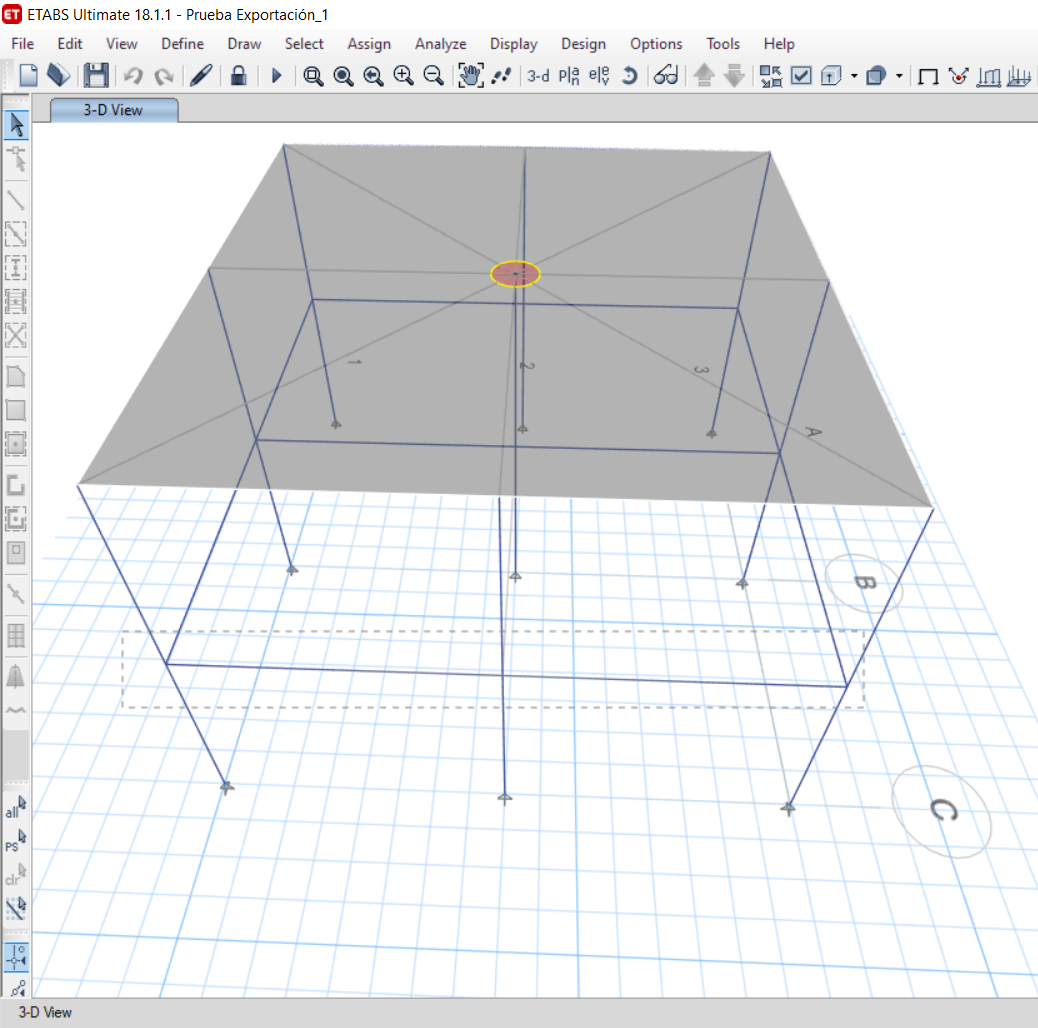
Then you can make a rectangular selection in the ETABS project to choose which joints you want to export. You can export more joints at once using the multiple selections.
If the joints are selected, you can click on the Connection button in the Code-check manager. With this, all the selected joints from ETABS will be imported into the Code-check manager.
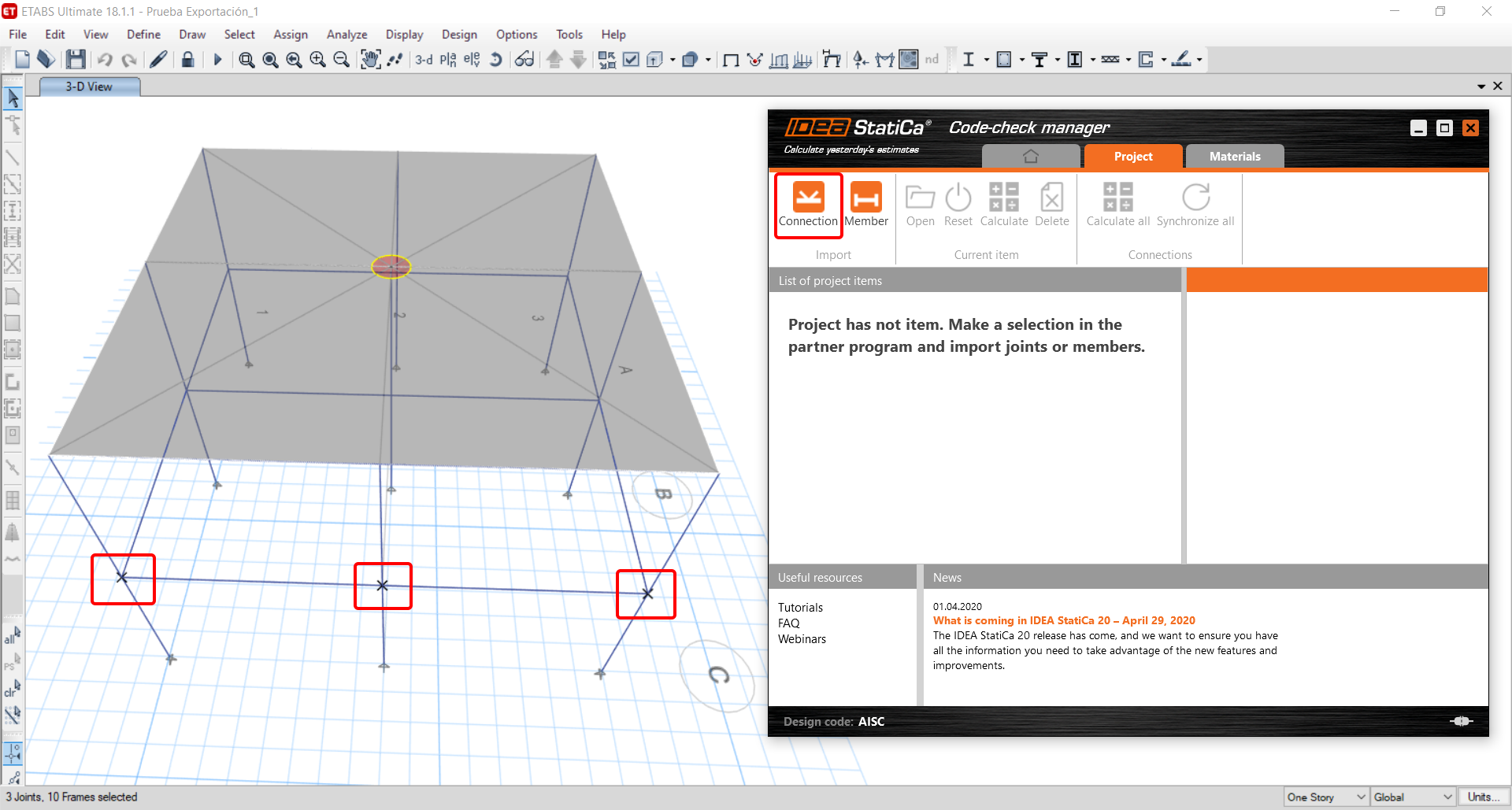
The next thing you need to do is to configure the joints in the Code-check manager. In this tutorial, you will only focus on one of the three imported joints, but the process would be the same for all of them.
You click on the joint on the left side (joint 20). On the right side, you can see the scheme of the joint, you can set the bearing member and merge the continuous members. After that, click on the Finish button to complete the configuration of the joint.
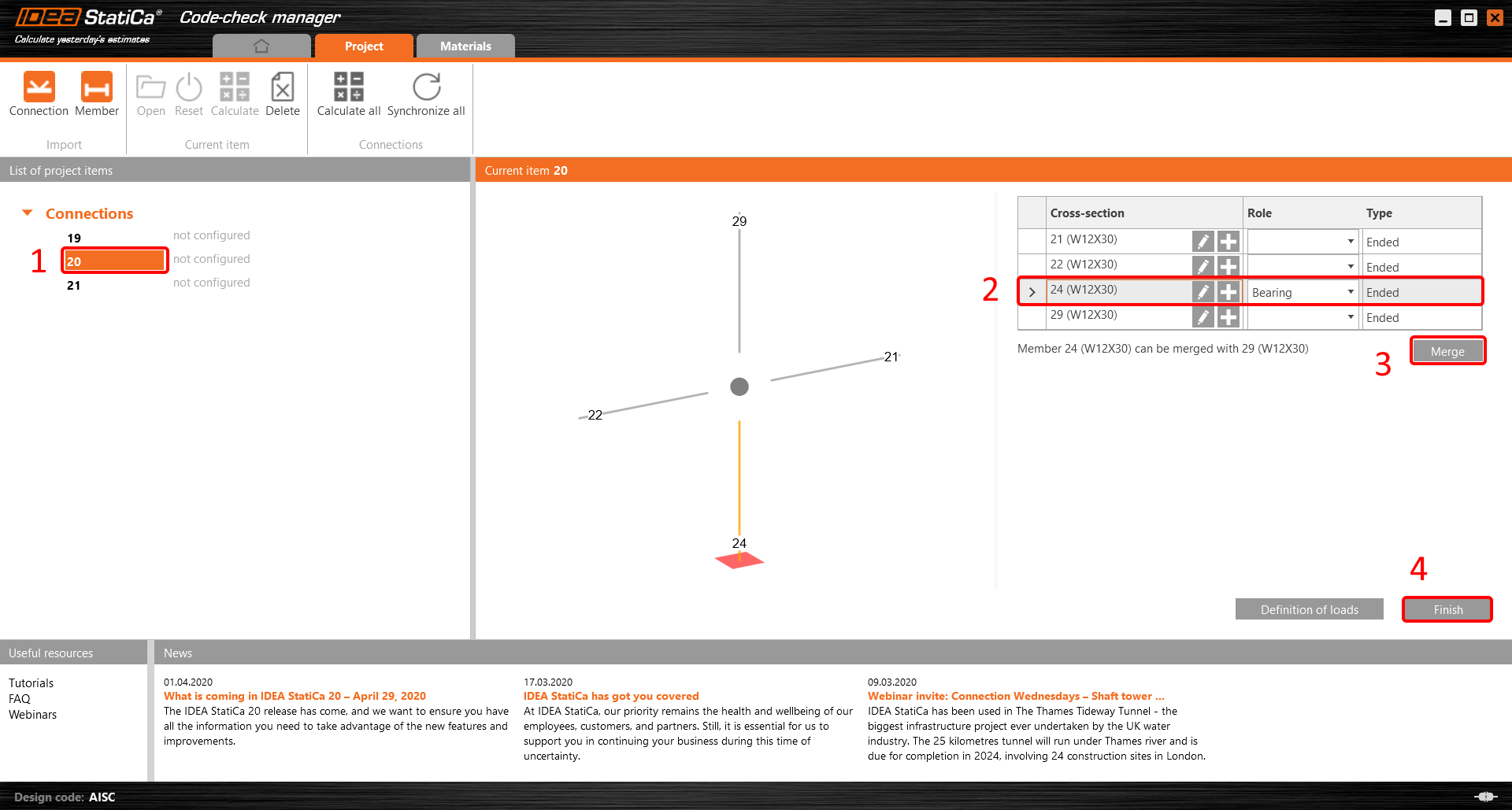
The joint is now ready to be opened in IDEA StatiCa Connection for the CBFEM analysis.

3 Design
Automatic data transfer is started and IDEA StatiCa Connection with a generated project is launched. All members and load effects were added automatically.
This tutorial works with imperial units. If you use metric units, you can switch them to imperial by clicking on the unit in the bottom part of the window.

Now you will define a set of manufacturing operations to model the connection between members. In the items tree, you right-click on Operations and select the option New operation.
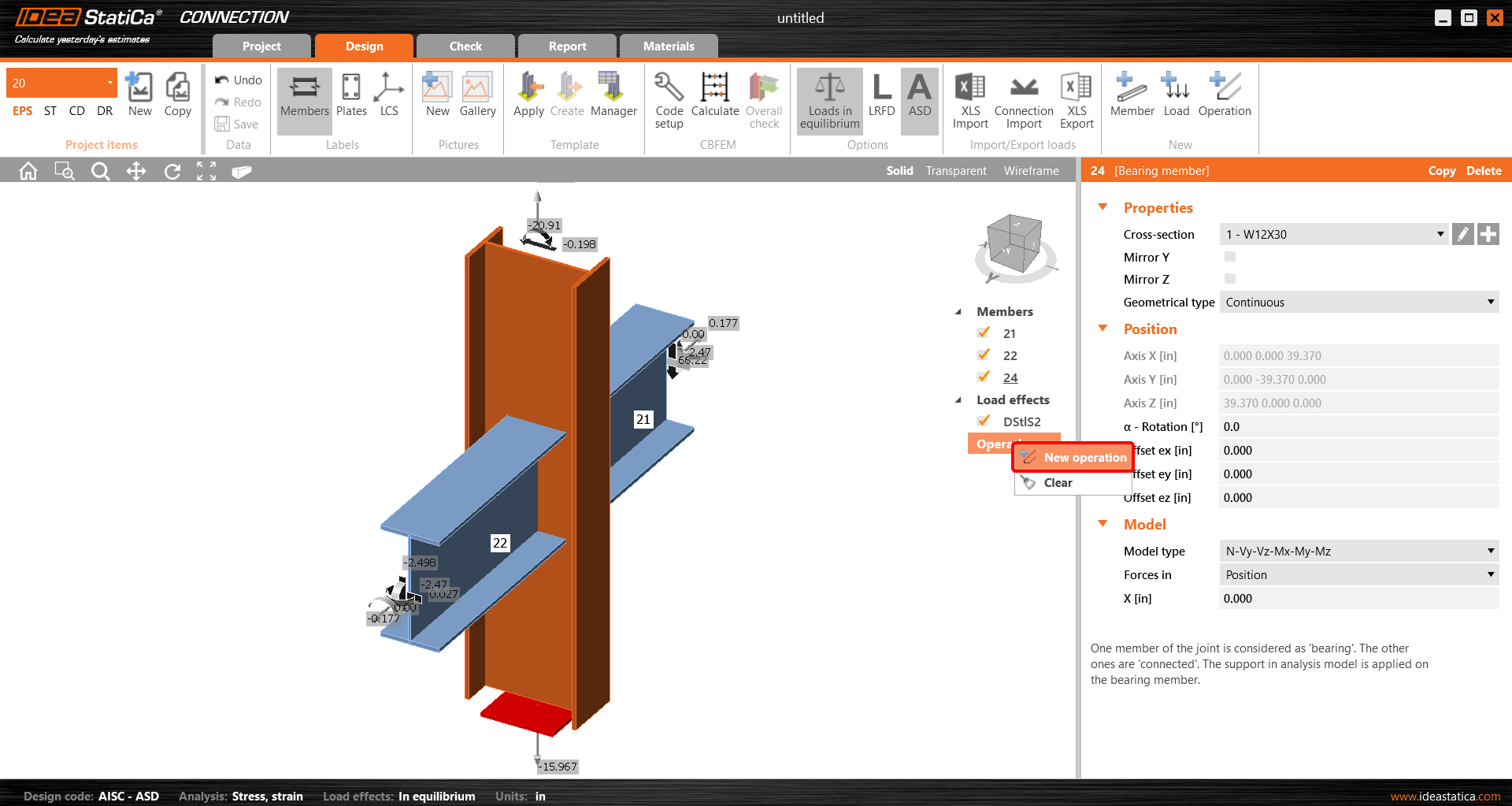
And you add the operation Cleat.


And set the properties of CLEAT1 as follows:

You can check the design of this simple joint.

4 Check
The analysis based on CBFEM is started by the icon Calculate from the top ribbon. The analysis model is automatically generated, the calculation is performed, and you can check the results.
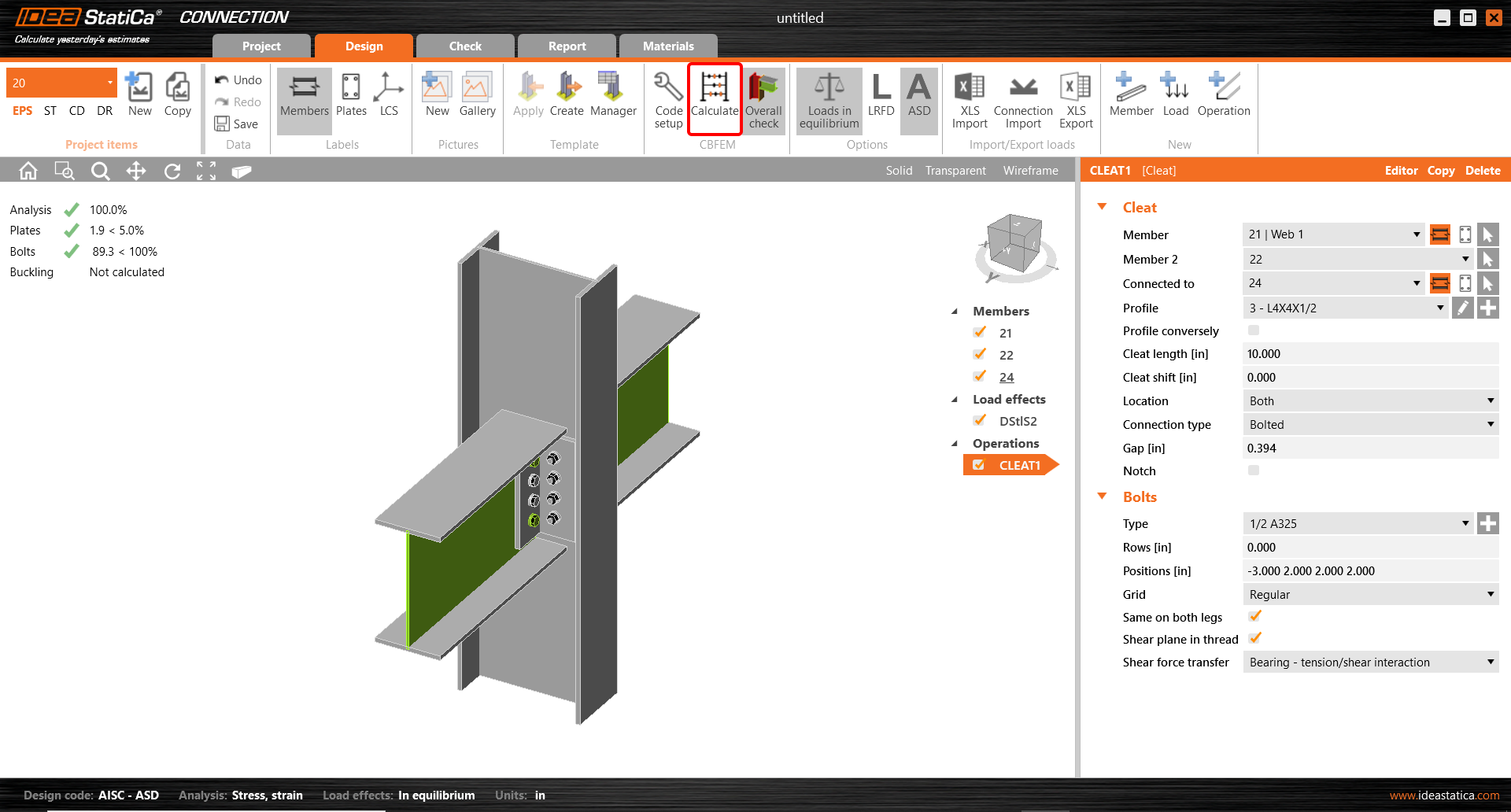
Activate Overall check, Equivalent stress, Mesh and Deformed from the ribbon to get a full picture of what is happening in the joint. Everything is displayed in the 3D window.

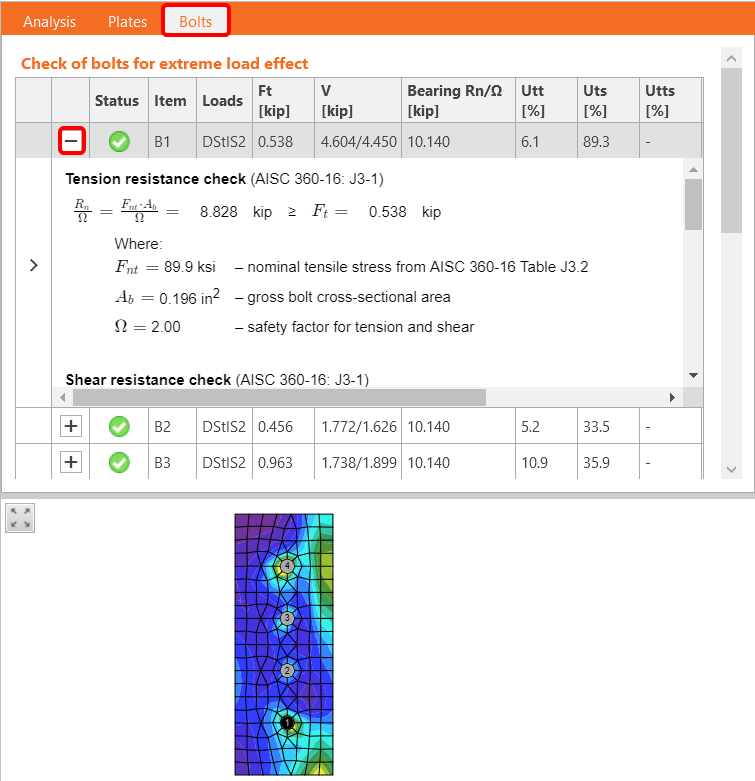
All values can be reviewed in detail in the tables and 2D windows. For example, to display the check of bolts, select the Bolts tab.
5 Report
At last, go to the tab Report. IDEA StatiCa offers a fully customizable report to print out or save in an editable format.

You have imported, designed, and code-checked a steel joint according to AISC.
6 Synchronize models
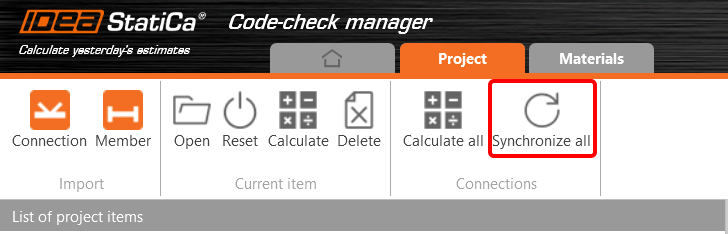
The Code-check manager is a BIM tool to export and synchronize connections from other programs. It is launched directly in the 3rd party applications via a command/icon.
Synchronize all - IDEA StatiCa detects changes in all already imported entities (changes in thickness, changes in cross-section, modification of properties of welds, bolts, etc.) and updates the project in IDEA StatiCa Connection.
Calculate - Synchronize and calculate the current item and provide a new set of results.
Calculate all - Synchronize and calculate all items and provide a new set of results.
Note
Kindly be aware that IDEA StatiCa syncs with a model of the 3rd party application, not the other way around.
Save the project in IDEA StatiCa and close the application Connection. All joints exported from the ETABS project to IDEA StatiCa are kept on the list inside ETABS.
Unlock the model and change the cross-section of member 22 from W12x30 to W12x26.

Run the analysis, select the export command in the upper ribbon, and in the Code-check manager, click on Synchronize.
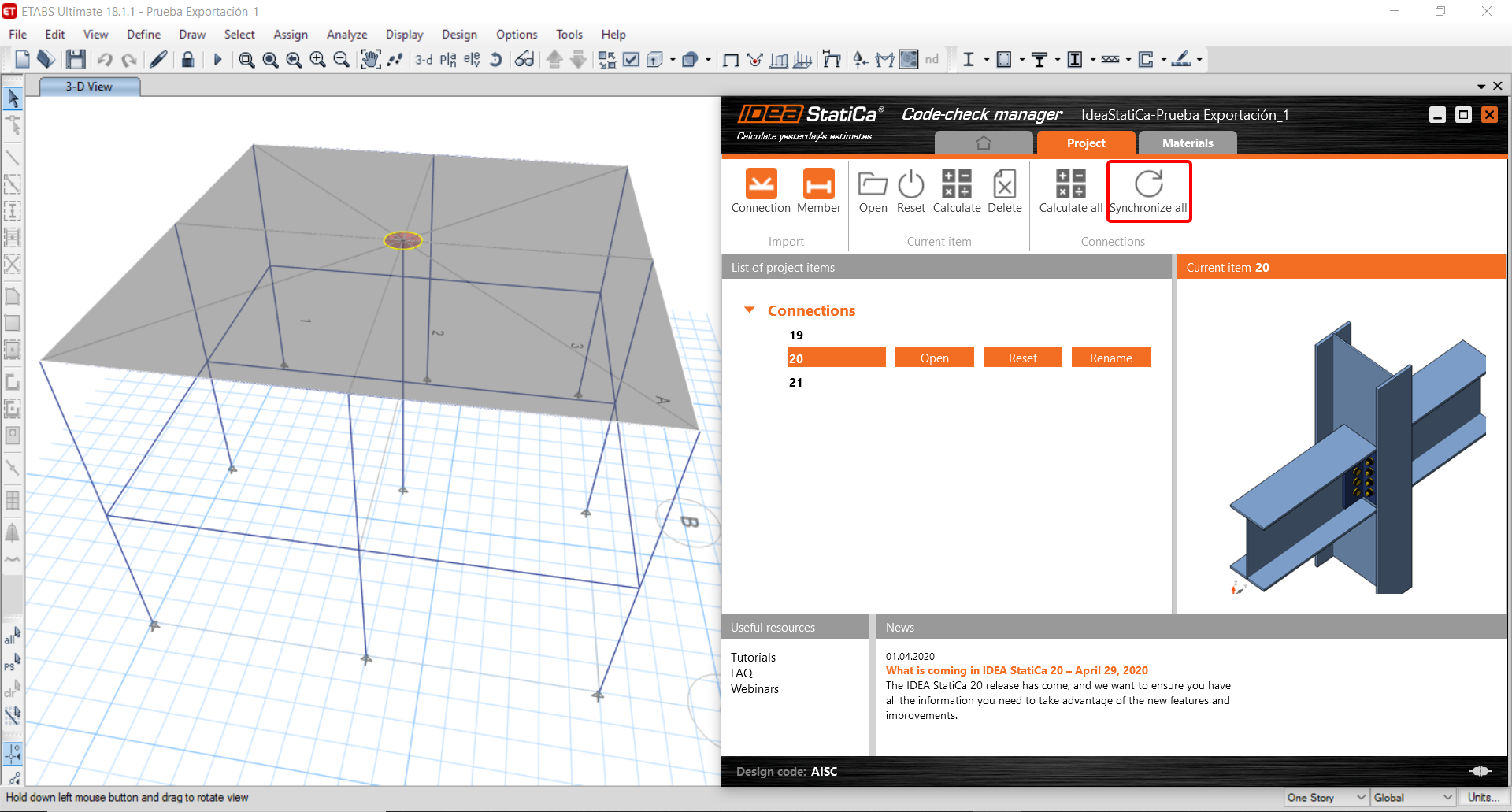
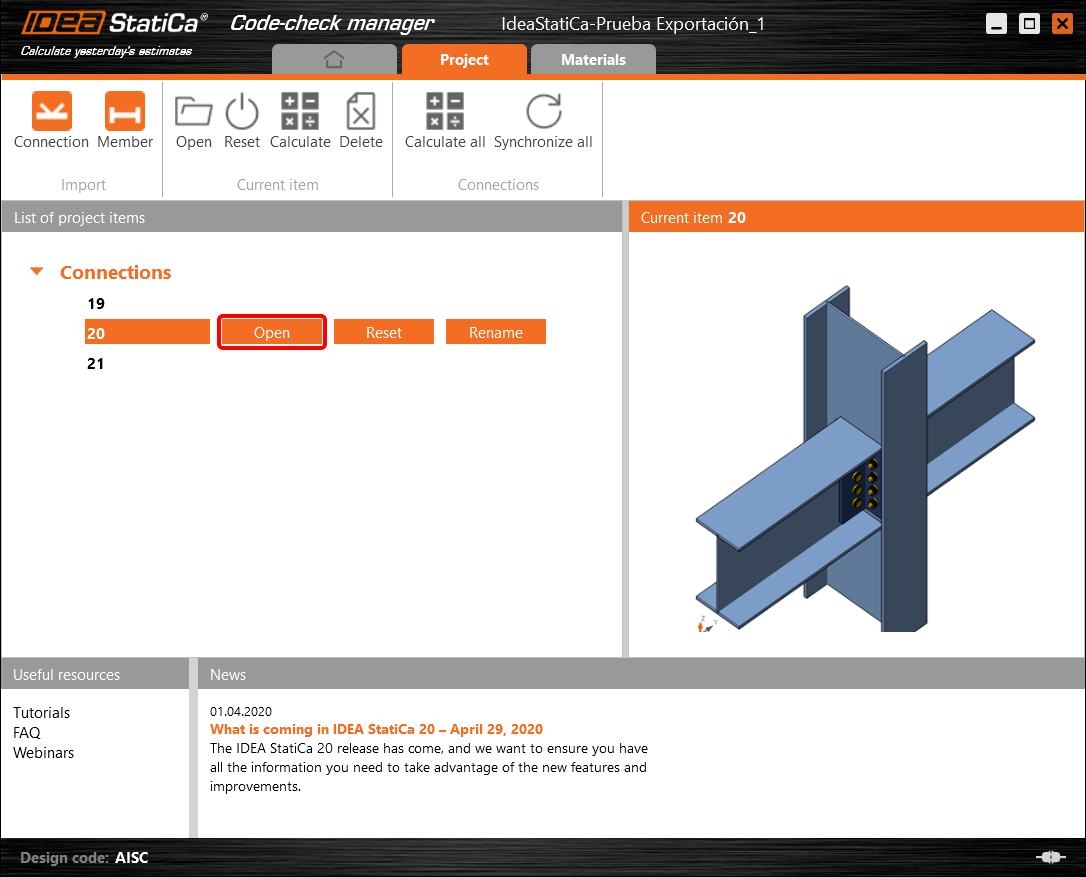
In the next step, you can Open the joint in IDEA StatiCa Connection to explore the changes.
As you can see, the cross-section of the Member 22 has been changed, but all previous operations remained.

You have imported, designed, and code-checked a steel joint according to AISC.
Bekannte Einschränkungen für ETABS und SAP2000
Einschränkungen der Beton-BIM-Verknüpfung
Im Folgenden werden die aktuellen Einschränkungen und Hinweise bei der Verwendung der ETABS/SAP2000-BIM-Verknüpfung mit IDEA StatiCa Checkbot und Detail 2D beschrieben, einschließlich potenzieller Randbedingungen, häufiger Probleme und empfohlener Vorgehensweisen zur Sicherstellung einer korrekten Analyse und Bemessung.
Einschränkung: Import
Wenn ein ETABS-Lastfall Analyseschritte enthält, kann IDEA StatiCa Checkbot nicht alle davon berücksichtigen.
- Es wird empfohlen, gestufte Lastfälle vor dem Import in einzelne Lastfälle aufzuteilen.
Einschränkung: Synchronisierungsfunktion
Bei der Synchronisierung des Modells werden Lastkombinationstypen zurückgesetzt.
- Der Benutzer muss nach jeder Synchronisierung die korrekten Lastkombinationstypen neu zuweisen.
Einschränkung: Erstellung von Detail-Elementen
Die folgenden Einschränkungen gelten bei der Erstellung eines Detail in Checkbot:
- Details können nur für Wandelemente erstellt werden, die in derselben Ebene liegen.
- Wenn die ausgewählten Elemente nicht koplanar sind, tritt ein Fehler auf und es muss eine andere Gruppe von Bauteilen ausgewählt werden.
Einschränkung: Detail-Export
Beim Export eines Detail gelten die folgenden Einschränkungen (in Checkbot wird bei Relevanz eine Warnung angezeigt):
- Gleichmäßige Lasten aus der Ebene, die auf 2D-Bauteile aufgebracht werden, werden nicht an Detail 2D übertragen.
- 2D-Bauteile werden nicht zusammengeführt, wenn sie unterschiedliche Dicken, Materialien oder Belastungswerte in der Ebene aufweisen.
- Lasten aus der Ebene können nicht exportiert werden. Eine Warnung erscheint, wenn die gesamte Randbelastung für einen Lastfall ±1 kN überschreitet.
- Nicht-vertikale 2D-Bauteile sollten nicht an Detail 2D übertragen werden; die Anwendung ist für solche Bauteile nicht geeignet.
Häufige Probleme im Arbeitsablauf
- Konzentrierte Einzellasten können zu Fehlern bei der nichtlinearen Analyse führen. Fügen Sie ein Lastverteilungselement (z. B. Auflagerplatte) hinzu, um die Last zu verteilen.
- Ein grobes ETABS- oder SAP2000-Netz (typisch für globale Modelle) kann Spannungsspitzen verursachen und unrealistische konzentrierte Kräfte sowohl hinsichtlich Wert als auch Position für die Bewehrungsbemessung erzeugen.
- Empfehlung: Das Netz der importierten Wandelemente auf 100 mm x 100 mm anpassen.
- Ein grobes Netz kann auch erhebliche Momente in der Ebene verursachen, die in IDEA StatiCa nicht exakt erfasst werden können.
- Empfehlung: Die Biegesteifigkeit aus der Ebene der importierten Wandelemente auf einen niedrigen Wert setzen, damit die umgebenden tragwerksbezogenen Elemente im globalen Modell die Kräfte aus der Ebene angemessen aufnehmen und weiterleiten können.
- Wenn eine Randpunktlast Zug am Rand erzeugt (z. B. durch horizontale Last), kann die nichtlineare Analyse fehlschlagen.
- Empfehlung: Die Punktlast leicht nach innen verschieben, um eine ordnungsgemäße Betonmitwirkung sicherzustellen.

Einschränkungen der Stahl-BIM-Verknüpfung
Die Verknüpfung funktioniert nun für eine Vielzahl von Verbindungen/Knoten. Bitte beachten Sie jedoch die noch nicht unterstützte Funktionalität:
Einschränkung: Lastimport
Der Import von Lastkombinationen, die andere als lineare Lastkombinationen enthalten, wird nicht unterstützt.
Die Referenzierung einer Lastkombination innerhalb einer anderen Lastkombination wird nicht unterstützt.
Einschränkung: Ausführung der SAP2000- und ETABS-Verknüpfungen mit IDEA StatiCa 22.1.
Problematische Versionen:
- SAP2000 24.1.0
- ETABS 20.3.0
Problembeschreibung:
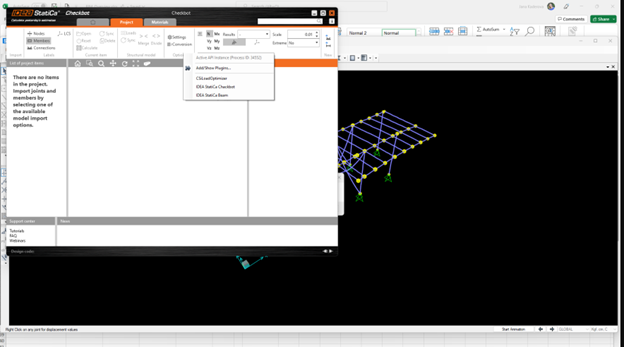
Der neue Patch von SAP2000 24.1.0 funktioniert nicht mit der aktuellen IDEA 22.1. Wenn Sie Checkbot über das Menü starten, sieht es wie folgt aus und es kann nichts ausgeführt/angeklickt werden.
Lösung:
Dies gilt sowohl für SAP2000 als auch für ETABS (neueste Versionen). Die Problemumgehung besteht darin:
1. Die Konfigurationsdatei (entweder SAP2000.exe.config oder ETABS.exe.config) zu suchen in
C:\Program Files\Computers and Structures\SAP2000 24\
oder
C:\Program Files\Computers and Structures\ETABS 20\
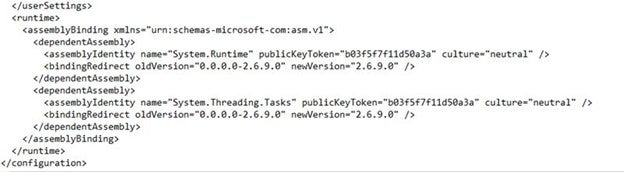
2. Die folgenden Zeilen am Ende der Datei zu löschen und zu speichern (Administratorrechte erforderlich).

Alternativ die Datei auf den Desktop kopieren, dort bearbeiten und anschließend in den ursprünglichen Ordner zurückkopieren.
So sollte die Datei (ihr unterer Teil) nach dem ordnungsgemäßen Löschen der Assembly-Bindung aussehen:
3. Anschließend ist es möglich, Checkbot auszuführen.
Einschränkung: Gleichgewicht
Um das Gleichgewicht in den Knoten sicherzustellen, setzen Sie bitte die End Length Offsets auf 0:


Einschränkung: Vorzeichenkonvention für Schnittgrößen
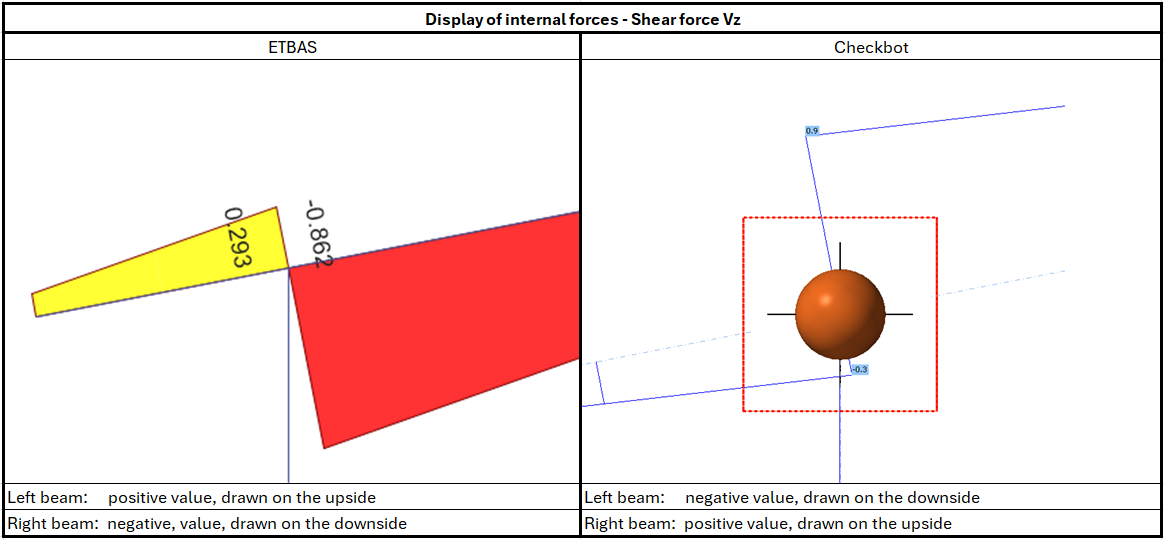
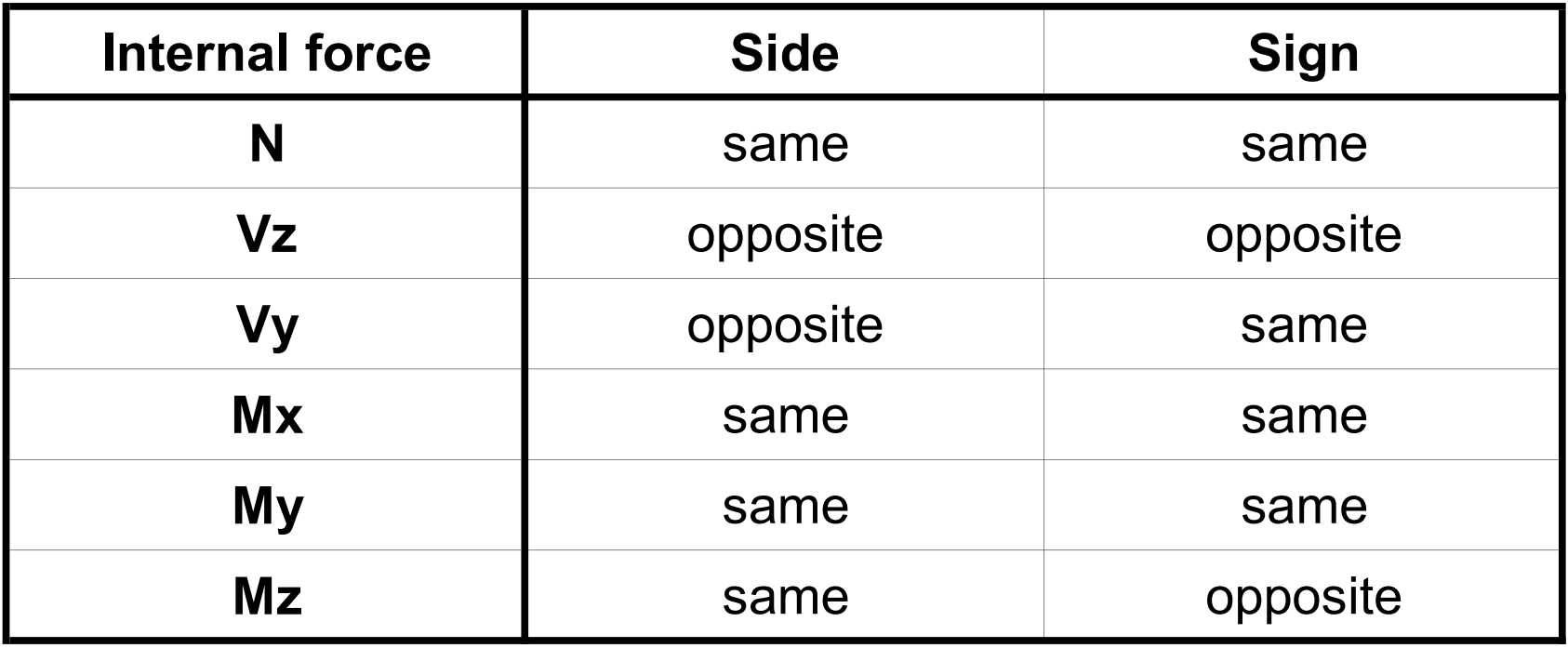
Aufgrund unterschiedlicher Vorzeichenkonventionen in ETABS und in Checkbot werden die Schnittgrößen unterschiedlich dargestellt. Die Lasteffekte werden korrekt aufgebracht, jedoch können die Schnittgrößen mit umgekehrtem Vorzeichen angezeigt und auf der anderen Seite des Trägers dargestellt werden.
Einschränkung: Mehrere Versionen von SAP2000 oder ETABS auf dem Computer installiert
Die ETABS- und SAP2000-API verwendet die COM-Bibliothek, die in der Registry registriert sein muss. Bei der Installation einer neuen Version wird die COM-Registrierung für diese Version automatisch vorgenommen. Wenn Sie anschließend versuchen, die Checkbot-Verknüpfung für eine ältere Version auszuführen, funktioniert dies nicht.
Wenn Sie zwischen diesen beiden Versionen wechseln möchten, müssen Sie:
1) Die Datei „UnregisterSAP2000.exe" oder „UnregisterETABS.exe" im Ordner der neueren Version als Administrator ausführen.
2) Anschließend die Datei „RegisterSAP2000.exe" oder „RegisterETABS.exe" im Ordner der älteren Version als Administrator ausführen.