

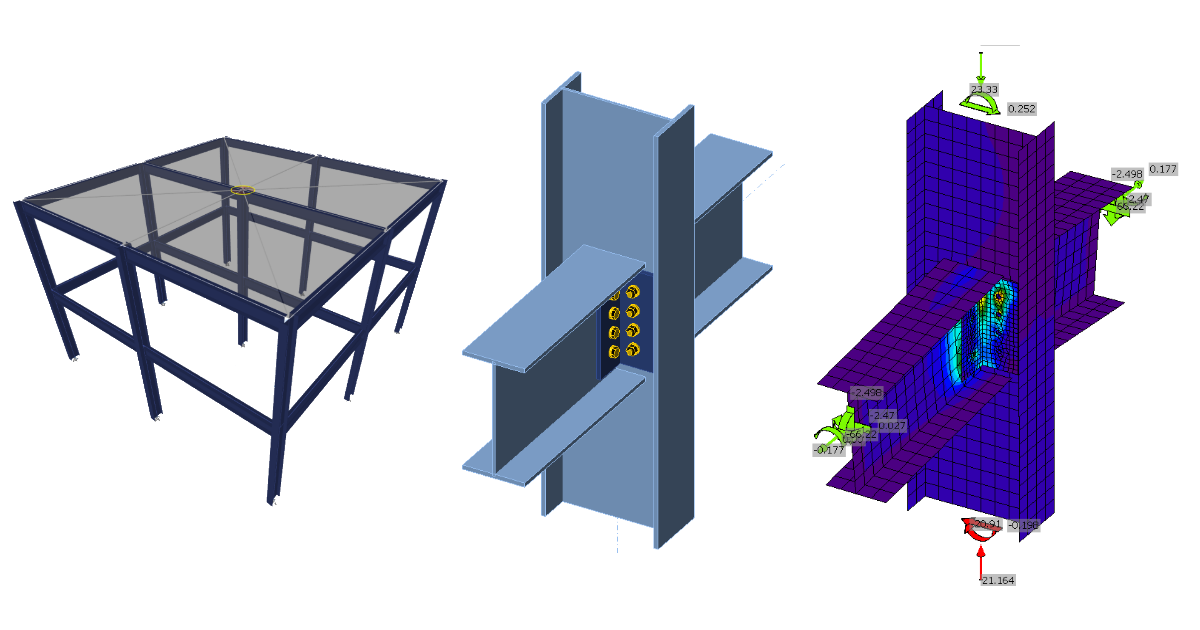
ETABS BIM link for steel connection design (AISC)
1 How to activate the link
- Install the latest version of IDEA StatiCa
- Make sure you are using a supported version of ETABS – updates are published in the BIM section of the main website
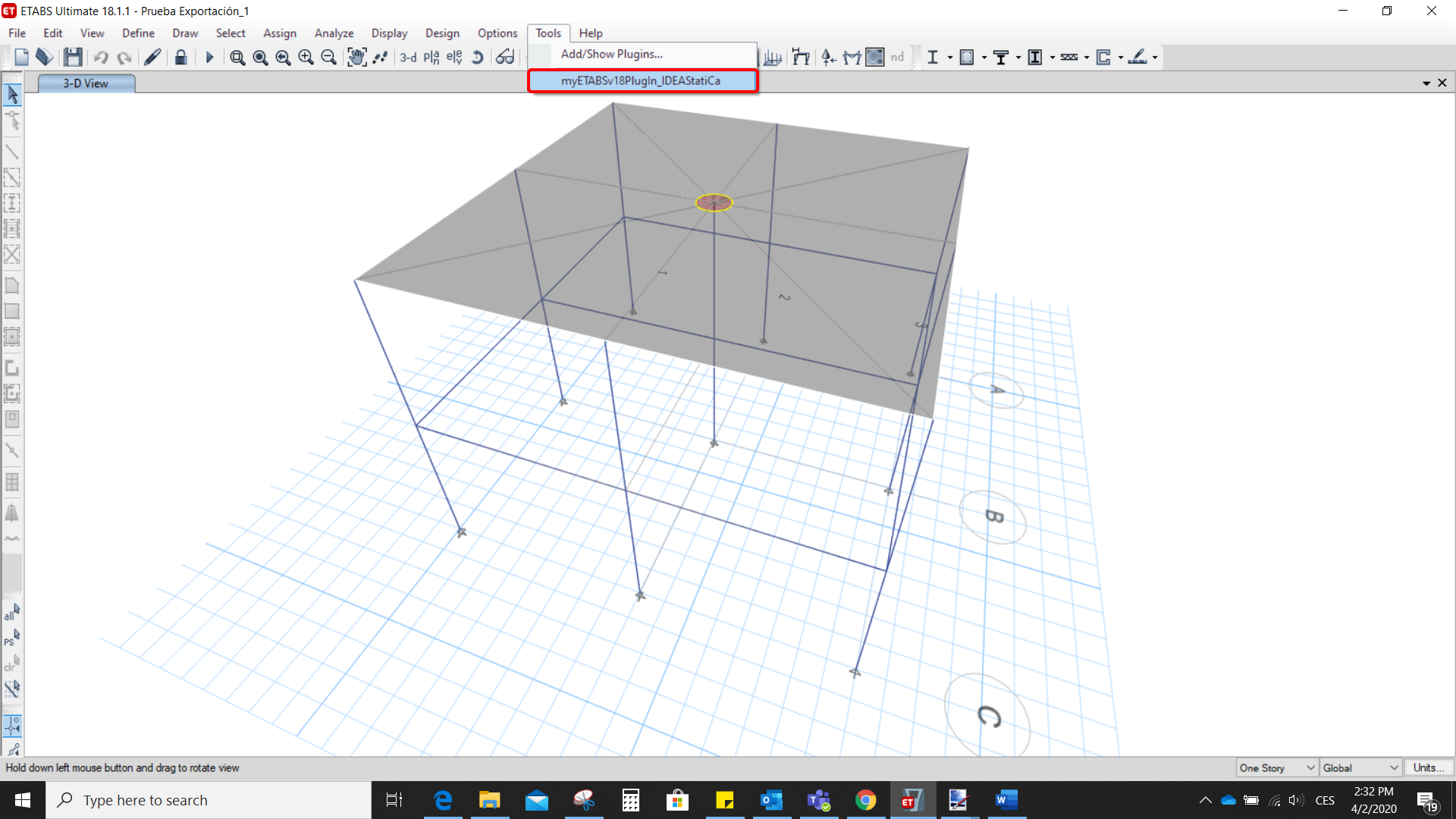
After installation of both programs, start ETABS and Click Tools > Add/Show Plugins to open the Plugin Manager dialog. This option lets you install and add add-ins (programs) to the appropriate places in the ETABS menu.
Browse for
C:\Program Files\IDEA StatiCa\StatiCa 20.0\ETABSv18PlugIn_IDEAStatiCa.dll
and click Add

2 How to use the link
Open the attached project in ETABS and run the analysis.
Go to the menu item Tools and run the export command you have just defined.
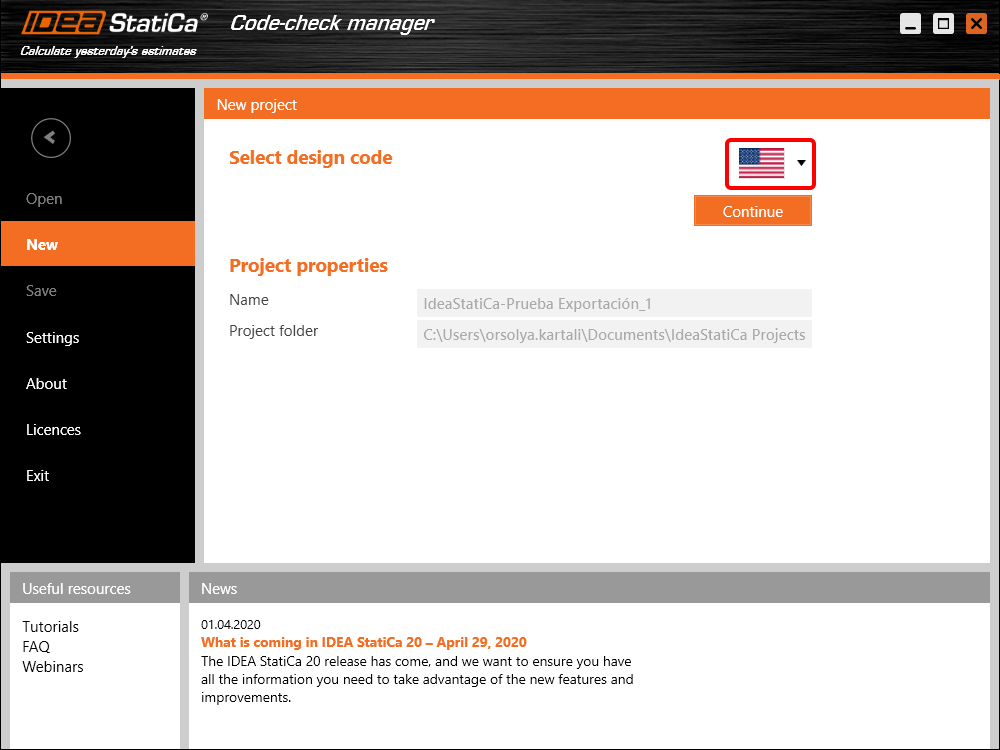
The Code-check manager opens and at first, you need to choose the code.
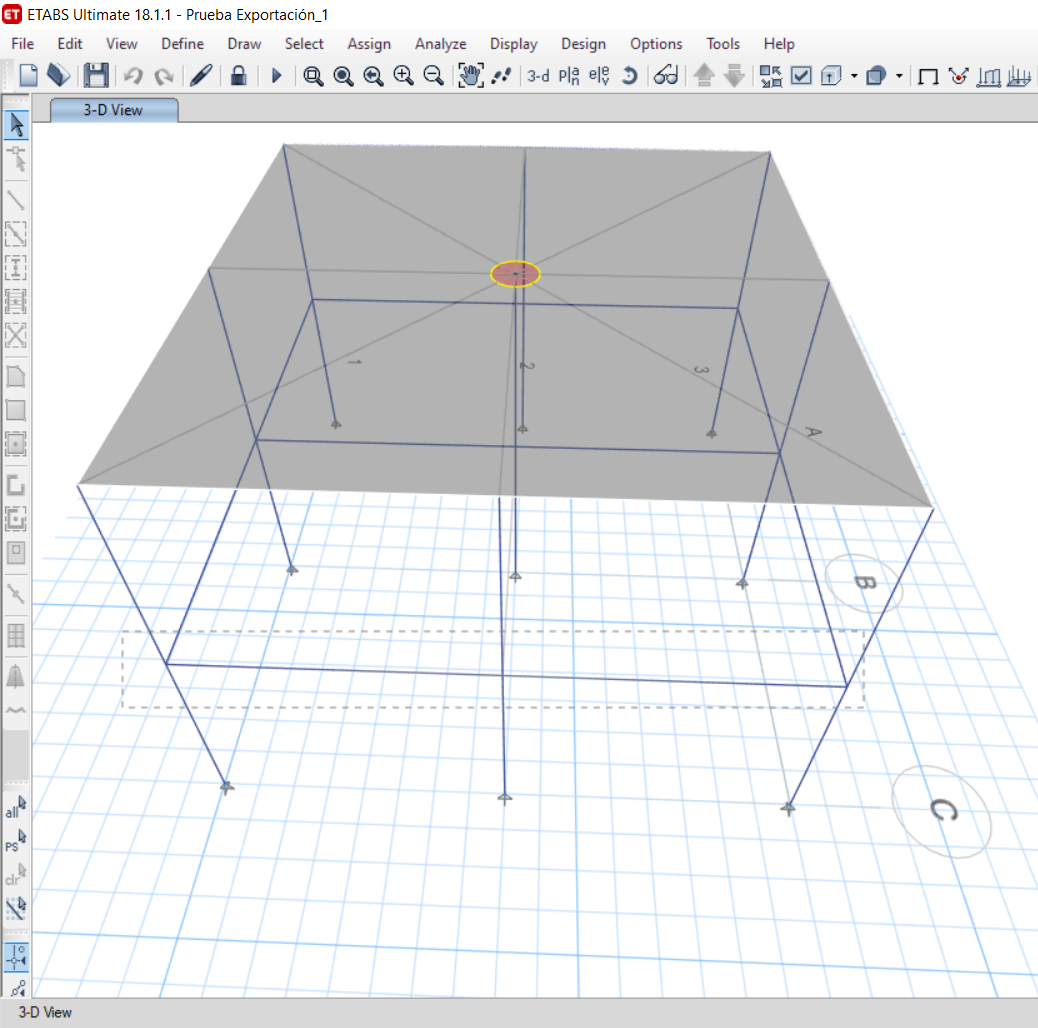
Then you can make a rectangular selection in the ETABS project to choose which joints you want to export. You can export more joints at once using the multiple selections.
If the joints are selected, you can click on the Connection button in the Code-check manager. With this, all the selected joints from ETABS will be imported into the Code-check manager.
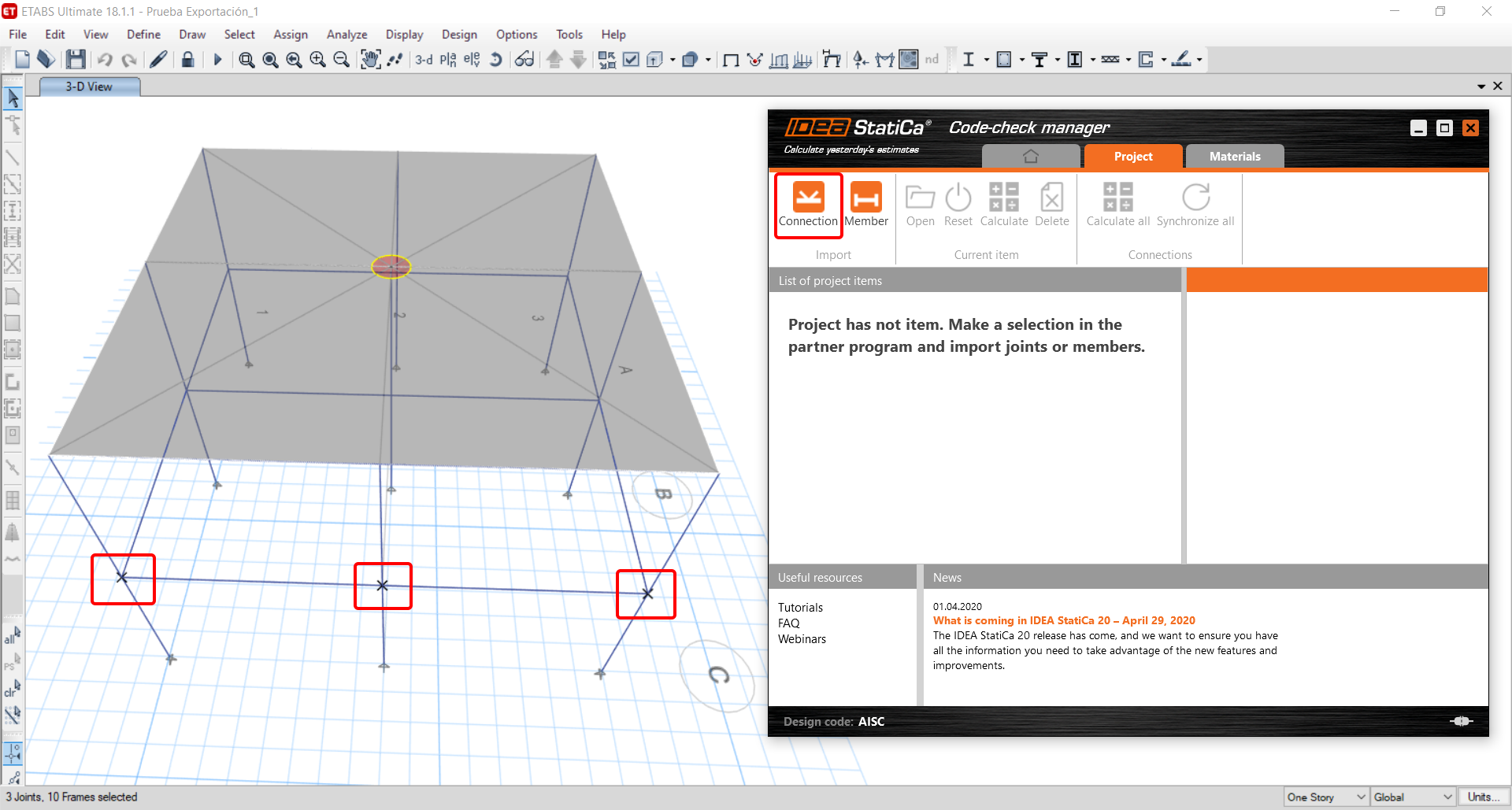
The next thing you need to do is to configure the joints in the Code-check manager. In this tutorial, you will only focus on one of the three imported joints, but the process would be the same for all of them.
You click on the joint on the left side (joint 20). On the right side, you can see the scheme of the joint, you can set the bearing member and merge the continuous members. After that, click on the Finish button to complete the configuration of the joint.
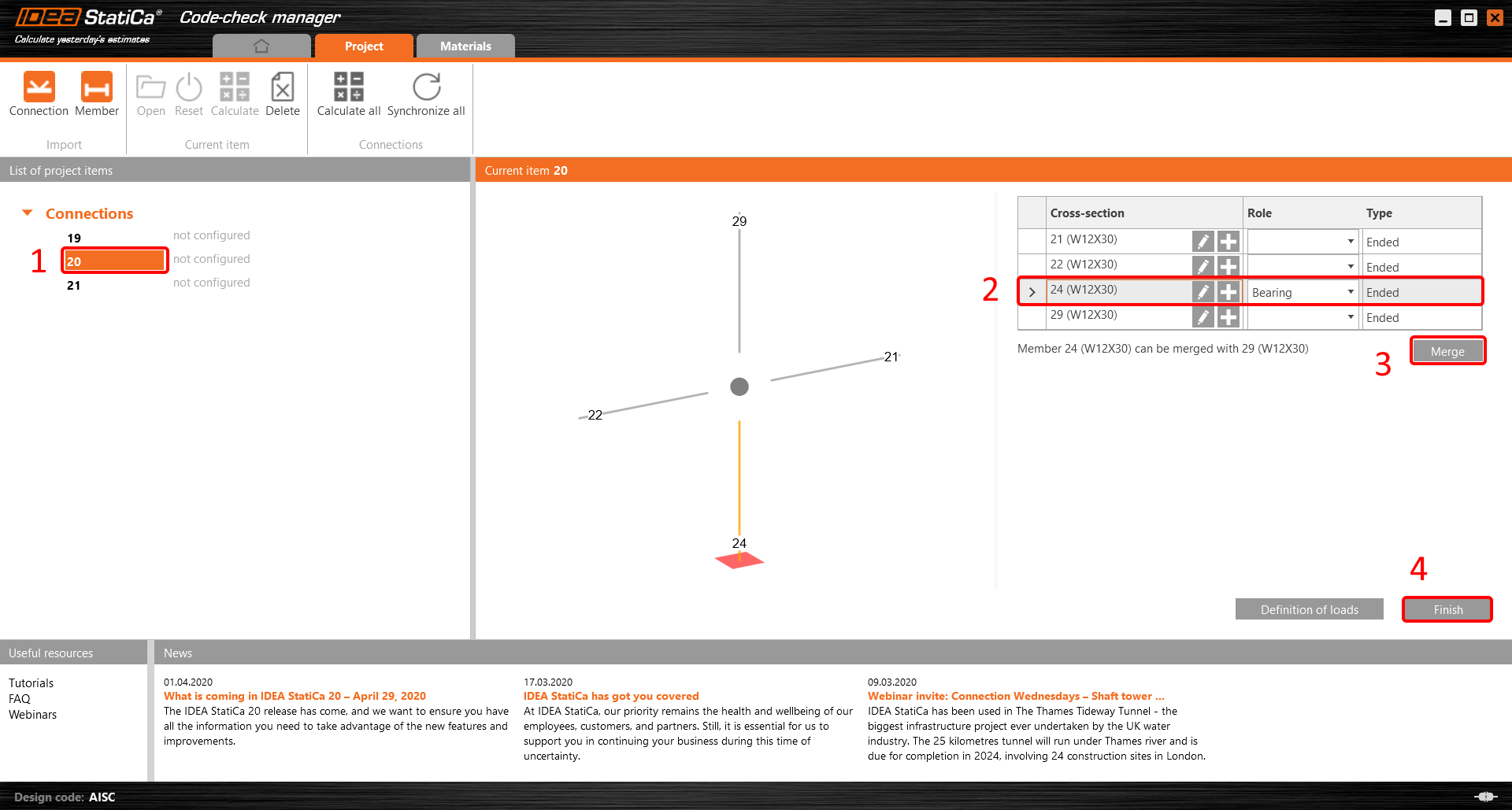
The joint is now ready to be opened in IDEA StatiCa Connection for the CBFEM analysis.

3 Design
Automatic data transfer is started and IDEA StatiCa Connection with a generated project is launched. All members and load effects were added automatically.
This tutorial works with imperial units. If you use metric units, you can switch them to imperial by clicking on the unit in the bottom part of the window.

Now you will define a set of manufacturing operations to model the connection between members. In the items tree, you right-click on Operations and select the option New operation.
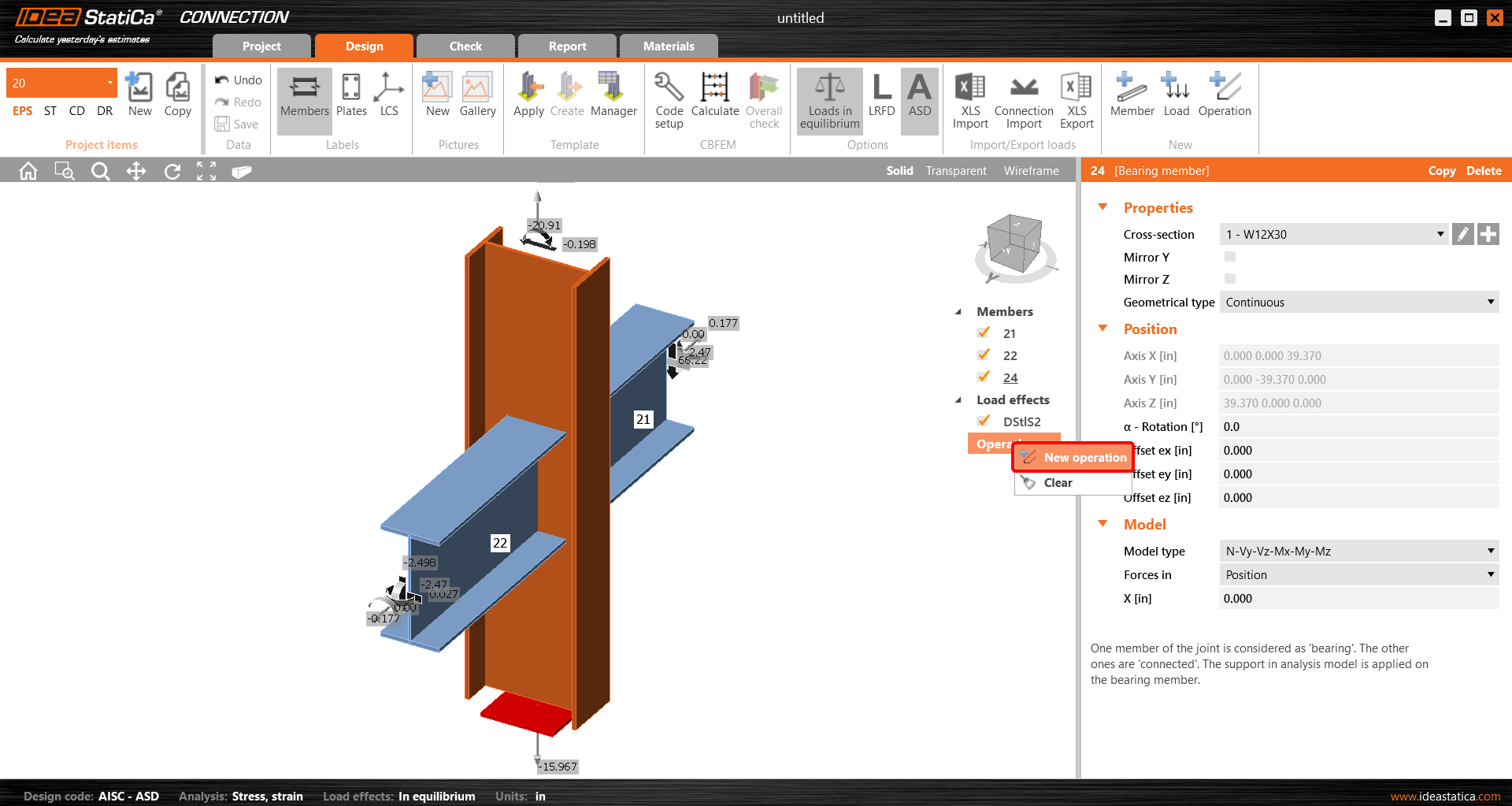
And you add the operation Cleat.


And set the properties of CLEAT1 as follows:

You can check the design of this simple joint.

4 Check
The analysis based on CBFEM is started by the icon Calculate from the top ribbon. The analysis model is automatically generated, the calculation is performed, and you can check the results.
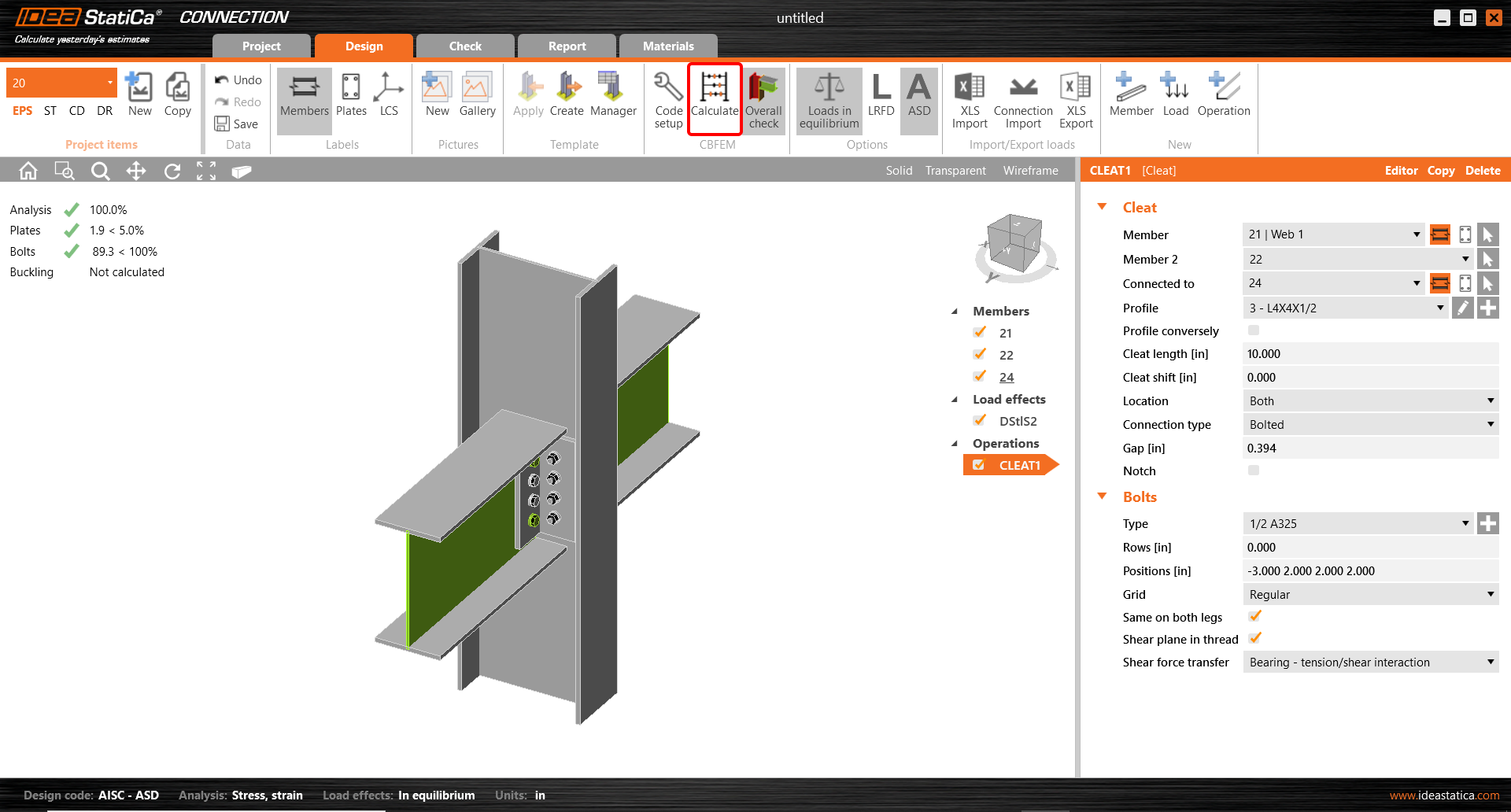
Activate Overall check, Equivalent stress, Mesh and Deformed from the ribbon to get a full picture of what is happening in the joint. Everything is displayed in the 3D window.

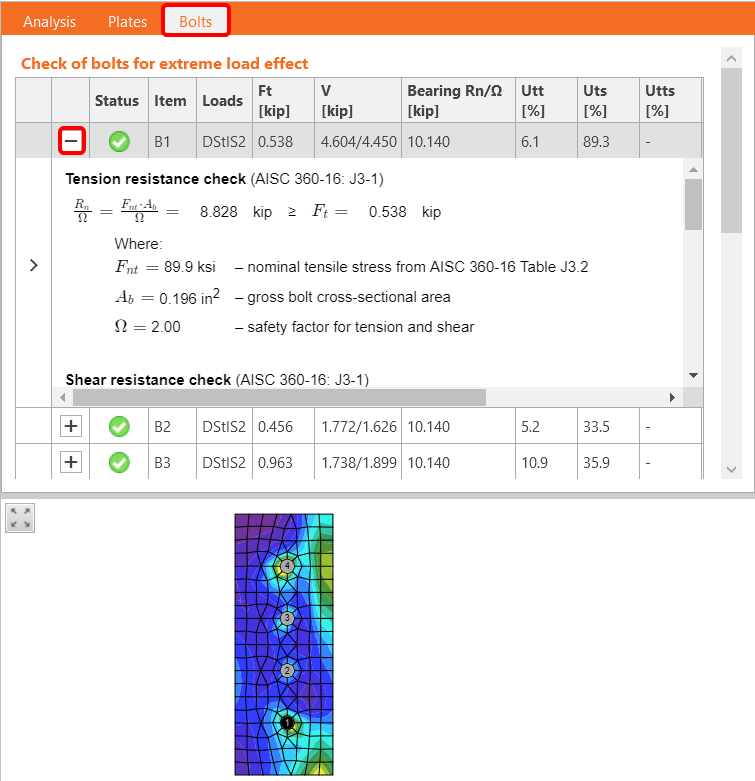
All values can be reviewed in detail in the tables and 2D windows. For example, to display the check of bolts, select the Bolts tab.
5 Report
At last, go to the tab Report. IDEA StatiCa offers a fully customizable report to print out or save in an editable format.

You have imported, designed, and code-checked a steel joint according to AISC.
6 Synchronize models
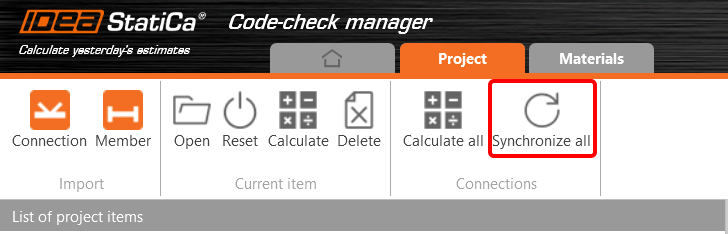
The Code-check manager is a BIM tool to export and synchronize connections from other programs. It is launched directly in the 3rd party applications via a command/icon.
Synchronize all - IDEA StatiCa detects changes in all already imported entities (changes in thickness, changes in cross-section, modification of properties of welds, bolts, etc.) and updates the project in IDEA StatiCa Connection.
Calculate - Synchronize and calculate the current item and provide a new set of results.
Calculate all - Synchronize and calculate all items and provide a new set of results.
Note
Kindly be aware that IDEA StatiCa syncs with a model of the 3rd party application, not the other way around.
Save the project in IDEA StatiCa and close the application Connection. All joints exported from the ETABS project to IDEA StatiCa are kept on the list inside ETABS.
Unlock the model and change the cross-section of member 22 from W12x30 to W12x26.

Run the analysis, select the export command in the upper ribbon, and in the Code-check manager, click on Synchronize.
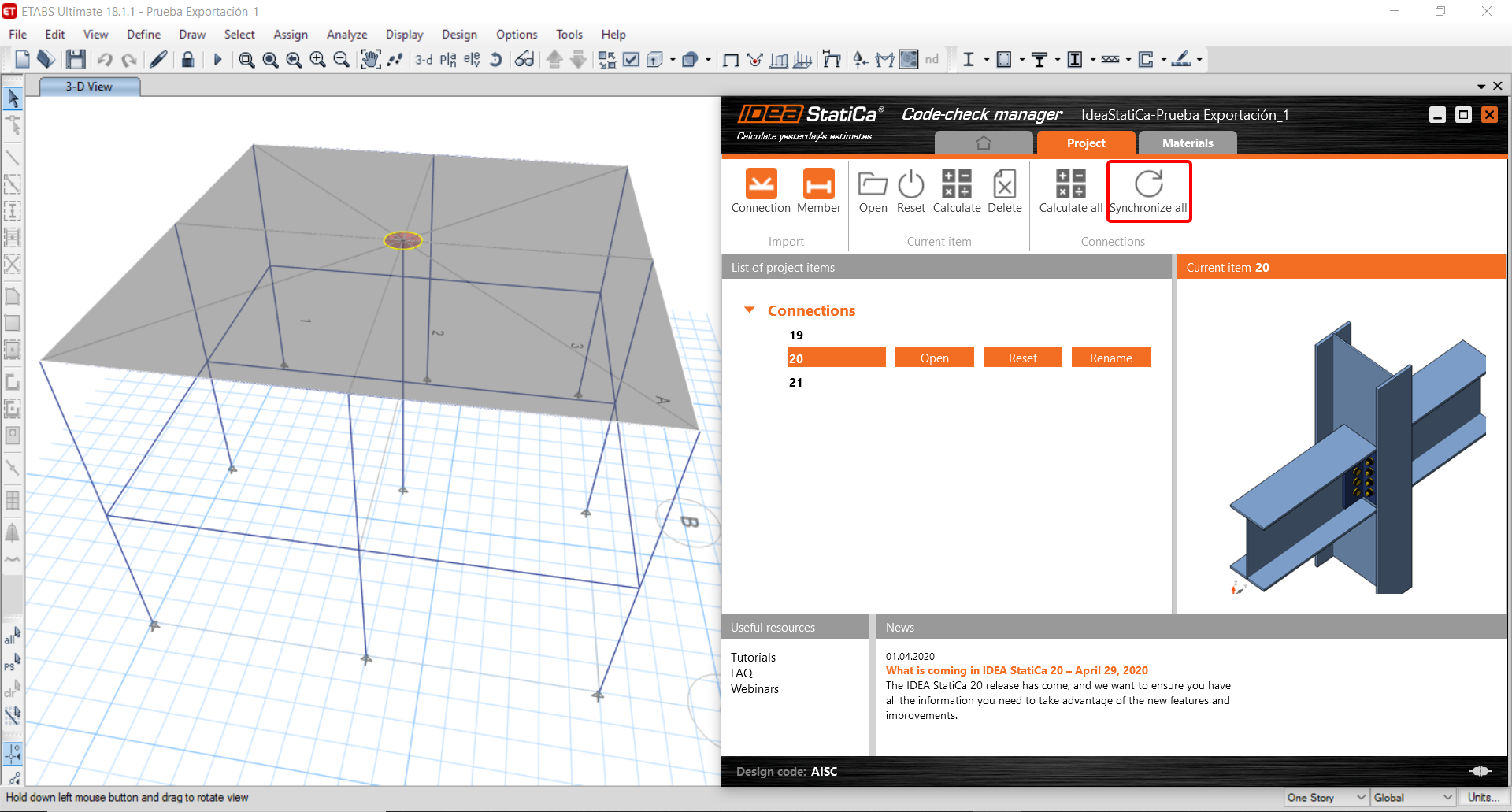
In the next step, you can Open the joint in IDEA StatiCa Connection to explore the changes.
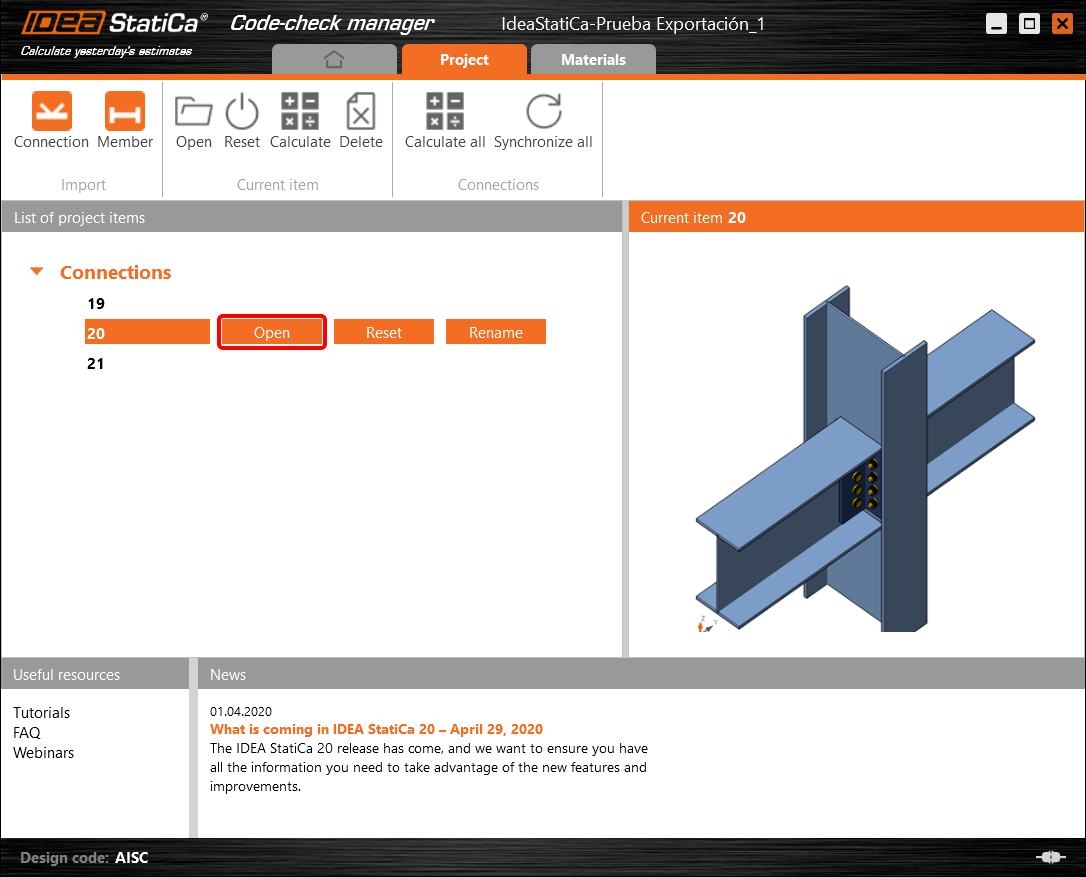
As you can see, the cross-section of the Member 22 has been changed, but all previous operations remained.

You have imported, designed, and code-checked a steel joint according to AISC.
Limitazioni note per ETABS e SAP2000
Limitazioni del collegamento BIM per il calcestruzzo
Di seguito sono descritte le attuali limitazioni e considerazioni nell'utilizzo del collegamento BIM ETABS/SAP2000 con IDEA StatiCa Checkbot e Detail 2D, evidenziando i potenziali vincoli, i problemi comuni e le pratiche raccomandate per garantire un'analisi e una progettazione accurate.
Limitazione: Importazione
Se un caso di carico ETABS contiene passi di analisi, IDEA StatiCa Checkbot non sarà in grado di considerarli tutti.
- Si raccomanda di separare i casi di carico a passi in casi di carico individuali prima dell'importazione.
Limitazione: Funzionalità di sincronizzazione
Durante la sincronizzazione del modello, i tipi di combinazione di carico vengono reimpostati.
- L'utente deve riassegnare i tipi di combinazione di carico corretti dopo ogni sincronizzazione.
Limitazione: Creazione dell'elemento Detail
Le seguenti limitazioni si applicano durante la creazione di un Detail in Checkbot:
- I Detail possono essere creati solo per elementi parete giacenti sullo stesso piano.
- Se gli elementi selezionati non sono complanari, si verificherà un errore e sarà necessario selezionare un diverso insieme di elementi.
Limitazione: Esportazione Detail
Durante l'esportazione di un Detail, si applicano le seguenti limitazioni (in Checkbot verrà visualizzato un avviso quando pertinente):
- I carichi uniformi fuori piano applicati agli elementi 2D non vengono trasferiti a Detail 2D.
- Gli elementi 2D non verranno uniti se presentano spessori diversi, materiali diversi o valori di carico nel piano diversi.
- Il carico fuori piano non può essere esportato. Verrà visualizzato un avviso se il carico totale sul bordo per un caso di carico supera ±1 kN.
- Gli elementi 2D non verticali non dovrebbero essere trasferiti a Detail 2D; l'applicazione non è adatta a tali elementi.
Problemi comuni nel flusso di lavoro
- I carichi concentrati puntuali possono causare errori nell'analisi non lineare. Aggiungere un dispositivo di trasferimento (ad es. piastra di appoggio) per distribuire il carico.
- Una mesh grossolana di ETABS o SAP2000 (tipica dei modelli globali) può causare picchi di tensione e produrre forze concentrate non realistiche sia in valore che in posizione per la progettazione dell'armatura.
- Raccomandazione: Modificare la mesh a 100 mm x 100 mm per gli elementi parete importati.
- Una mesh grossolana può anche causare momenti nel piano significativi che non possono essere catturati accuratamente in IDEA StatiCa.
- Raccomandazione: Impostare la rigidezza fuori piano degli elementi parete importati a un valore basso in modo che gli elementi strutturali circostanti nel modello globale possano adeguatamente assorbire e trasferire le forze fuori piano.
- Se un carico puntuale sul bordo genera trazione sul bordo (ad es. da carico laterale), l'analisi non lineare potrebbe non convergere.
- Raccomandazione: Spostare leggermente il carico puntuale verso l'interno per garantire un corretto coinvolgimento del calcestruzzo.

Limitazioni del collegamento BIM per l'acciaio
Il collegamento funziona ora per un'ampia varietà di collegamenti/giunti. Tuttavia, si prega di tenere in considerazione le funzionalità ancora non supportate:
Limitazione: Importazione dei carichi
Non è supportata l'importazione di combinazioni di carico che contengono combinazioni di carico con aggiunta non lineare.
Non è supportato il riferimento a una combinazione di carico all'interno di un'altra combinazione di carico.
Limitazione: Come eseguire i collegamenti SAP2000 e ETABS con IDEA StatiCa 22.1.
Versioni problematiche:
- SAP2000 24.1.0
- ETABS 20.3.0
Descrizione del problema:
La nuova patch di SAP2000 24.1.0 non funziona con l'ultima versione di IDEA 22.1. Quando si avvia Checkbot dal menu, appare come segue e non è possibile eseguire alcuna azione/clic.
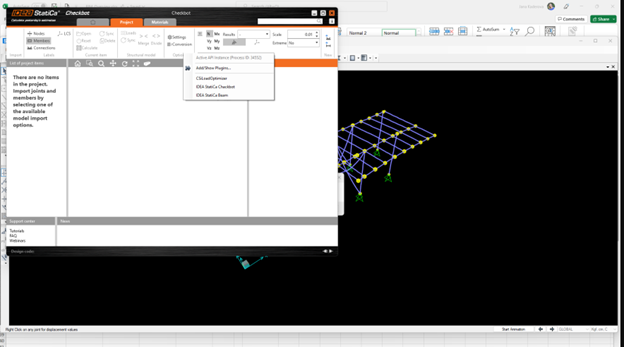
Soluzione:
Questo vale anche per SAP2000 e ETABS (versioni più recenti). La soluzione alternativa consiste nel:
1. Individuare il file di configurazione (SAP2000.exe.config o ETABS.exe.config) in
C:\Program Files\Computers and Structures\SAP2000 24\
oppure
C:\Program Files\Computers and Structures\ETABS 20\
2. Eliminare le seguenti righe dal fondo del file e salvarlo (richiede diritti di amministratore).

In alternativa, copiare il file sul desktop, modificarlo lì e copiarlo nuovamente nella cartella originale.
Ecco come dovrebbe apparire il file (nella sua parte inferiore) dopo che il binding dell'assembly è stato correttamente eliminato:
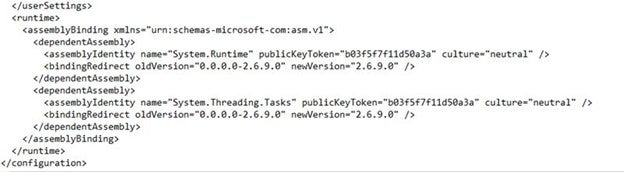
3. A questo punto è possibile avviare Checkbot.
Limitazione: Equilibrio
Per garantire l'equilibrio nei nodi, impostare gli End Length Offsets a 0:


Limitazione: Convenzione dei segni per le forze interne
A causa delle diverse convenzioni dei segni in ETABS e in Checkbot, le forze interne vengono visualizzate in modo diverso. Gli effetti del carico vengono applicati correttamente, ma le forze interne possono essere visualizzate con segno opposto e tracciate sull'altro lato della trave.
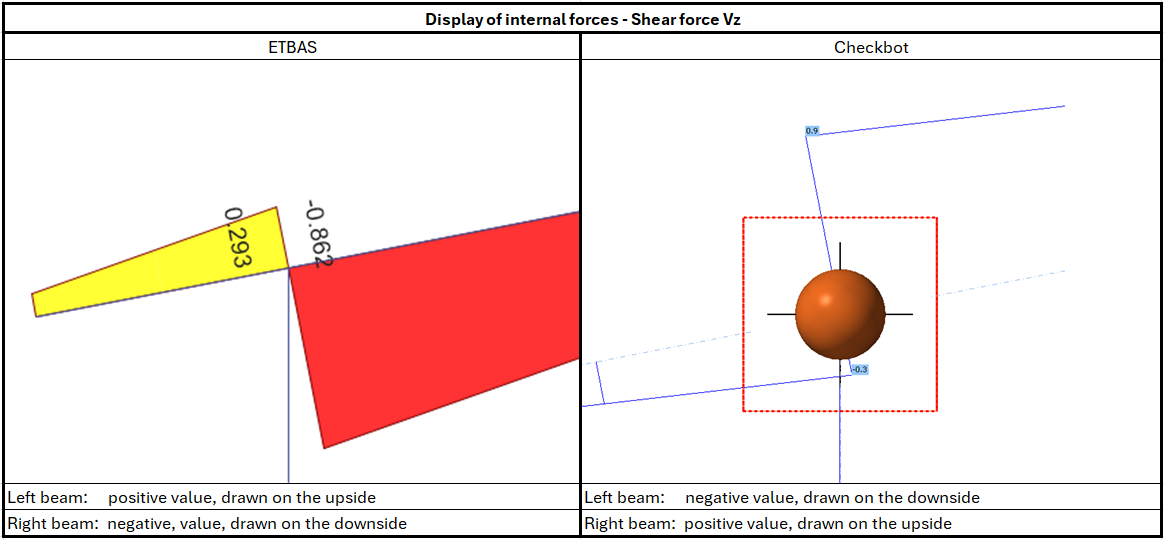
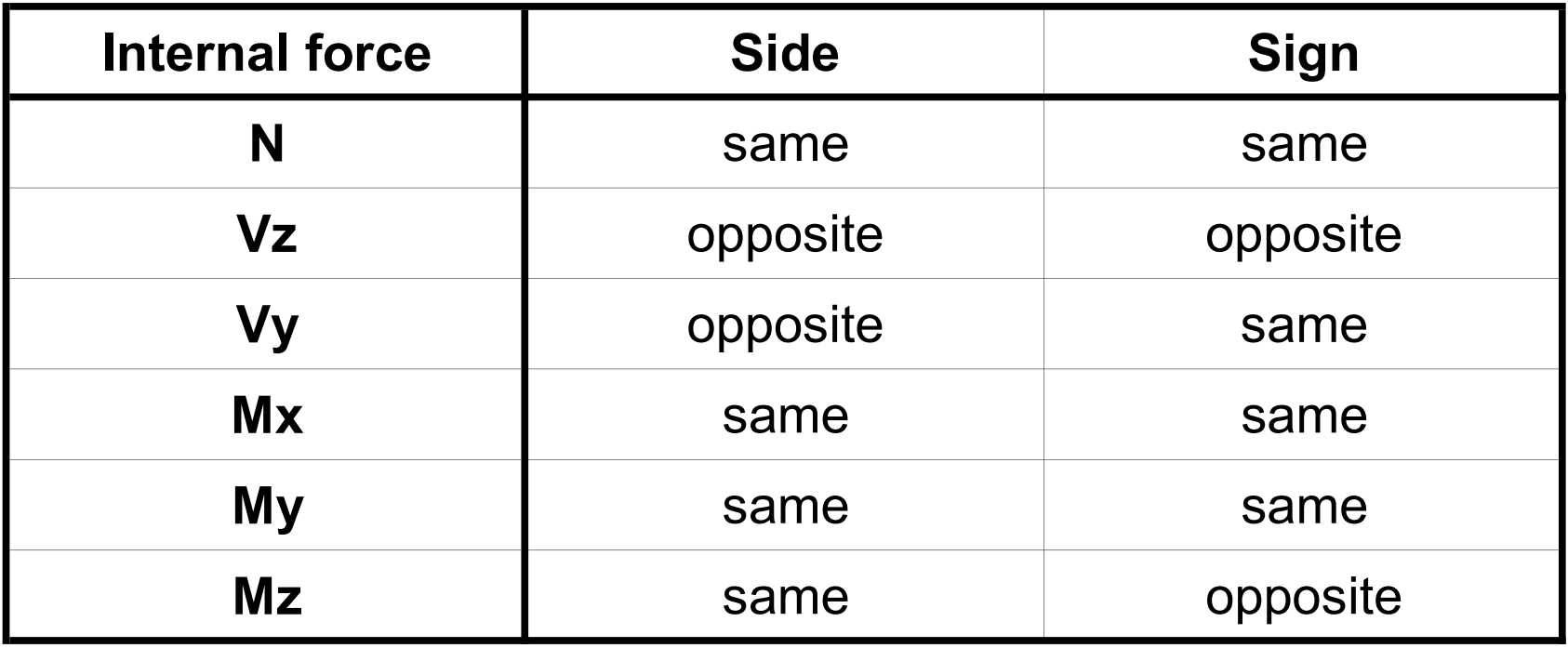
Limitazione: Più versioni di SAP2000 o ETABS installate sul computer
Le API di ETABS e SAP2000 utilizzano la libreria COM, che deve essere registrata nel registro di sistema. Quando si installa una nuova versione, durante l'installazione il COM per quella versione viene registrato automaticamente. Pertanto, quando si tenta di eseguire il collegamento Checkbot per la versione precedente, questo non funziona.
Per passare da una versione all'altra, è necessario:
1) Eseguire come amministratore "UnregisterSAP2000.exe" o "UnregisterETABS.exe" nella cartella della versione più recente.
2) Quindi eseguire come amministratore "RegisterSAP2000.exe" o "RegisterETABS.exe" nella cartella della versione precedente.