


Como enviar os ficheiros de diagnóstico (log)
Existem três tipos de diagnósticos em diferentes ficheiros que pode ser solicitado a enviar ao suporte da IDEA StatiCa para investigação de um problema técnico.
Por favor, envie sempre os ficheiros de log da IDEA StatiCa.
Apenas se for solicitado pelo suporte técnico, envie também os registos do Visualizador de Eventos do Windows e os ficheiros Crash Dump.
1) Como encontrar os ficheiros de log da IDEA StatiCa
Registos de ações e erros durante o trabalho nas aplicações, por exemplo, uma mensagem de erro que aparece ao modelar uma ligação na aplicação Connection.
Para encontrar os registos, abra o Explorador de Ficheiros do Windows e copie/cole o seguinte caminho:
%LOCALAPPDATA%\Temp\IdeaStatiCa\Logs
ou navegue manualmente até à pasta C:\Users\NOME DO UTILIZADOR\AppData\Local\Temp\IdeaStatiCa\Logs. Caso não veja a pasta AppData, ative a opção de mostrar itens ocultos nas definições do Windows.

Na pasta Logs, pode encontrar vários ficheiros de log gerados durante ações anteriores realizadas nas aplicações IDEA StatiCa. Por favor, coloque todos num único ficheiro de arquivo (em formato .zip ou .rar) e envie-nos através do Portal do Utilizador (ou do seu revendedor local que lhe presta suporte).

Os ficheiros de log contêm os eventos nos ficheiros de diagnóstico associados aos seus projetos.
Definir o nível de detalhe nos ficheiros de log
Apenas se for especificamente solicitado pelo suporte técnico, poderá ter de aumentar o nível de detalhe registado.
O valor predefinido do nível de log é Information. Se for alterado para Debug ou Trace, são escritos mais detalhes no ficheiro de log. Para o fazer, localize o seguinte ficheiro:
C:\Users\NOME DO UTILIZADOR\AppData\Local\IDEA_RS\IdeaDiagnostics.config
Abra-o no bloco de notas e altere o nível de gravidade das mensagens no ficheiro de log (altere o parâmetro entre aspas " " na linha DefaultLogLevel loglevel=).
<IdeaDiagnosticsSettings>
<DefaultLogLevel loglevel="Information"/>
</IdeaDiagnosticsSettings>
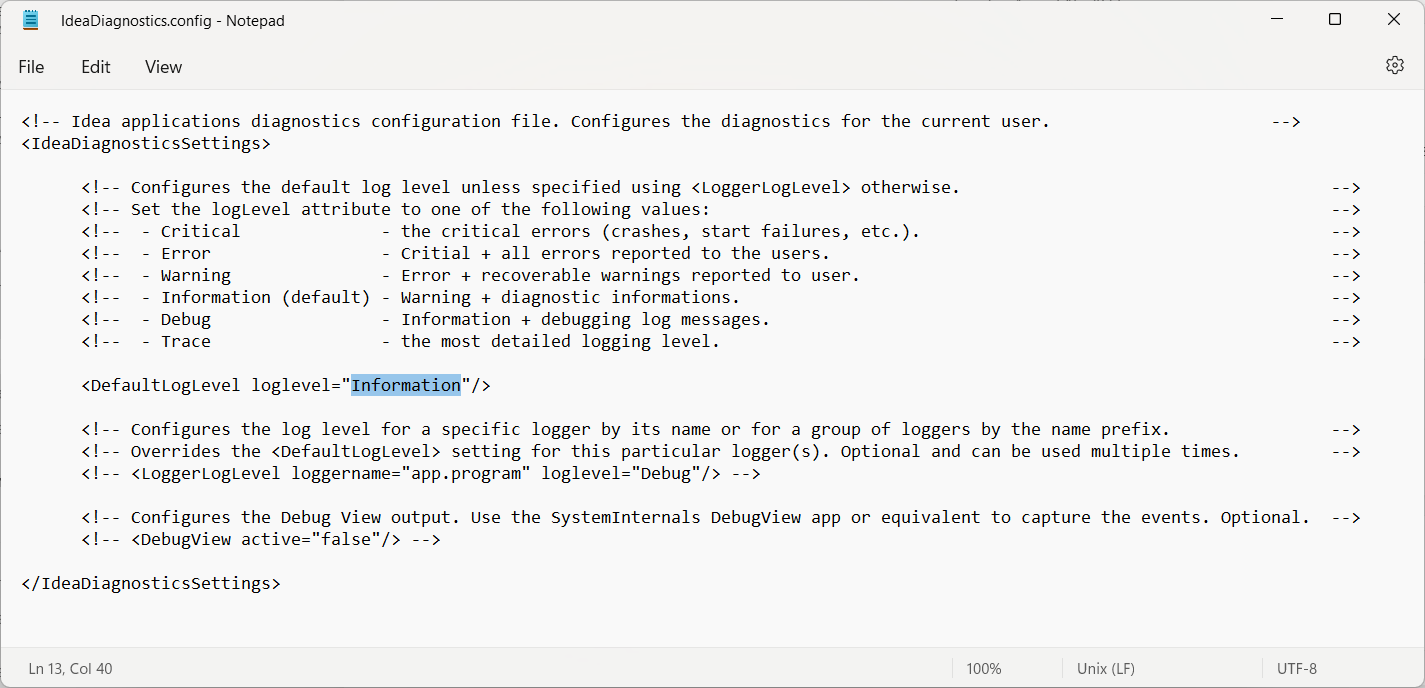
Após alterar o parâmetro loglevel e guardar o ficheiro IdeaDiagnostics.config, execute a ação em investigação no IDEA StatiCa para que o problema ocorra novamente e seja registado nos ficheiros de log. Depois disso, feche o programa e envie-nos os novos ficheiros de log (descritos acima).
2) Como recolher os registos do Visualizador de Eventos do Windows
Registos do sistema de falhas de aplicações, por exemplo, quando a aplicação Connection fecha inesperadamente ou não abre de todo.
Para exportar os registos, siga estes passos:
- Abra o Visualizador de Eventos a partir do menu Iniciar do Windows.
- No painel lateral esquerdo, navegue até Registos do Windows e abra o menu pendente.
- Para exportar os registos de Aplicação, clique com o botão direito em "Application", selecione "Save All Events As..." e atribua um nome adequado ao ficheiro de saída.
- Para exportar os registos do Sistema, clique com o botão direito em "System", selecione "Save All Events As..." e atribua um nome adequado ao ficheiro de saída.

Em casos especiais, pode ser solicitado que exporte os restantes registos (Security, Setup, Forwarded Event). Para exportar estes registos, repita os passos anteriores.
3) Como capturar os ficheiros Crash Dump
Informações adicionais sobre erros durante arranques ou encerramentos podem estar disponíveis nos ficheiros Crash Dump. Para recolher os ficheiros Crash Dump de todas as aplicações no computador:
- Descarregue e descompacte
WerDumpConfiguration.zip. - Crie uma pasta
C:\Dumps. - Abra
WerDumpCapturingOn.rege confirme a adição da recolha de Crash Dump ao Editor de Registo do Windows. - Reproduza o problema com a aplicação IDEA StatiCa. O Windows criará automaticamente um ficheiro dump na pasta
C:\Dumps\.
Tenha em atenção que o ficheiro dump pode ter várias centenas de MB, pelo que deverá comprimi-lo num arquivo .zip antes de o enviar.
Para desativar a recolha dos ficheiros Crash Dump:
- Abra
WerDumpCapturingOff.rege confirme a remoção da recolha de Crash Dump do Editor de Registo do Windows. - Remova a pasta
C:\Dumps.

Se estiver a utilizar o IDEA StatiCa Open Model, contacte o suporte através do nosso repositório GitHub.