


Hogyan küldjük el a diagnosztikai (napló) fájlokat
Háromféle diagnosztikai fájl létezik, amelyeket felkérhetnek Önt, hogy küldjön el az IDEA StatiCa támogatásnak egy technikai probléma kivizsgálásához.
Kérjük, mindig küldje el az IDEA StatiCa naplófájlokat.
Csak akkor küldje el a Windows Eseménynapló naplókat és a Crash Dump fájlokat is, ha a technikai támogatás erre kifejezetten kéri.
1) Hogyan találja meg az IDEA StatiCa naplófájlokat
Az alkalmazásokban végzett munka során végrehajtott műveletek és hibák naplói, pl. hibaüzenet jelenik meg, amikor egy kapcsolatot modellezünk a Connection alkalmazásban.
A naplók megkereséséhez nyissa meg a Windows Fájlkezelőt, és másolja be a következő elérési utat:
%LOCALAPPDATA%\Temp\IdeaStatiCa\Logs
vagy navigáljon manuálisan a következő mappába: C:\Users\FELHASZNÁLÓNÉV\AppData\Local\Temp\IdeaStatiCa\Logs. Ha nem látja az AppData mappát, engedélyezze a rejtett elemek megjelenítését a Windows beállításaiban.

A Logs mappában több naplófájlt találhat, amelyek az IDEA StatiCa alkalmazásokban végzett korábbi műveletek során keletkeztek. Kérjük, tömörítse őket egyetlen archív fájlba (.zip vagy .rar formátumban), és küldje el nekünk a Felhasználói Portálon keresztül (vagy a helyi viszonteladón keresztül, aki a támogatást nyújtja Önnek).

A naplófájlok tartalmazzák a projektjeihez kapcsolódó diagnosztikai fájlokban rögzített eseményeket.
A részletességi szint beállítása a naplófájlokban
Csak akkor, ha a technikai támogatás kifejezetten kéri, előfordulhat, hogy növelnie kell a naplózott részletek szintjét.
A naplószint alapértelmezett értéke Information. Ha ezt Debug vagy Trace értékre változtatja, több részlet kerül a naplófájlba. Ehhez keresse meg a következő fájlt:
C:\Users\FELHASZNÁLÓNÉV\AppData\Local\IDEA_RS\IdeaDiagnostics.config
Nyissa meg Jegyzettömbben, és módosítsa az üzenetek súlyossági szintjét a naplófájlban (változtassa meg a " " zárójelben lévő paramétert a DefaultLogLevel loglevel= sorban).
<IdeaDiagnosticsSettings>
<DefaultLogLevel loglevel="Information"/>
</IdeaDiagnosticsSettings>
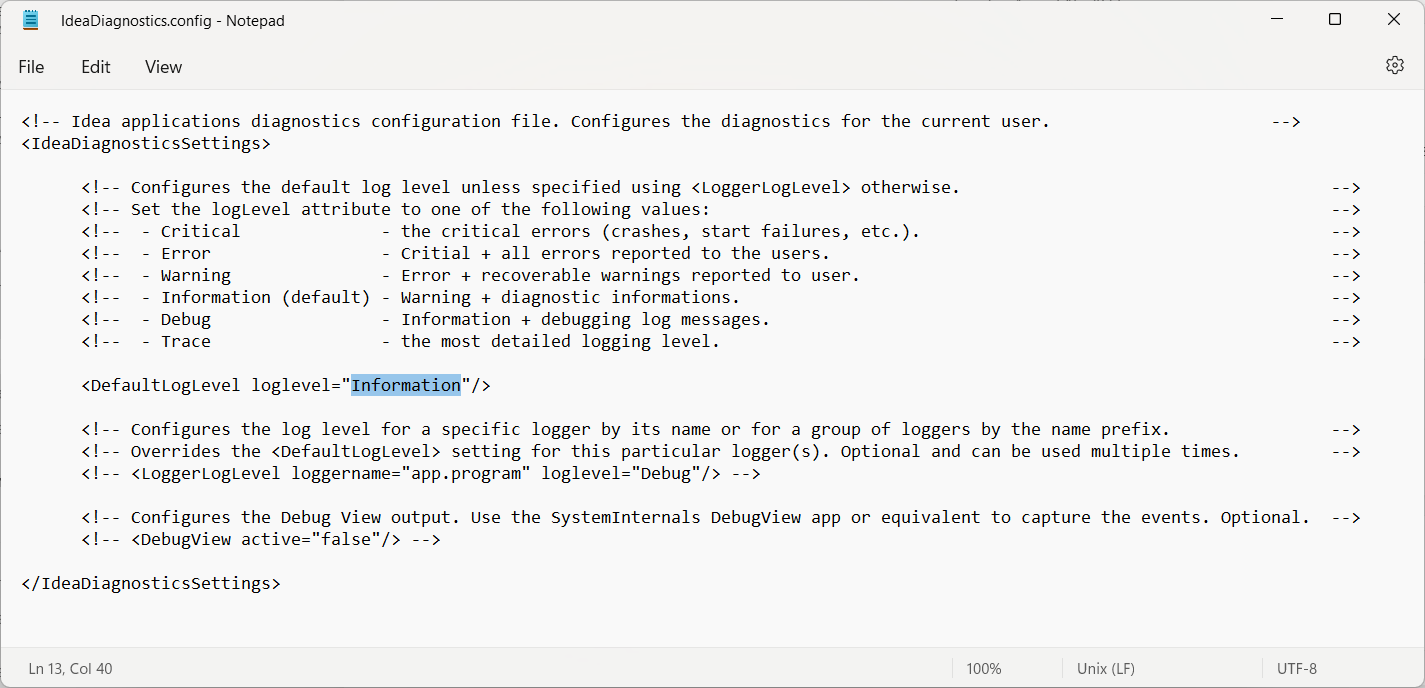
Miután módosította a loglevel paramétert és mentette az IdeaDiagnostics.config fájlt, futtassa a vizsgált műveletet az IDEA StatiCa-ban, hogy a probléma újra előforduljon és bekerüljön a naplófájlokba. Ezt követően zárja be a programot, és küldje el nekünk az új naplófájlokat (a fentebb leírtak szerint).
2) Hogyan gyűjtse össze a Windows Eseménynapló naplókat
Az alkalmazások összeomlásának rendszernaplói, pl. amikor a Connection alkalmazás hirtelen bezárul vagy egyáltalán nem nyílik meg.
A naplók exportálásához kövesse az alábbi lépéseket:
- Nyissa meg az Eseménynaplót a Windows Start menüből.
- A bal oldali panelen navigáljon a Windows-naplók elemhez, és nyissa meg a legördülő menüt.
- Az alkalmazásnaplók exportálásához kattintson jobb gombbal az „Application" elemre, majd válassza az „Save All Events As..." lehetőséget, és nevezze el megfelelően a kimeneti fájlt.
- A rendszernaplók exportálásához kattintson jobb gombbal a „System" elemre, majd válassza az „Save All Events As..." lehetőséget, és nevezze el megfelelően a kimeneti fájlt.

Különleges esetekben előfordulhat, hogy a fennmaradó naplók exportálására is felkérik (Security, Setup, Forwarded Event). Ezek exportálásához kövesse az előző lépéseket.
3) Hogyan rögzítse a Crash Dump fájlokat
Az indítás vagy leállítás során fellépő hibákkal kapcsolatos további információk elérhetők lehetnek a Crash Dump fájlokban. A Crash Dump fájlok összegyűjtéséhez a számítógépen lévő összes alkalmazáshoz:
- Töltse le és csomagolja ki a
WerDumpConfiguration.zip. - Hozzon létre egy
C:\Dumpsmappát. - Nyissa meg a
WerDumpCapturingOn.regfájlt, és erősítse meg a Crash Dump gyűjtés hozzáadását a Windows Beállításjegyzék-szerkesztőhöz. - Reprodukálja a problémát az IDEA StatiCa alkalmazással. A Windows automatikusan létrehoz egy dump fájlt a
C:\Dumps\mappában.
Kérjük, vegye figyelembe, hogy a dump fájl mérete több száz MB is lehet, ezért kérjük, tömörítse .zip archívumba, mielőtt elküldi.
A Crash Dump fájlok gyűjtésének letiltásához:
- Nyissa meg a
WerDumpCapturingOff.regfájlt, és erősítse meg a Crash Dump gyűjtés eltávolítását a Windows Beállításjegyzék-szerkesztőből. - Törölje a
C:\Dumpsmappát.

Ha az IDEA StatiCa Open Model alkalmazást használja, kérjük, vegye fel a kapcsolatot a támogatással a GitHub tárolónkon keresztül.