


Release notes IDEA StatiCa 23.1
Version 23.1 highlights
For steel, we did a lot in error-proofing and reporting – welds, load position, and detailing checks. IDEA StatiCa Member now has an input wizard and the ability to select rigid supports, dramatically speeding up your inputs and limiting errors. The fire design of connections also includes calculating the temperatures automatically.
IDEA StatiCa Connection now generates IFC files, including all bolts, welds, and materials. Structural engineers can share connection designs with detailers. Our cloud app, Connection Library, the world's largest online database of steel connections, allows downloading and reusing connection files in the desktop app.
IDEA StatiCa Detail, our solution for the structural design of concrete walls and details, has undergone a complete user interface refactoring. New facelift of icons and ribbon, new modeling commands, better 3D scene, and more reporting options, all of which make your work much faster.
Steel connection design
Exportation d'un fichier IFC depuis IDEA StatiCa
Un modèle IFC vaut plus qu'une douzaine de plans
En tant que dessinateur, modéliser un assemblage complexe, ou même standard, selon des plans 2D fournis par un ingénieur structure peut s'avérer compliqué et source d'erreurs. Il est donc important de partager un maximum d'informations entre les différents corps de métier. Alors, pourquoi ne pas utiliser un format reconnu par tous les outils BIM du secteur ? Un fichier IFC vous fournit une représentation 3D de l'assemblage, qui peut être lié à Tekla, Revit, etc., ainsi qu'à tous les visionneuses IFC.
Comment exporter votre assemblage au format IFC depuis IDEA StatiCa Connection et Viewer
Il suffit d'un seul clic !
- Concevez votre assemblage acier dans IDEA StatiCa Connection et cliquez sur le bouton d'exportation IFC dans l'onglet Design ou l'onglet Report.
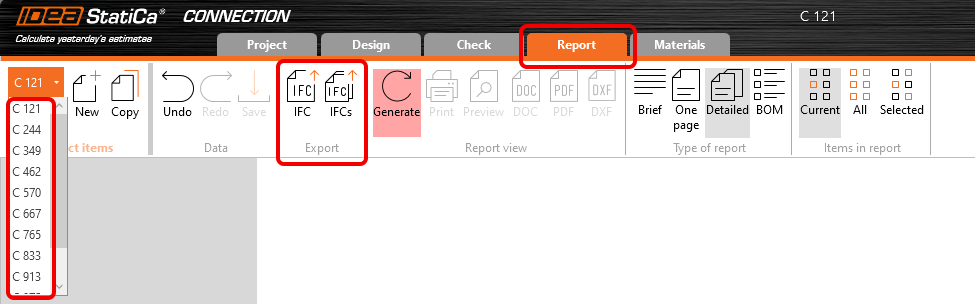
- Une option d'exportation groupée est disponible dans l'onglet « Report ». Cette fonctionnalité permet aux utilisateurs d'exporter plusieurs assemblages contenus dans un fichier ideaconn vers des fichiers IFC dans un dossier spécifié par l'utilisateur.
Vous pouvez exporter des assemblages au format IFC même si vous n'utilisez pas l'application de bureau !
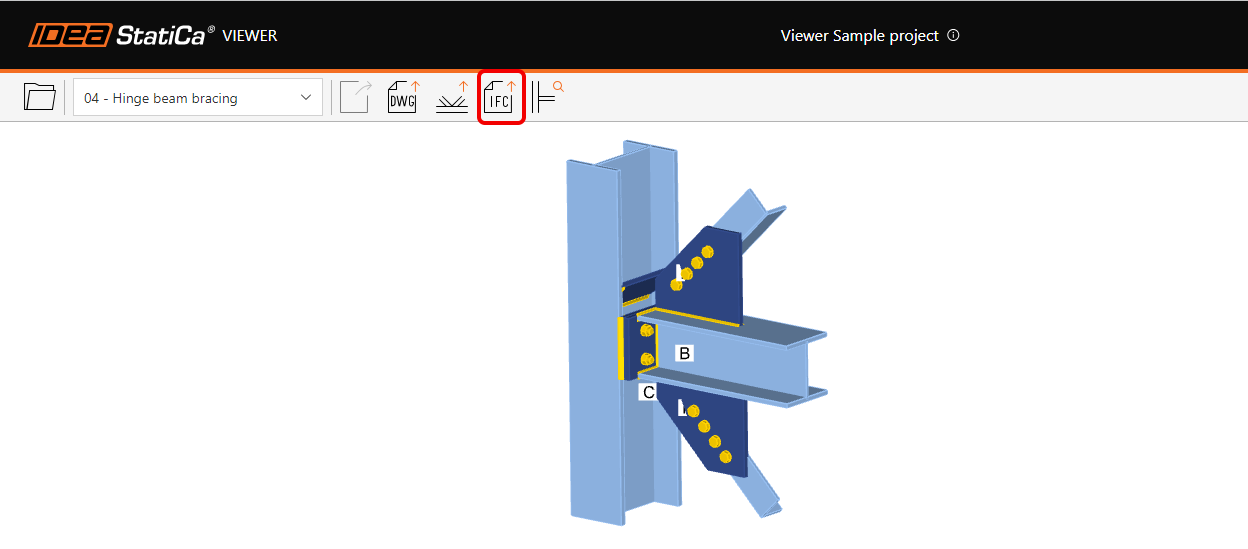
- Il suffit de téléverser l'assemblage acier sur notre application web IDEA StatiCa Viewer.
- Cliquez sur l'icône du fichier IFC et le fichier IFC de votre assemblage sera automatiquement téléchargé.

Comment exporter votre assemblage au format IFC depuis IDEA StatiCa Checkbot
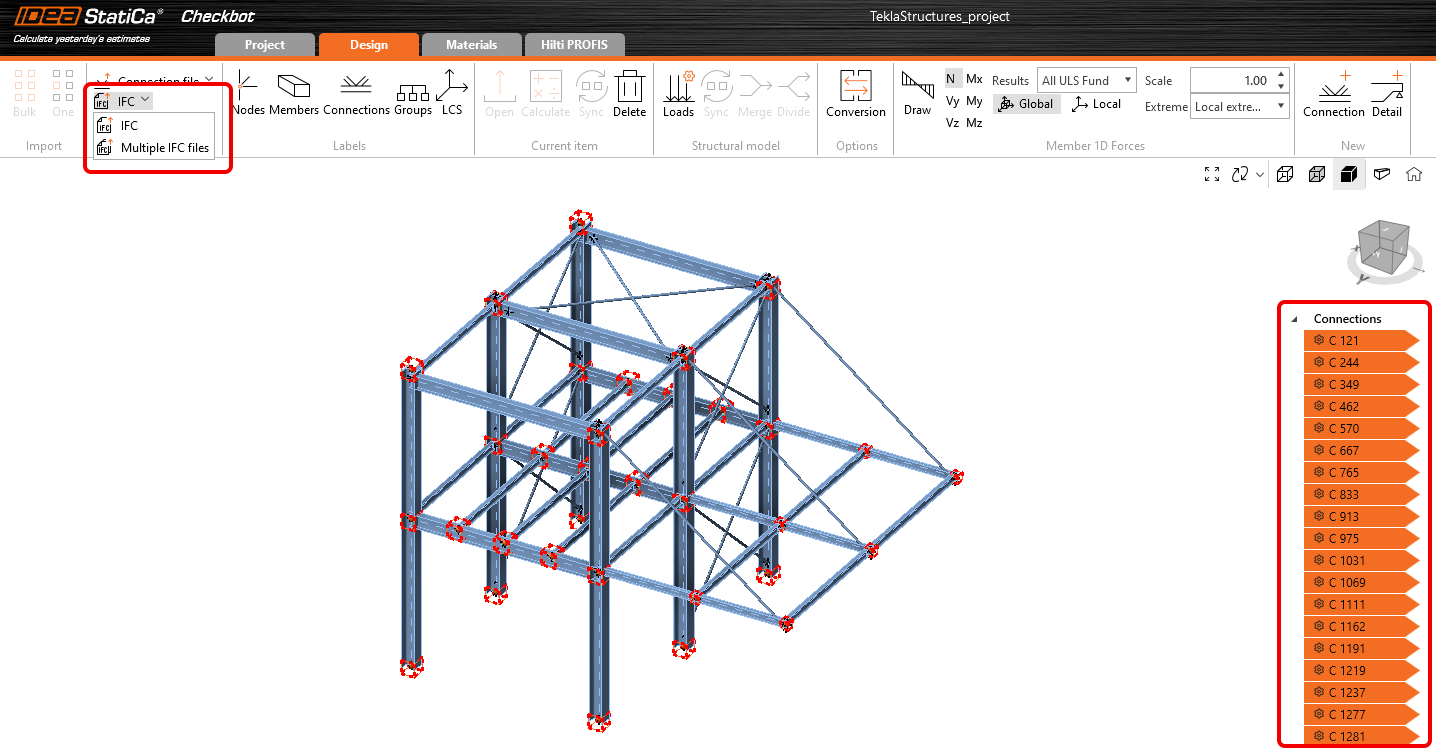
- Concevez vos assemblages dans IDEA StatiCa Connection et exportez-les tous depuis Checkbot.
- Exportez les assemblages sélectionnés dans un fichier unique avec des coordonnées globales ou chaque assemblage séparément dans des fichiers IFC individuels.
- Le bouton Exporter est accessible depuis le ruban dans l'onglet Design et par un clic droit sur les assemblages sélectionnés dans l'arborescence.
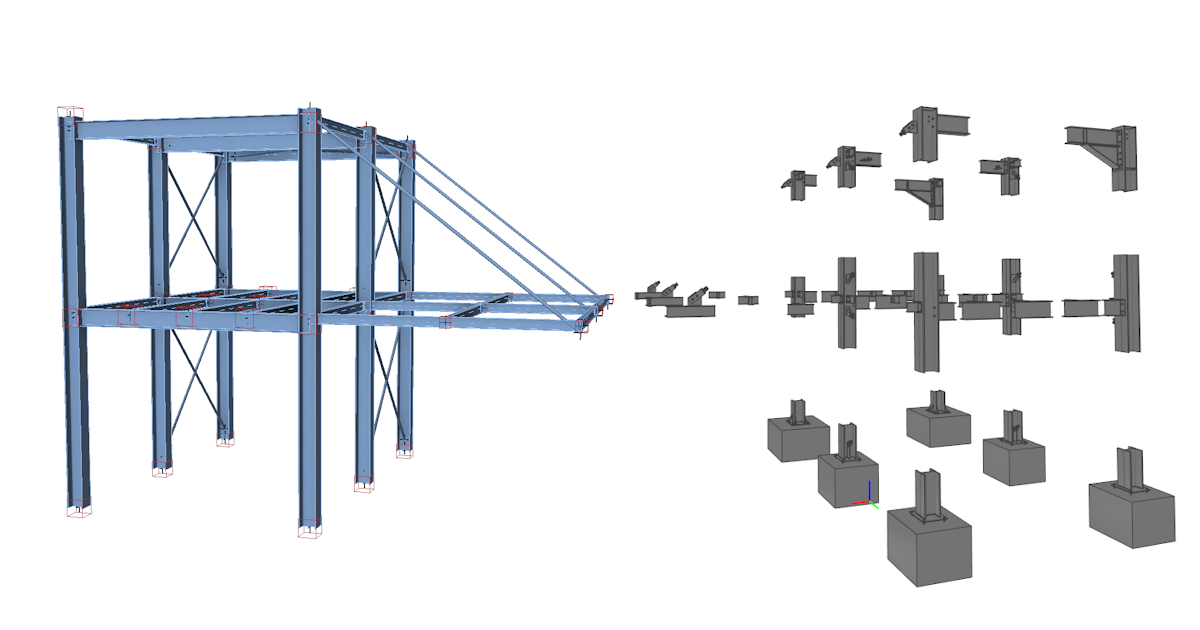
Le fichier IFC comprend :
- Un modèle géométriquement précis de l'assemblage, incluant les boulons et les soudures.
- Des informations de base sur les sections transversales, les boulons, les soudures et les matériaux.
- Le modèle défini comme une vue de coordination IFC2x3

- Lors de la génération d'un fichier IFC à partir d'un assemblage créé ou exporté via Checkbot, l'exportation contient les coordonnées globales du point d'assemblage – la position réelle de l'assemblage dans le projet.
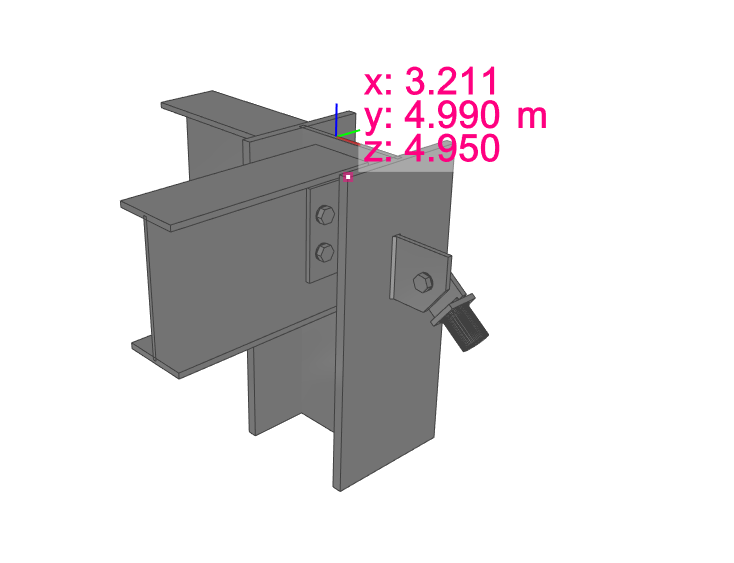
Représentation visuelle d'un assemblage
Le fichier IFC peut être importé dans des outils BIM/CAO (tels que Tekla Structures, Autodesk Revit, etc.) comme représentation visuelle du modèle d'assemblage. Cela offre au dessinateur une meilleure compréhension du modèle. L'ouverture du modèle dans tout logiciel de visualisation IFC vous offre une vue complète et la possibilité de créer des vues en coupe supplémentaires, des coupes et des mesures.

Améliorations de l'exportation IFC (depuis la version 23.1.1)
Vous trouverez ci-dessous les améliorations et détails concernant l'exportation IFC dans le correctif 23.1.1 :
Visionneuses prises en charge et vérifiées :
- BIMvision 2.27.3 et versions ultérieures
- Solibri 9.13.5.12 et versions ultérieures
- Autodesk Viewer (https://viewer.autodesk.com/)
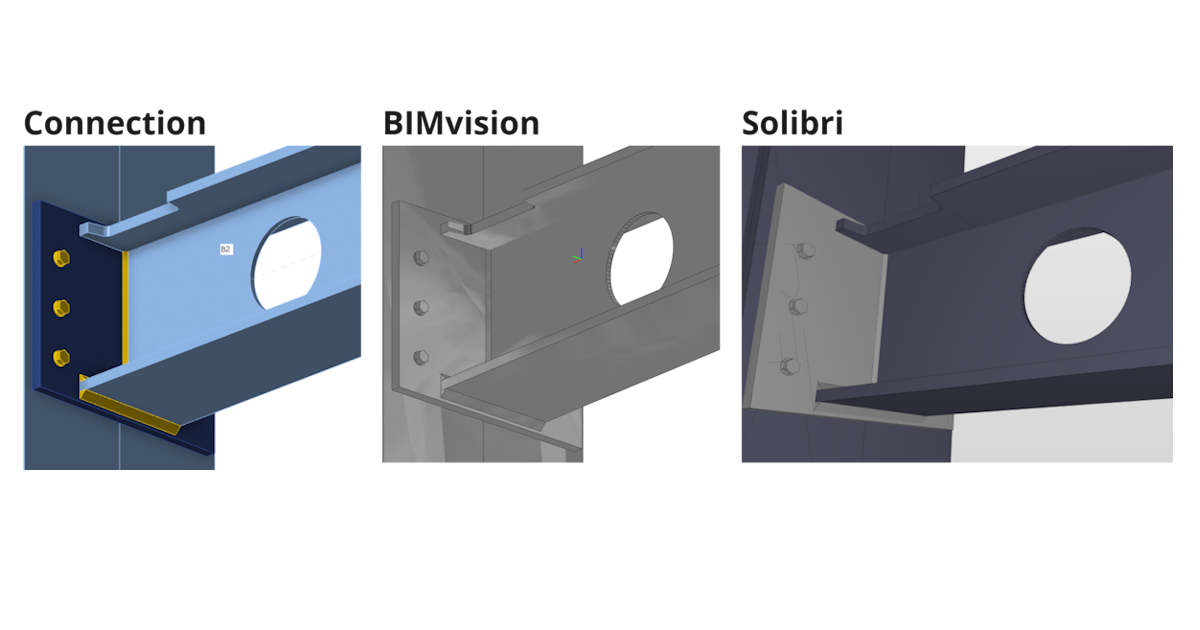
Informations sur les sections transversales et les matériaux
- Les informations sur les sections transversales et les matériaux sont contenues dans des propriétés personnalisées (jeux de propriétés « IDEA_CrossSection », « IDEA_MaterialSteel* »).

Amélioration des ouvertures et des encoches
- Les opérations d'encoches et d'ouvertures sont entièrement prises en charge pour l'exportation IFC et sont visualisées correctement dans les visionneuses IFC (Solibri, BIMvision et Autodesk Viewer vérifiés)
Exportation prioritaire des volumes négatifs vers IFC
- Volumes négatifs avec limitations
- Dans IDEA 23.1.1, ajout de la prise en charge de la limitation d'élément de type « Type » – la mise en miroir n'est pas prise en charge (prévue pour la prochaine itération)
- Dans IDEA 23.1.1, ajout de la prise en charge de la limitation de plaque de type « Type » – la plaque négative est exportée vers IFC et doit être désactivée dans la visionneuse IFC (prévue pour la prochaine itération)
Amélioration du positionnement des boulons lors de l'exportation
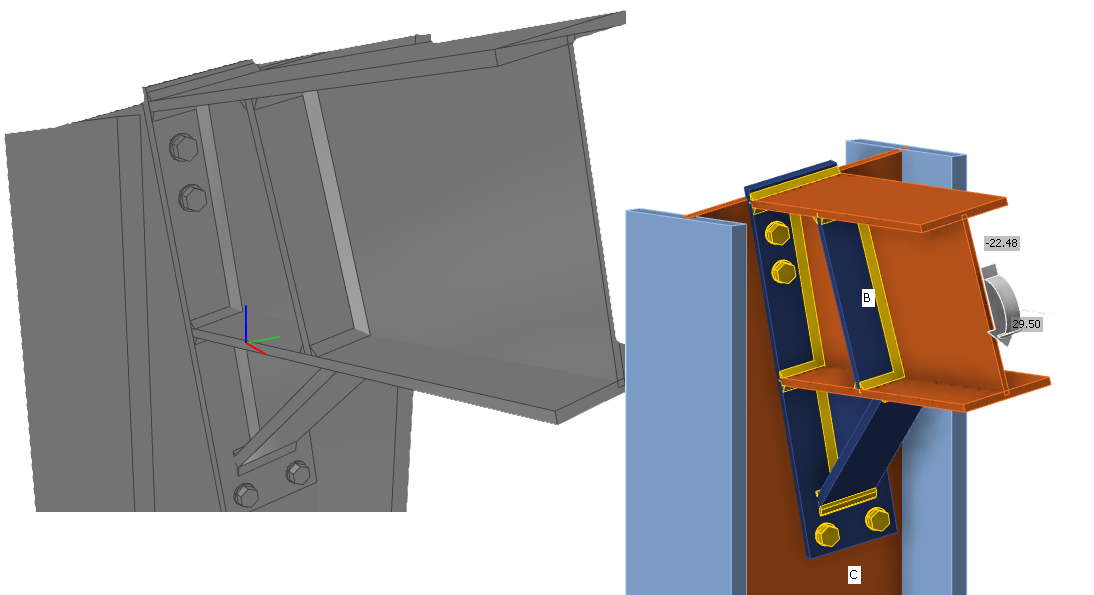
Amélioration de l'exportation IFC des platines circulaires avec un maillage non uniforme
- Les platines circulaires sont exportées correctement vers IFC
Syntaxe IFC et schéma IFC 2x3 validés par l'outil de validation BuildingSmart
- https://validate.buildingsmart.org/ (remarque : les règles de référencement ne sont pas satisfaites intentionnellement – référencement des soudures sur plusieurs arêtes)
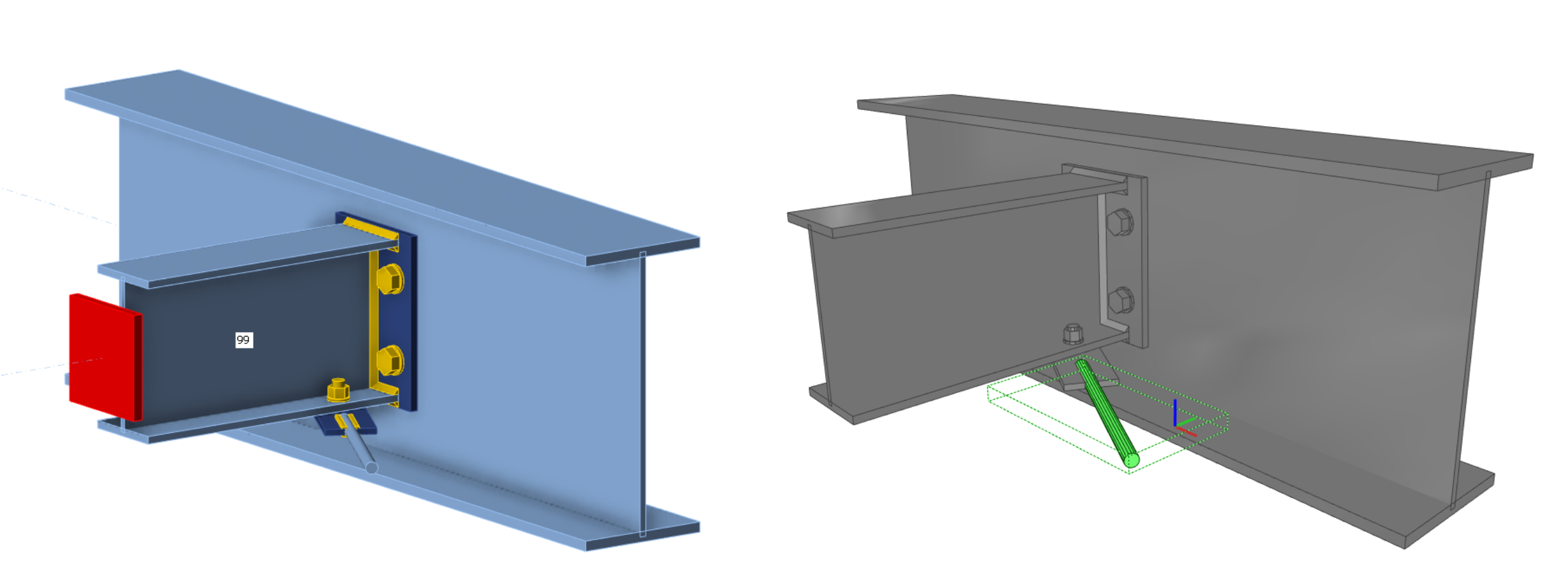
Les tiges peuvent être exportées vers IFC depuis IDEA StatiCa
- Les tiges sont prises en charge pour l'exportation IFC
Amélioration du positionnement des soudures
- Les soudures sont placées sur les arêtes correctes conformément au modèle d'assemblage
Limitations connues
L'exportation IFC depuis l'application IDEA StatiCa Connection et Viewer est optimisée pour exporter la géométrie 3D avec des paramètres sur les matériaux et les sections transversales des objets contenus.
Certains logiciels prennent en charge l'importation d'objets IFC et peuvent même convertir des objets IFC en objets de conception natifs. Nous souhaitons prendre en charge cette possibilité autant que possible, mais ne pouvons pas l'optimiser pour tous.
Vous trouverez ci-dessous l'état d'optimisation pour les logiciels suivants :
Tekla Structures :
- Le modèle IFC d'IDEA StatiCa peut être importé
- Les éléments peuvent être convertis en objets natifs « en tant qu'élément »
Autodesk Revit
- Le modèle IFC d'IDEA StatiCa peut être importé en tant que projet lié
Advance Steel
- Le fichier IFC d'IDEA StatiCa ne peut pas être importé dans Advance Steel (la géométrie en représentation par frontières n'est pas prise en charge dans Advance Steel)
Version IFC
IFC 2x3 est exporté en vue de coordination. (aucune option de paramétrage)
Poutres et platines
Les poutres et platines sont exportées sous forme de géométrie maillée et ne se comportent donc pas comme des objets dimensionnels. (limitation d'importation dans Advance Steel)
Trous de boulons
Les trous de boulons sont exportés, mais tous les visionneuses et outils ne prennent pas en charge leur affichage.
Propriétés
Les propriétés exportées sont uniquement en unités SI.
Essayez dès aujourd'hui les nouvelles fonctionnalités d'IDEA StatiCa
Calcul au feu – calcul automatique de la température (23.1)
Calculs de résistance au feu améliorés
Nous avons amélioré la fonctionnalité publiée dans la version 22.1.
À l'aide de cette méthode, la température dans chaque plaque est calculée séparément. Le feu est supposé affecter l'ensemble du modèle d'assemblage et toutes ses surfaces simultanément. Les températures des boulons et des soudures sont supposées, par sécurité, être identiques à celles de la plaque connectée la plus chaude.

La courbe de feu, la classe de résistance, les courbes de dégradation des matériaux et les propriétés de protection contre l'incendie sont définies dans l'application Connection dans Paramètres. La protection contre l'incendie peut être appliquée uniformément à l'ensemble de l'assemblage.

Disponible dans les éditions IDEA StatiCa Steel et IDEA StatiCa Complete.
Essayez dès aujourd'hui les nouvelles fonctionnalités d'IDEA StatiCa
Soudures – conception automatique, saisie, avertissements, visualisation
Cet article contient des informations obsolètes. Veuillez consulter la version mise à jour.
Électrodes de soudage définies par l'utilisateur
Le matériau de soudure est un élément modifiable dans la MPRL (Bibliothèque de matériaux et de gammes de produits). Cela signifie que vous pouvez définir les électrodes de soudage indépendamment de la nuance d'acier des platines assemblées.
Pour ajouter un matériau de soudure défini par l'utilisateur, accédez à l'onglet Matériaux, ajoutez un matériau de Soudure et Modifiez ses propriétés.

De plus, le facteur de corrélation βw peut être modifié par rapport à la valeur par défaut de 0,8 pour correspondre aux valeurs requises, par exemple, pour l'acier inoxydable (βw = 1,0 pour une résistance de soudure inférieure à 360 MPa).
Vous pouvez ensuite affecter le matériau de l'électrode de soudage dans une liste déroulante pour toute soudure de toute opération. Vous pouvez également ajouter un nouveau matériau de soudure.

Les tableaux de vérification et le rapport sont enrichis pour contenir systématiquement des informations sur les électrodes de soudage et leurs paramètres.
Conception automatique des soudures à pleine résistance
Cette fonctionnalité permet aux utilisateurs d'optimiser la taille des soudures en fonction de la résistance de la platine soudée. Cela réduit le temps de conception et garantit une taille de soudure sûre pour toutes les soudures du projet d'assemblage.
Vous pouvez exécuter l'algorithme Conception automatique de la soudure à pleine résistance pour toutes les soudures du projet d'assemblage en une seule fois via le bouton droit de la souris sur Opérations dans le menu arborescent.

Pour l'algorithme, les hypothèses sont que la platine est chargée en traction (cas le plus défavorable pour la conception des soudures) et que la longueur de soudure est égale à la longueur du bord de la platine assemblée. La résistance de la platine en traction est prise comme la résistance de la soudure chargée perpendiculairement, et la taille de la soudure est ensuite déterminée. Les données d'entrée sont :
- Épaisseur de la platine assemblée par le bord (ou de la platine la plus mince dans le cas bord à bord)
- Limite d'élasticité du matériau de la platine assemblée
- Résistance ultime du matériau de soudure
- Autres paramètres de soudure (facteurs, coefficients, par ex. βw)
- Coefficients partiels de sécurité pour le matériau de la platine
- Coefficients partiels de sécurité pour le matériau de soudure
L'arrondi de la valeur de l'épaisseur de gorge ou de la côté de la soudure peut être défini dans Paramètres, Pré-dimensionnement et Taille de soudure.

Estimation de la capacité globale d'une soudure
Dans l'onglet des résultats pour les soudures, deux taux de travail sont indiqués. Le Ut (taux de travail en contrainte) indique la valeur du taux de travail de l'élément fini le plus sollicité de l'ensemble de la soudure (valeur de pic), tandis que le Utc (taux de travail de la capacité de la soudure) indique le taux de travail de l'ensemble de la soudure et fournit ainsi à l'utilisateur des informations sur la capacité résiduelle de la soudure.
Étant donné que la distribution des contraintes dans les soudures dans les modèles basés sur la Méthode des Éléments Finis varie de manière incertaine en fonction de la charge appliquée, il n'est pas simple de déterminer la capacité résiduelle comme une fonction linéaire. Avec un incrément de charge appliquée, la variation de la distribution des contraintes dans la soudure peut être très importante.
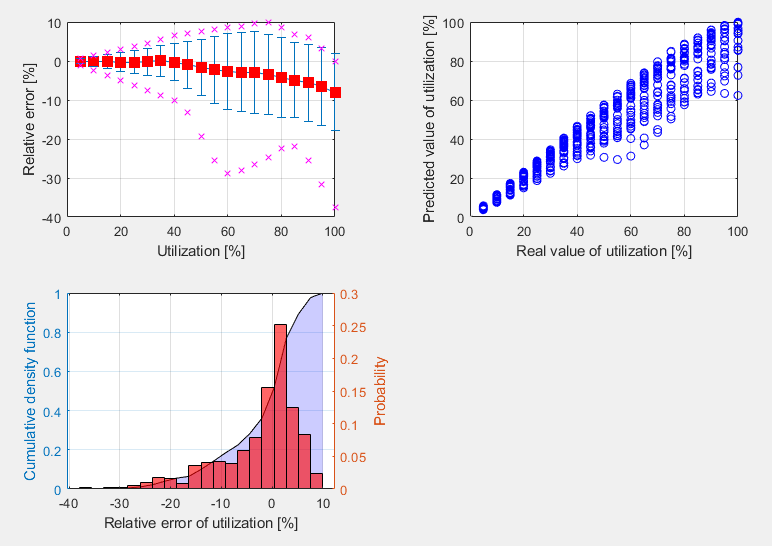
Le calcul de Utc utilise une fonction d'estimation par apprentissage automatique. En s'appuyant sur l'apprentissage à partir d'un grand nombre de modèles d'assemblages soudés et de divers scénarios de charge, l'algorithme peut prédire avec précision la capacité résiduelle de la soudure. La valeur est affichée dans Vérification, dans l'onglet Soudures dans la colonne Utc.
Cette fonctionnalité constitue la première utilisation réussie de l'IA et de l'apprentissage automatique pour déterminer la capacité des soudures. Et le meilleur dans tout cela, c'est que l'application peut le faire avec un seuil de 10 % ! Ce qui peut être considéré comme un excellent résultat.

Cette fonctionnalité est limitée aux projets sous Eurocode.
Soudure générale mise en évidence dans la scène 3D
Il s'agit d'une amélioration simple dans la scène 3D de l'application Connection pour une meilleure orientation, notamment dans les modèles d'assemblages plus importants importés via des liens BIM depuis des applications CAO.
Lorsqu'une opération de soudure générale ou de contact est sélectionnée, la soudure dans la scène 3D est mise en évidence en orange (par défaut).

Avertissement pour les électrodes plus résistantes que les platines
Lorsque la vérification de constructibilité est activée dans la Configuration normative de l'application Connection, les utilisateurs reçoivent un avertissement si le matériau d'une électrode de soudage est plus résistant que les platines soudées. Cela contribue à garantir le respect des normes de sécurité de conception.
Cela s'applique à l'Eurocode (EN) et à la norme indienne (IS), qui contiennent des clauses définissant que la résistance de la soudure est déterminée par la résistance ultime la plus faible des platines assemblées et des exigences selon lesquelles le métal d'apport des électrodes de soudage doit être plus résistant que le métal de base (EN 1993-1-8 – 4.5.3.2 et IS 800:2007 - 10.5.7.1.1).

Amélioration du modèle EF de soudure bout à bout
Le modèle d'éléments finis des soudures bout à bout a été mis à jour. Le modèle des soudures bout à bout est désormais similaire au modèle des soudures d'angle, ce qui facilite la génération automatique d'entités pour créer une soudure bout à bout dans certaines conditions, notamment pour les sections creuses.
Visualisation améliorée de la vérification des soudures
La vérification des soudures par la méthode des éléments finis diffère des calculs de conception traditionnels. Dans les calculs traditionnels, les petites excentricités, déformations, torsions et coefficients de Poisson, etc., peuvent être négligés.
Les composantes de contrainte sont désormais affichées :
- σꓕ
- τꓕ
- τ‖
Ces contraintes sont utilisées dans tous les codes pour l'évaluation ultérieure des soudures.

La contrainte équivalente est colorée en gris/vert/orange/rouge selon le niveau de vérification Avertissement et Optimal (modifiable dans la Configuration normative) pour une meilleure lisibilité.

Cette fonctionnalité améliorée aide les ingénieurs à comprendre les contraintes dans les assemblages soudés.
Disponible dans les éditions IDEA StatiCa Steel et IDEA StatiCa Complete.
Essayez dès aujourd'hui les nouvelles fonctionnalités d'IDEA StatiCa
Les icônes cohérentes et le ruban d'IDEA StatiCa Connection
Au fil de l'évolution des tendances, nous veillons à ce que le style visuel de nos applications réponde aux besoins des utilisateurs. Dans IDEA StatiCa Connection, les icônes ont été conçues pour représenter clairement leur fonction, pour être cohérentes et pour faciliter la navigation lors de l'utilisation de l'application.

Un ensemble d'icônes a été conçu spécifiquement pour chaque onglet de flux de travail (Design, Check, Report, Materials).

Disponible dans les éditions IDEA StatiCa Steel et IDEA StatiCa Complete.
Essayez dès aujourd'hui les nouvelles fonctionnalités d'IDEA StatiCa
Connection Library – la plus grande base de données d'assemblages acier téléchargeables
Désormais, vous saurez où vous tourner pour trouver de l'inspiration. Saisissez simplement connectionlibrary.ideastatica.com dans votre navigateur Internet.
Avec la Connection Library, vous pouvez parcourir des exemples avec la géométrie souhaitée et trouver de l'inspiration en quelques secondes ! L'utilisation de l'application est simple et intuitive ! L'ensemble de base de la base de données comprend plus de 1 000 000 de conceptions et s'enrichit chaque jour.
Comment ça fonctionne
Connection Library est une application web qui permet aux utilisateurs de trouver de l'inspiration en leur proposant une base de données publique de milliers d'assemblages disponibles. Les utilisateurs peuvent ensuite utiliser les assemblages fournis dans l'application Connection ou partager les résultats de recherche avec d'autres personnes, ainsi que télécharger les assemblages et les utiliser comme point de départ dans leurs projets.
L'application se compose de deux pages – la page de saisie et la page de résultats :
- Sur la page de saisie, l'utilisateur peut définir un assemblage recherché à l'aide des paramètres de saisie disponibles. Une scène 3D est disponible, ce qui permet de visualiser clairement l'aspect de la recherche saisie.
- Sur la page de résultats, l'utilisateur a accès à tous les résultats correspondant à la saisie effectuée précédemment. L'utilisateur peut examiner les résultats de recherche plus en détail, utiliser des filtres pour affiner la recherche, ou revenir à la page de saisie et modifier les paramètres.
L'utilisateur peut accéder au détail d'un assemblage sur la page de résultats après s'être connecté. Si l'utilisateur ne possède pas encore de compte, il lui est également possible de s'inscrire. Dans ce cas, l'utilisateur est redirigé vers une page où il peut s'enregistrer et obtenir un compte avec licence Basic. Sur la page de détail de l'assemblage, l'utilisateur a la possibilité de télécharger une licence d'essai.
La conception sélectionnée peut ensuite être utilisée de différentes manières :
- Ouvrir directement dans l'application de bureau
- Télécharger au format de fichier .ideacon
- Ouvrir dans Viewer
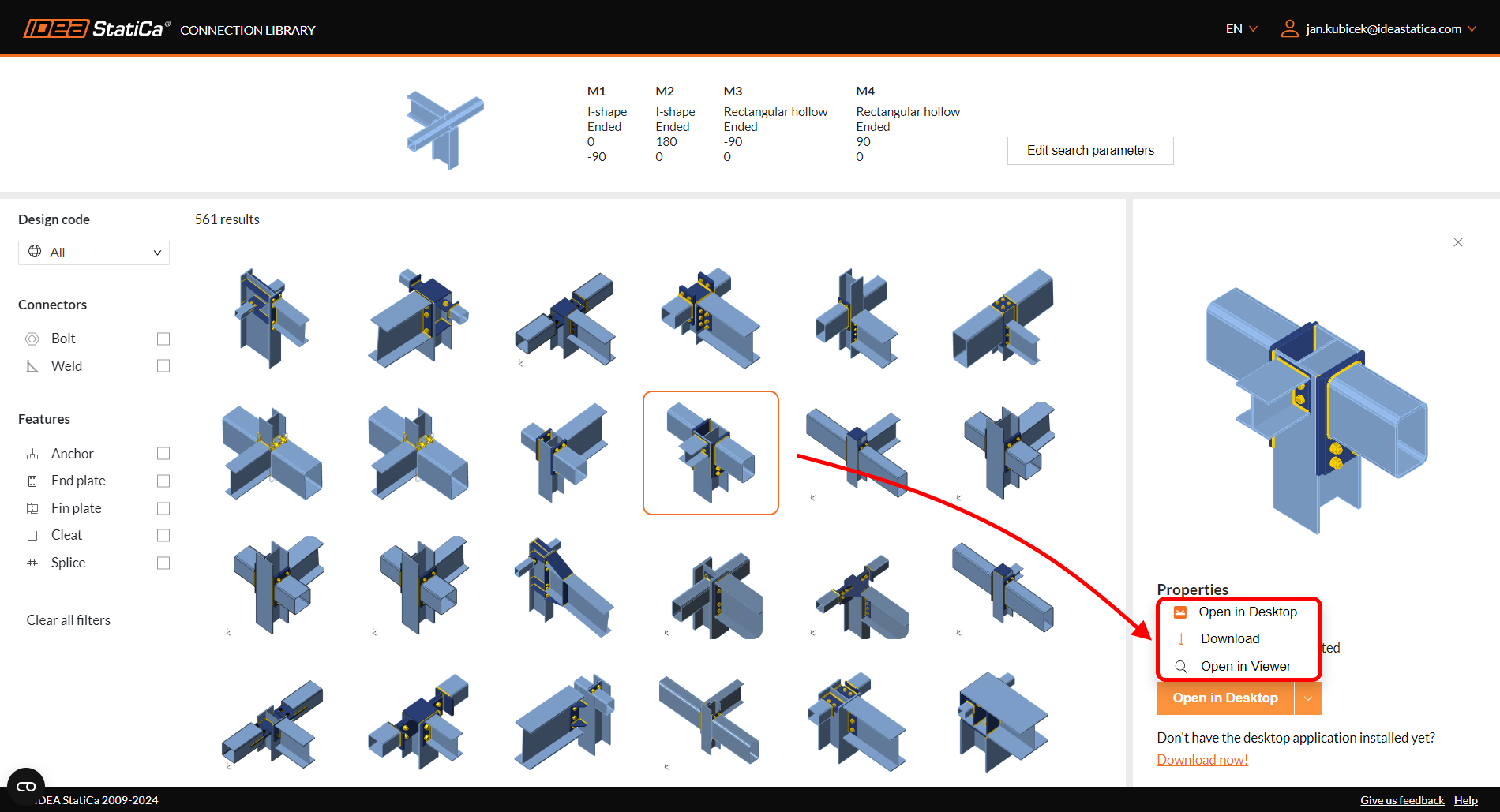
Les sources de cette base de données sont les modèles d'assemblages créés et partagés par les utilisateurs dans une autre application web – IDEA StatiCa Viewer.
Vous trouverez bien plus d'informations sur l'utilisation et les avantages de la base de données cloud Connection Library dans cet article de blog dédié à Comment trouver de l'inspiration lors de la conception d'assemblages acier.
Publié dans IDEA StatiCa version 23.1 et version 24.1.
Enregistrez votre modèle favori
Après vous être connecté, vous pouvez enregistrer les conceptions favorites via le bouton « signet ». Cela les sauvegarde dans un ensemble privé accessible depuis le menu déroulant.

La scène d'aperçu contient également le nombre total de signets, indiquant combien de fois la conception a été enregistrée par des utilisateurs uniques.

Mis à jour dans IDEA StatiCa version 25.1.
Essayez dès aujourd'hui les nouvelles fonctionnalités d'IDEA StatiCa
Position de la force de cisaillement : saisie et visualisation
Une option de définition de la position de la force de cisaillement dans un assemblage a été mise en œuvre pour faciliter la modélisation. De plus, vous pouvez visualiser immédiatement le diagramme du moment fléchissant dû à une force de cisaillement unitaire !
Examinons ces fonctionnalités une par une.
Position de la force de cisaillement à la face de l'élément
Dans de nombreux cas, la position de la force de cisaillement est supposée se trouver à la face de l'élément. Cette situation se présente lors du calcul d'un assemblage avec, par exemple, une cornière, une platine d'extrémité courte, un appui flexible, etc. Nous avons développé une méthode de saisie de la position de la force de cisaillement pour vous permettre de gagner en efficacité et d'éliminer les tâches fastidieuses et répétitives.
Vous pouvez définir la position à l'aide de la fonctionnalité Face de l'élément connecté. Le logiciel la définit automatiquement en fonction de la surface de l'élément connecté. Cela signifie qu'il n'est plus nécessaire d'ajuster manuellement les coordonnées. Et lors du changement de sections transversales, la position est conservée.

Comment cela fonctionne-t-il ? Sélectionnez simplement l'élément pour lequel vous souhaitez définir la position de la force, puis sélectionnez l'option Face de l'élément connecté dans la section Forces sous Modèle dans l'onglet des propriétés. Il est recommandé de toujours sélectionner manuellement l'élément connecté.

La méthode et la position sont également indiquées dans le rapport.

Une meilleure visualisation de la position de la force de cisaillement
L'application Connection affiche désormais la valeur du moment fléchissant dû à la force de cisaillement unitaire Vz=-1 pour chaque assemblage modélisé. L'unité est conforme au paramètre d'unité (par ex., Vz= -1 kN ou -1 kip). Le moment fléchissant respecte également les paramètres d'unités (par ex., kNm ou kip-ft).
Le diagramme peut être affiché en mode de visualisation Transparent ou Filaire, c'est-à-dire en sélectionnant l'élément pour lequel vous souhaitez voir le diagramme et en utilisant l'un de ces modes.

Le diagramme du moment réel utilisant les effets de charge saisis est toujours affiché dans la section Effets de charge.

Disponible dans les éditions IDEA StatiCa Steel et IDEA StatiCa Complete.
Essayez dès aujourd'hui les nouvelles fonctionnalités d'IDEA StatiCa
Réduction de la limite d'élasticité pour les sections creuses en acier à haute résistance
L'acier à haute résistance est plus fragile que l'acier doux. La résistance des modes de rupture des assemblages de sections creuses doit être réduite pour l'acier à haute résistance par un facteur correspondant selon EN 1993-1-8, Art. 7.1.1 (4). De plus, la même disposition est mentionnée dans la prEN 1993-1-8:2023 – Tableau 9.1, qui constitue la prochaine génération de code de calcul.
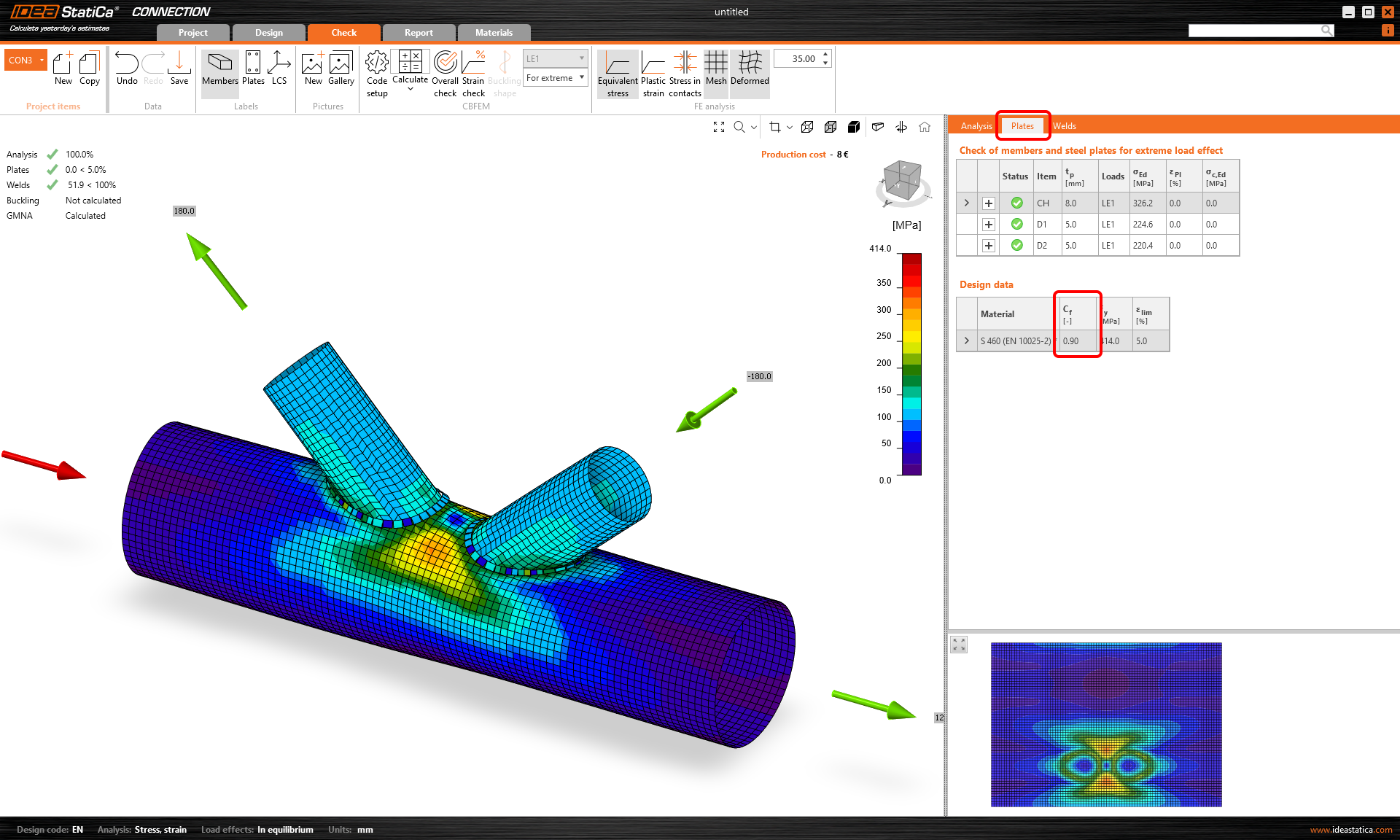
Dans IDEA StatiCa, la résistance des assemblages de sections creuses est déterminée par la déformation plastique de 5 % des plaques. Une réduction fiable peut être obtenue en diminuant en conséquence la limite d'élasticité de l'acier.
La limite d'élasticité des assemblages de sections creuses en CHS ou RHS en acier à haute résistance est automatiquement réduite par le facteur de réduction issu de la norme. Cela évite tout oubli involontaire de la réduction, qui pourrait conduire à un dimensionnement non sécuritaire.
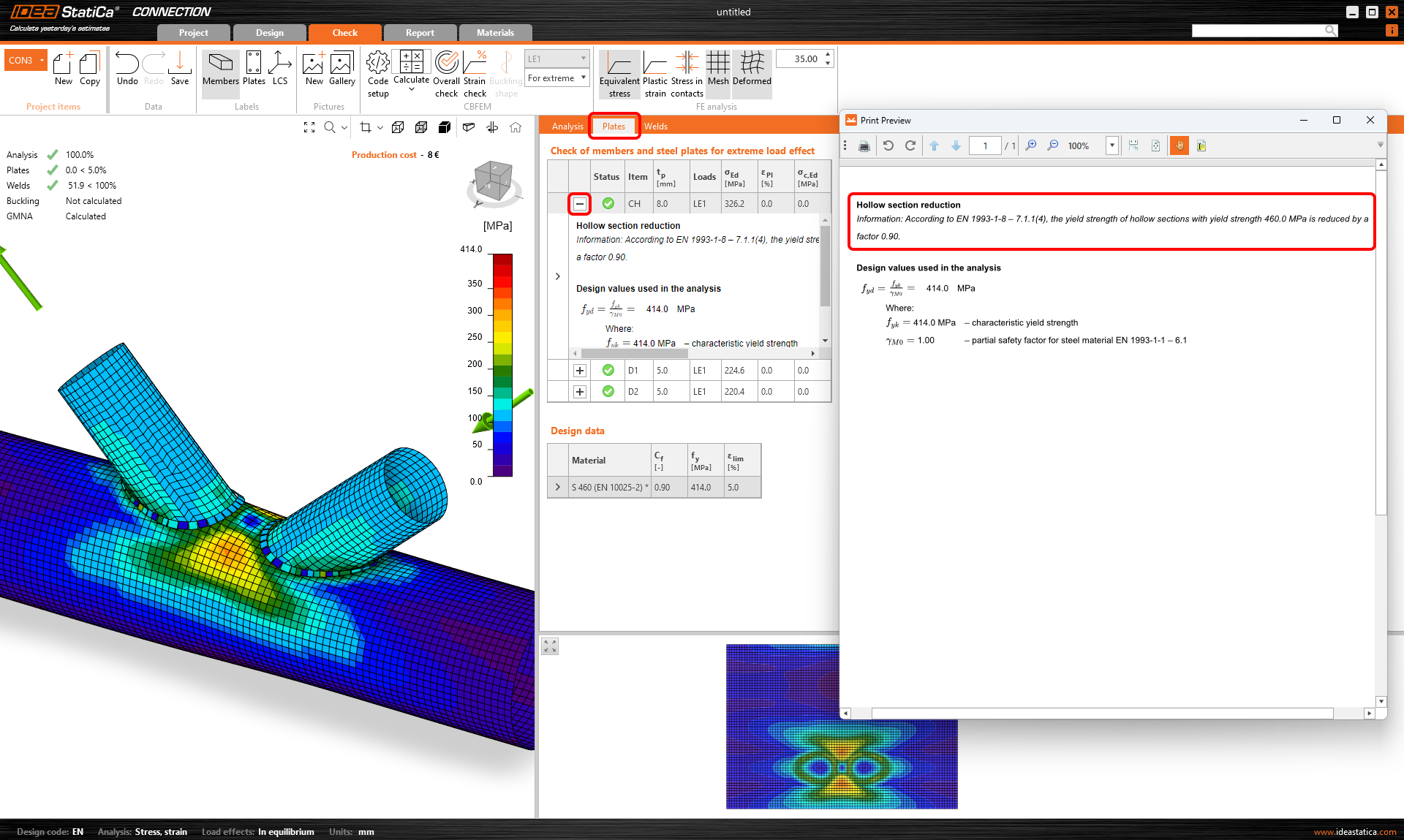
La valeur du facteur de réduction est affichée dans le tableau des données de calcul dans la section Vérification, ainsi que dans la description de la vérification des plaques.
Disponible dans les éditions IDEA StatiCa Steel et IDEA StatiCa Complete.
Essayez dès aujourd'hui les nouvelles fonctionnalités d'IDEA StatiCa
Avertissements pour les soudures et les boulons reliant les mêmes platines
La vérification de détail pour les boulons et les soudures dans l'application IDEA StatiCa Connection a été étendue par de nouvelles règles conformes à tous les codes disponibles, avec des références pour l'Eurocode.
Deux situations potentielles pour lesquelles vous recevez un message d'avertissement dans la vérification de détail sont distinguées :
- Les deux mêmes platines sont reliées à la fois par des boulons et des soudures.
- Les deux mêmes platines sont reliées à la fois par des boulons ordinaires et des boulons précontraints.
1. Boulons portants et soudures
Si les deux mêmes platines sont reliées par des boulons avec transfert d'effort tranchant défini comme Portant – interaction traction/cisaillement et des soudures, un message d'avertissement de détail s'affiche dans la section de vérification des boulons.
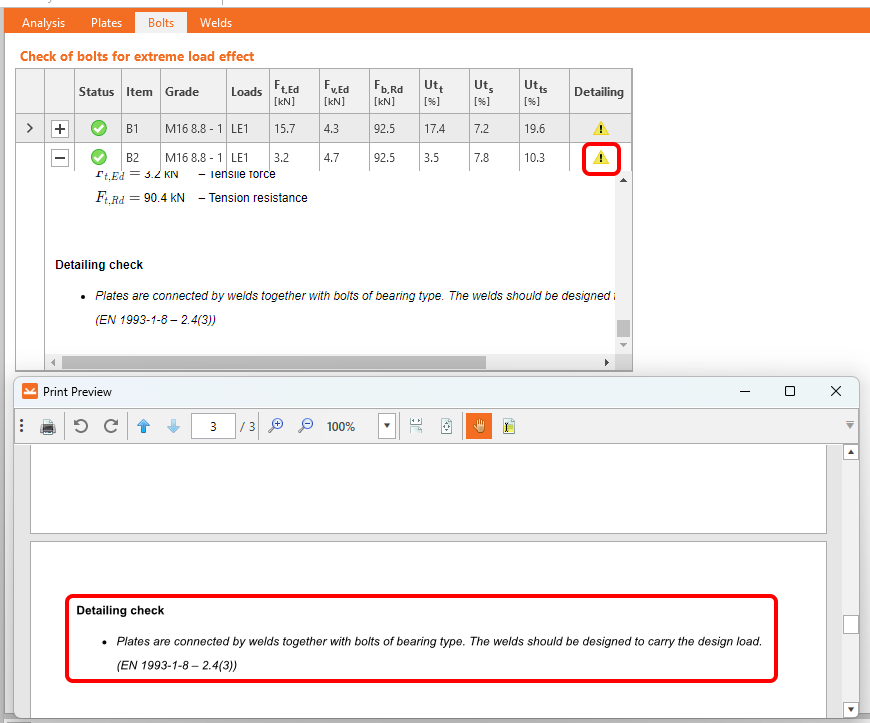
2. Boulons portants et boulons précontraints
Si les deux mêmes platines sont reliées par des boulons avec transfert d'effort tranchant défini comme Portant – interaction traction/cisaillement et des boulons avec transfert d'effort tranchant défini comme Friction (boulons précontraints), un message d'avertissement de détail s'affiche dans la section de vérification des boulons précontraints.

Pourquoi y prêter attention ?
L'utilisation des approches mentionnées ci-dessus dans vos projets peut affecter l'assemblage.
Le message d'avertissement vous fournit des recommandations. Une attention accrue à la conception est conseillée, mais pas inconditionnellement nécessaire. En d'autres termes, l'assemblage ne sera pas défaillant en raison du problème, mais vous risquez une conception incorrecte.
De plus, de tels modes de fonctionnement ne sont pas autorisés par les normes.
Disponible dans les éditions IDEA StatiCa Steel et IDEA StatiCa Complete.
Essayez dès aujourd'hui les nouvelles fonctionnalités d'IDEA StatiCa
Reconnaissance de la plaque de remplissage (plaque de calage)
Lorsqu'une plaque de remplissage (plaque de calage) est conçue dans un assemblage boulonné, le facteur de réduction βp pour la vérification de la résistance au cisaillement doit être appliqué à l'aide d'un nouvel algorithme de reconnaissance des plaques de remplissage.
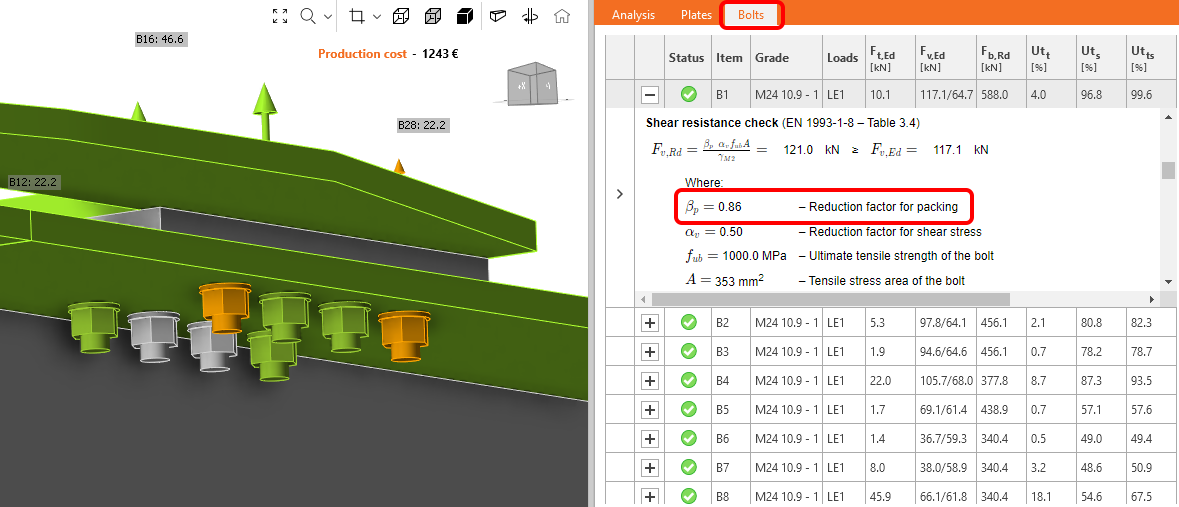
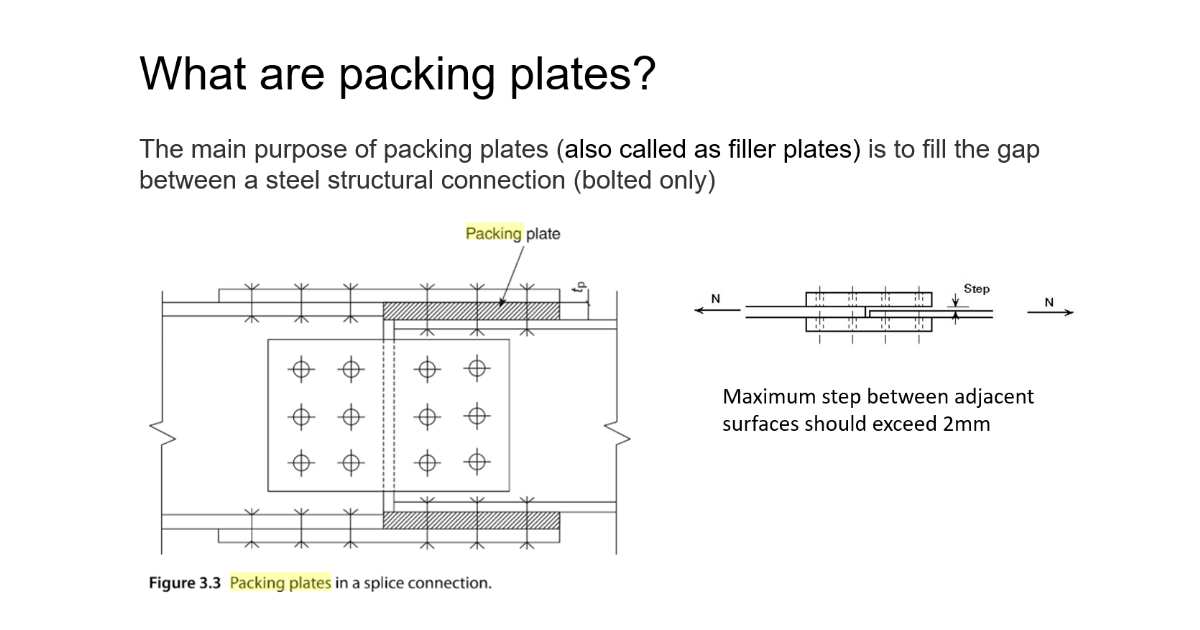
Le facteur de réduction βp est pris en compte et affiché dans l'équation de vérification par défaut. Il peut être désactivé dans la Configuration du code.
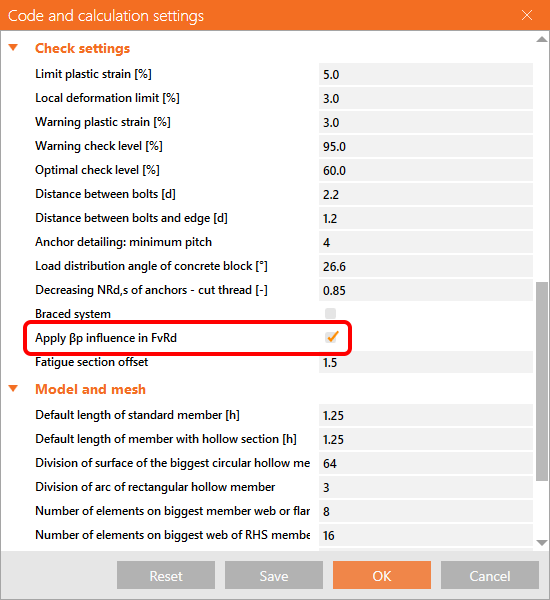
Les plaques de remplissage (également appelées plaques de calage) sont utilisées pour combler l'espace dans les assemblages boulonnés lors de l'alignement d'assemblages de plaques d'épaisseurs différentes.
Disponible dans les éditions IDEA StatiCa Steel et IDEA StatiCa Complete.
Essayez dès aujourd'hui les nouvelles fonctionnalités d'IDEA StatiCa
Améliorations de détail pour les boulons et les soudures selon l'Eurocode
Des vérifications normatives de détail satisfaisantes sont essentielles pour une conception correcte et sûre.
Les vérifications normatives de détail pour les boulons et les soudures dans l'application IDEA StatiCa Connection ont été étendues par de nouvelles règles conformes à l'Eurocode.
Règles de domaine de validité implémentées :
Boulons selon EN 1993-1-8 et EN 1993-1-3
- Épaisseur minimale de la plaque
- Vérification de la ductilité
Soudures selon EN 1993-1-8
- Épaisseur minimale de la plaque
- Épaisseur minimale de gorge des soudures d'angle
- Vérification de la ductilité
L'application distingue quatre types de messages de détail :
- OK - représenté par le bouton avec une coche verte

Cela indique que le modèle est conforme à toutes les exigences de la norme et que l'assemblage est conçu de manière sûre.
- Erreur - représentée par l'icône croix rouge

L'erreur vous signale une non-conformité grave aux exigences de la norme, et vous devez porter attention à la conception du composant correspondant.
- Avertissement - représenté par l'icône triangle jaune avec un point d'exclamation

Le message d'avertissement vous fournit des recommandations, par exemple basées sur l'expérience pratique. Une attention accrue à la conception est conseillée, mais pas inconditionnellement nécessaire.
- Info - représentée par l'icône info bleue

Le message d'information a un caractère informatif sur des points moins courants à vérifier, par exemple la ductilité.
Les messages individuels peuvent être consultés en détail dans les tableaux de vérification correspondants, sous les formules dans la section Vérification ou dans le rapport.
Si plusieurs messages de détail de types différents existent pour un même élément, le statut résultant des messages de cet élément est déterminé par le message de la plus haute importance.
Le message « Erreur » a l'importance la plus élevée, le message « Info » a l'importance la plus faible.
La théorie, incluant toutes les formules correspondantes pour les vérifications mentionnées ci-dessus, est décrite dans la partie des bases théoriques - Vérification des composants d'assemblage acier (EN).
Disponible dans les éditions IDEA StatiCa Steel et IDEA StatiCa Complete.
Téléchargez la nouvelle version d'IDEA StatiCa et essayez toutes les fonctionnalités
Limitations aux vérifications des ancrages
Eurocode
Type d'ancrage : Droit
Message :
Les vérifications suivantes des ancrages sollicités en traction ne sont pas fournies et doivent être vérifiées à l'aide des informations contenues dans la Spécification Technique Européenne de Produit pertinente :
- Rupture par arrachement de l'élément de fixation (pour les ancrages post-installés mécaniques) – EN 1992-4, Art. 7.2.1.5,
- Rupture combinée par arrachement et du béton (pour les ancrages post-installés collés) – EN 1992-4, Art. 7.2.1.6,
- Rupture par fendage du béton – EN 1992-4, Art. 7.2.1.7.
La rupture par éclatement du béton n'est vérifiée que pour les ancrages avec rondelles.
Type d'ancrage : Rondelle
Message :
La rupture par fendage du béton doit être déterminée selon EN 1992-4, Art. 7.2.1.7. Les informations de la Spécification Technique Européenne de Produit pertinente sont manquantes.
AISC (LRFD)
Type d'ancrage : Droit
Message :
Les vérifications suivantes des ancrages sollicités en traction ne sont pas fournies et doivent être vérifiées à l'aide des informations contenues dans la Spécification Technique de Produit pertinente (basée sur le fractile à 5 % des essais réalisés et évalués conformément à ACI 355.2) :
- Rupture par arrachement de l'élément de fixation (pour les ancrages post-installés mécaniques) – ACI 318-19 : 17.6.3,
- Résistance d'adhérence de l'ancrage collé (pour les ancrages post-installés collés) – ACI 318-19 : 17.6.5,
- La rupture par fendage du béton lors de la mise en œuvre doit être évaluée selon les exigences de l'ACI 355.2.
La rupture par éclatement du béton n'est vérifiée que pour les ancrages avec rondelles.
Type d'ancrage : Rondelle
Message :
La rupture par fendage du béton lors de la mise en œuvre n'est pas vérifiée et doit être évaluée selon les exigences de l'ACI 355.2.
CSA
Type d'ancrage : Droit
Message :
Les vérifications suivantes des ancrages sollicités en traction ne sont pas fournies et doivent être vérifiées à l'aide des informations contenues dans la Spécification Technique de Produit pertinente (basée sur le fractile à 5 % des essais) :
- Rupture par arrachement de l'élément de fixation (pour les ancrages post-installés mécaniques) – CSA A23.3-14 : D.6.3,
- Résistance d'adhérence de l'ancrage collé (pour les ancrages post-installés collés) – CSA A23.3-14 : D.6.5.
La rupture par éclatement du béton n'est vérifiée que pour les ancrages avec rondelles. Les ancrages doivent satisfaire les distances aux bords, espacements et épaisseurs requis pour éviter la rupture par fendage conformément à CSA A23.3-14 : D.9.
Type d'ancrage : Rondelle
Message :
Les ancrages doivent satisfaire les distances aux bords, espacements et épaisseurs requis pour éviter la rupture par fendage conformément à CSA A23.3-14 : D.9.
AS
Type d'ancrage : Droit
Message :
Les vérifications suivantes des ancrages sollicités en traction ne sont pas fournies et doivent être vérifiées à l'aide des informations contenues dans la Spécification Technique de Produit pertinente (essais selon AS 5216:2018 : Annexe A) :
- Rupture par arrachement de l'élément de fixation (pour les ancrages post-installés mécaniques) – AS 5216:2018 : 6.2.4,
- Rupture combinée par arrachement et cône de béton (pour les ancrages post-installés collés) – AS 5216:2018 : 6.2.5,
- Rupture par fendage du béton – AS 5216:2018 : 6.2.6.
La rupture par éclatement du béton n'est vérifiée que pour les ancrages avec rondelles.
Type d'ancrage : Rondelle
Message :
La rupture par fendage du béton doit être déterminée selon AS 5216:2018 : 6.2.6. Les informations des Spécifications Techniques de Produit pertinentes (essais selon AS 5216:2018 : Annexe A) sont manquantes.
Disponible dans les éditions IDEA StatiCa Steel et IDEA StatiCa Complete.
Téléchargez la nouvelle version d'IDEA StatiCa et essayez toutes les fonctionnalités
Calcul détaillé des valeurs de matériaux de calcul d'assemblage affiché pour les platines
Pour différents types d'analyse, les valeurs des paramètres de matériaux de calcul changent selon les exigences du code de calcul particulier.
Si l'utilisateur souhaite afficher et vérifier les valeurs de calcul entrant dans les calculs d'analyse, tout peut être trouvé dans le tableau de résultats pour les Platines. Il suffit de cliquer sur le bouton 'plus' pour afficher des informations plus complètes sur l'analyse, telles que la réduction de matériau pour les sections creuses ou les paramètres acier spécifiques pour l'analyse contrainte-déformation, le calcul de capacité, le calcul au feu ou l'analyse de tirant horizontal.
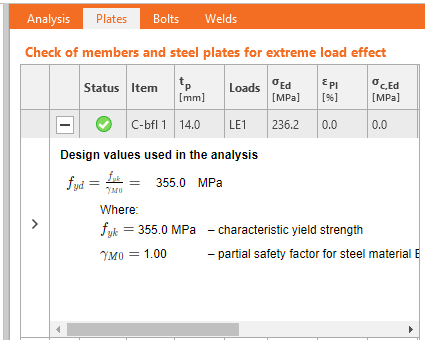

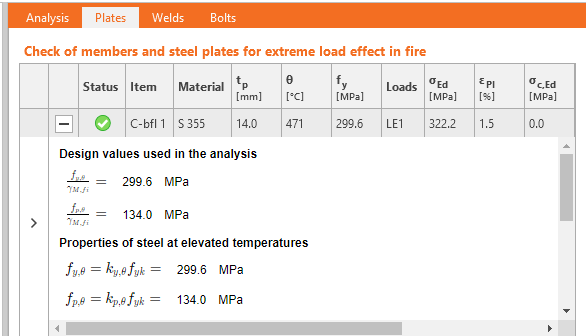
Disponible dans les éditions IDEA StatiCa Steel et IDEA StatiCa Complete.
Essayez dès aujourd'hui les nouvelles fonctionnalités d'IDEA StatiCa
Limitations aux vérifications des ancrages
Eurocode
Type d'ancrage : Droit
Message :
Les vérifications suivantes des ancrages sollicités en traction ne sont pas fournies et doivent être vérifiées à l'aide des informations contenues dans la Spécification Technique Européenne de Produit pertinente :
- Rupture par arrachement de l'élément de fixation (pour les ancrages post-installés mécaniques) – EN 1992-4, Art. 7.2.1.5,
- Rupture combinée par arrachement et du béton (pour les ancrages post-installés collés) – EN 1992-4, Art. 7.2.1.6,
- Rupture par fendage du béton – EN 1992-4, Art. 7.2.1.7.
La rupture par éclatement du béton n'est vérifiée que pour les ancrages avec rondelles.
Type d'ancrage : Rondelle
Message :
La rupture par fendage du béton doit être déterminée selon EN 1992-4, Art. 7.2.1.7. Les informations de la Spécification Technique Européenne de Produit pertinente sont manquantes.
AISC (LRFD)
Type d'ancrage : Droit
Message :
Les vérifications suivantes des ancrages sollicités en traction ne sont pas fournies et doivent être vérifiées à l'aide des informations contenues dans la Spécification Technique de Produit pertinente (basée sur le fractile à 5 % des essais réalisés et évalués conformément à ACI 355.2) :
- Rupture par arrachement de l'élément de fixation (pour les ancrages post-installés mécaniques) – ACI 318-19 : 17.6.3,
- Résistance d'adhérence de l'ancrage collé (pour les ancrages post-installés collés) – ACI 318-19 : 17.6.5,
- La rupture par fendage du béton lors de la mise en œuvre doit être évaluée selon les exigences de l'ACI 355.2.
La rupture par éclatement du béton n'est vérifiée que pour les ancrages avec rondelles.
Type d'ancrage : Rondelle
Message :
La rupture par fendage du béton lors de la mise en œuvre n'est pas vérifiée et doit être évaluée selon les exigences de l'ACI 355.2.
CSA
Type d'ancrage : Droit
Message :
Les vérifications suivantes des ancrages sollicités en traction ne sont pas fournies et doivent être vérifiées à l'aide des informations contenues dans la Spécification Technique de Produit pertinente (basée sur le fractile à 5 % des essais) :
- Rupture par arrachement de l'élément de fixation (pour les ancrages post-installés mécaniques) – CSA A23.3-14 : D.6.3,
- Résistance d'adhérence de l'ancrage collé (pour les ancrages post-installés collés) – CSA A23.3-14 : D.6.5.
La rupture par éclatement du béton n'est vérifiée que pour les ancrages avec rondelles. Les ancrages doivent satisfaire les distances aux bords, espacements et épaisseurs requis pour éviter la rupture par fendage conformément à CSA A23.3-14 : D.9.
Type d'ancrage : Rondelle
Message :
Les ancrages doivent satisfaire les distances aux bords, espacements et épaisseurs requis pour éviter la rupture par fendage conformément à CSA A23.3-14 : D.9.
AS
Type d'ancrage : Droit
Message :
Les vérifications suivantes des ancrages sollicités en traction ne sont pas fournies et doivent être vérifiées à l'aide des informations contenues dans la Spécification Technique de Produit pertinente (essais selon AS 5216:2018 : Annexe A) :
- Rupture par arrachement de l'élément de fixation (pour les ancrages post-installés mécaniques) – AS 5216:2018 : 6.2.4,
- Rupture combinée par arrachement et cône de béton (pour les ancrages post-installés collés) – AS 5216:2018 : 6.2.5,
- Rupture par fendage du béton – AS 5216:2018 : 6.2.6.
La rupture par éclatement du béton n'est vérifiée que pour les ancrages avec rondelles.
Type d'ancrage : Rondelle
Message :
La rupture par fendage du béton doit être déterminée selon AS 5216:2018 : 6.2.6. Les informations des Spécifications Techniques de Produit pertinentes (essais selon AS 5216:2018 : Annexe A) sont manquantes.
Disponible dans les éditions IDEA StatiCa Steel et IDEA StatiCa Complete.
Téléchargez la nouvelle version d'IDEA StatiCa et essayez toutes les fonctionnalités
Calcul détaillé des valeurs de matériaux de calcul d'assemblage affiché pour les platines
Pour différents types d'analyse, les valeurs des paramètres de matériaux de calcul changent selon les exigences du code de calcul particulier.
Si l'utilisateur souhaite afficher et vérifier les valeurs de calcul entrant dans les calculs d'analyse, tout peut être trouvé dans le tableau de résultats pour les Platines. Il suffit de cliquer sur le bouton 'plus' pour afficher des informations plus complètes sur l'analyse, telles que la réduction de matériau pour les sections creuses ou les paramètres acier spécifiques pour l'analyse contrainte-déformation, le calcul de capacité, le calcul au feu ou l'analyse de tirant horizontal.
Disponible dans les éditions IDEA StatiCa Steel et IDEA StatiCa Complete.
Essayez dès aujourd'hui les nouvelles fonctionnalités d'IDEA StatiCa
It is also worth mentioning that we have updated steel and bolt grade materials for AISC360-22 in the application. (since patch 23.0.4)
Steel member design
Calcul détaillé des valeurs de matériaux de calcul d'assemblage affiché pour les platines
Pour différents types d'analyse, les valeurs des paramètres de matériaux de calcul changent selon les exigences du code de calcul particulier.
Si l'utilisateur souhaite afficher et vérifier les valeurs de calcul entrant dans les calculs d'analyse, tout peut être trouvé dans le tableau de résultats pour les Platines. Il suffit de cliquer sur le bouton 'plus' pour afficher des informations plus complètes sur l'analyse, telles que la réduction de matériau pour les sections creuses ou les paramètres acier spécifiques pour l'analyse contrainte-déformation, le calcul de capacité, le calcul au feu ou l'analyse de tirant horizontal.
Disponible dans les éditions IDEA StatiCa Steel et IDEA StatiCa Complete.
Essayez dès aujourd'hui les nouvelles fonctionnalités d'IDEA StatiCa
Renforcement des éléments acier existants
Phases de construction et renforcement
Les phases de construction (connues sous le nom de Précharge dans l'application Member) sont utilisées lorsque, par exemple, un ingénieur doit vérifier un élément en fonction d'une nouvelle distribution de charges par rapport à un schéma de charges existant. Cette méthode permet de concevoir des travaux de renforcement spécifiques et ciblés.

Le renforcement d'un bâtiment, plutôt que sa démolition, peut être une solution complexe, c'est pourquoi cette méthode a été introduite. Elle vise à permettre aux équipes de conception d'élaborer une stratégie qui préserve les bâtiments et réduit les émissions de CO2. Il existe plusieurs exemples en ingénierie où cela est nécessaire : lorsque des panneaux solaires photovoltaïques sont installés sur des toitures existantes, entraînant une augmentation des charges et des soulèvements, ou lors de la rénovation de locaux commerciaux où les escaliers et les ouvertures ne sont jamais au bon endroit.

Définissez un nouveau type de vérification de la précharge pour permettre au logiciel d'introduire des charges supplémentaires après que les vérifications normatives à l'ELU requises ont été effectuées. Grâce à cela, vous pouvez clairement visualiser les résultats de conformité/non-conformité, incluant, par exemple, les contraintes dans la structure existante et dans les platines du renforcement ajouté.
Disponible dans les éditions IDEA StatiCa Steel et IDEA StatiCa Complete.
Essayez dès aujourd'hui les nouvelles fonctionnalités d'IDEA StatiCa
Assistant de modélisation pour les cas d'utilisation typiques dans IDEA StatiCa Member
Assistant de modélisation
Que vous ne sachiez pas comment définir correctement les éléments, les conditions aux limites et les charges, ou que vous souhaitiez créer un projet en un seul clic, vous pouvez utiliser l'assistant de modélisation. Des modèles existent pour les cas d'utilisation les plus courants. Il vous suffit de choisir celui qui correspond à vos spécifications et de le modifier selon les exigences de votre projet.
Les modèles sont divisés en trois catégories de base selon la géométrie :
- Poutre
- Poteau
- Général
Plusieurs options de conception sont ensuite disponibles pour chaque catégorie.
Divers exemples typiques sont créés pour une poutre, notamment des poutres à jarret ou des poutres avec ouvertures :

Pour un poteau, il s'agit principalement d'éléments isolés ancrés dans le socle en béton avec différents niveaux de renforcement :

Dans la section générale, vous pouvez trouver, entre autres, des exemples de diagonales de contreventement.
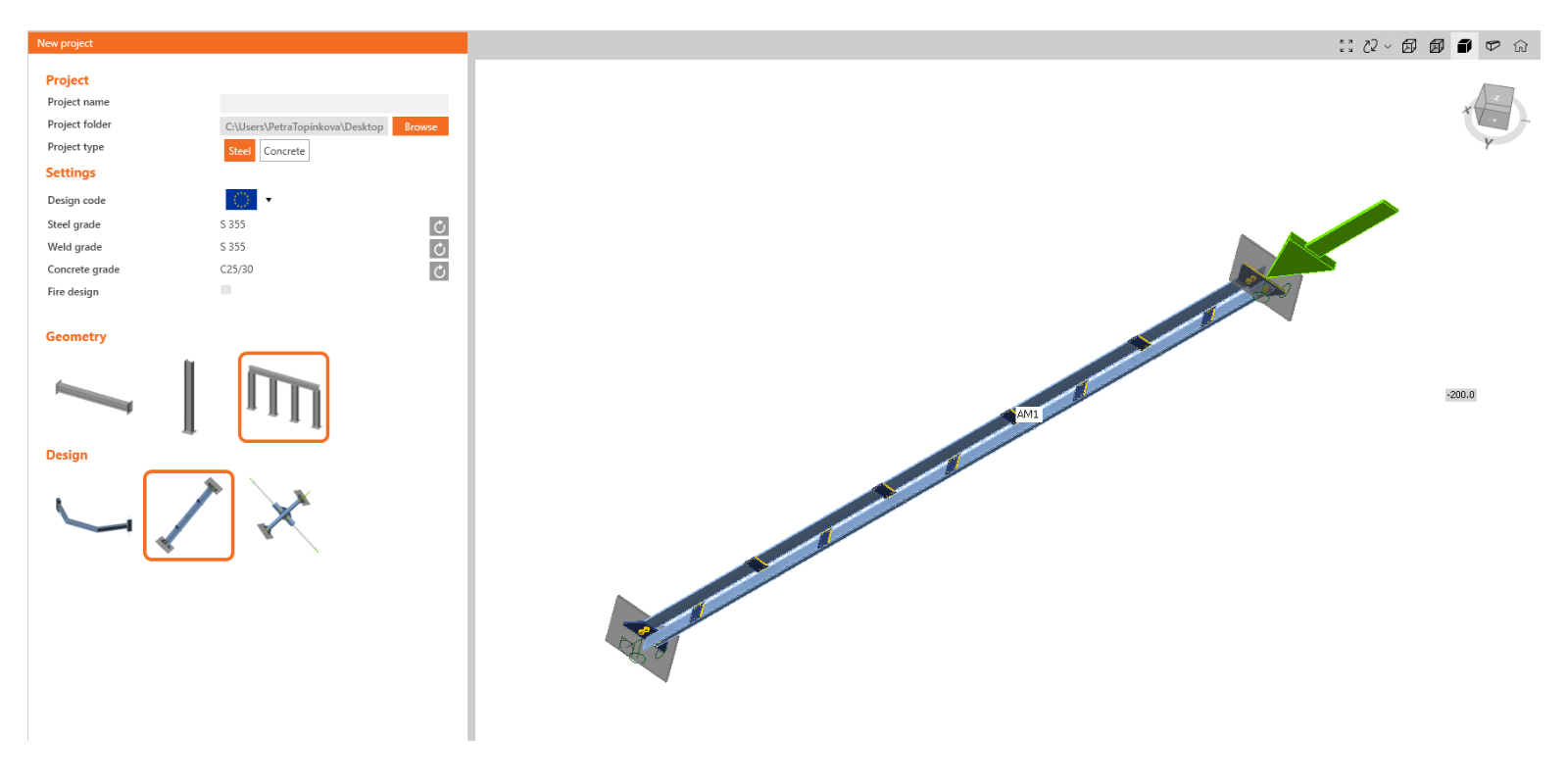
Comme mentionné précédemment, cette fonctionnalité est créée sur la base d'exemples d'utilisateurs en tant qu'outil pour un travail plus facile et plus efficace avec l'application. Si un exemple typique vous manque ici, n'hésitez pas à nous contacter avec vos suggestions.
Disponible dans les éditions IDEA StatiCa Steel et IDEA StatiCa Complete.
Essayez dès aujourd'hui les nouvelles fonctionnalités d'IDEA StatiCa
Détection des singularités dans Member
Si le modèle de Member est imparfait en termes de modélisation (par exemple, un raidisseur n'est pas soudé à la poutre ou un assemblage est manquant), le message de singularité apparaîtra après avoir cliqué sur le bouton Calculer , et l'analyse est interrompue.
Cela posait problème, notamment dans les grands modèles Member où il était difficile d'identifier quelle partie du modèle causait la singularité.
Avec la nouvelle version, le message décrivant la partie problématique est affiché dans la fenêtre 3D, et l'assemblage manquant peut être facilement corrigé. S'il y a plusieurs singularités, la première partie défaillante est affichée, et une fois corrigée, la suivante est révélée.
Disponible dans IDEA StatiCa Steel.
Téléchargez la nouvelle version d'IDEA StatiCa et essayez toutes les fonctionnalités
Design of walls, details, and cross-sections
Interface ruban intuitive et système de navigation pour IDEA StatiCa Detail
Travaillez dans une interface graphique (GUI) attrayante, claire et simple d'utilisation pour accélérer votre conception structurelle en béton !
Disposition de l'application
L'interface graphique de l'application Detail est claire et simple à utiliser :
- Composée de six onglets de ruban – Projet, Conception, Outils, Vérification, Rapport et Matériaux
- L'activation des fonctionnalités ou l'interaction avec les boîtes de dialogue s'effectue via des boutons de commande dans les groupes du ruban
- La scène affichant la conception structurelle en béton de l'utilisateur et l'arborescence de navigation à gauche occupent une grande partie de l'espace écran, car ce sont les composants les plus importants pour l'utilisateur
- Les propriétés d'un élément sélectionné (les entités peuvent être sélectionnées dans l'arborescence ou dans la scène) sont présentées dans la grille de propriétés sur le côté droit de l'application
- Le pied de page en bas de l'application contient des informations de base sur les paramètres du projet, tels que le code de calcul, les unités d'arrondi, les unités de présentation et un lien vers notre page web. En cliquant sur ces entités, la fenêtre de dialogue avec les paramètres correspondants s'ouvre, permettant la définition d'un groupe de paramètres sélectionné.

L'onglet Projet ou le menu backstage propose :
- Des commandes de base, telles que Nouveau, Ouvrir, Enregistrer, et bien d'autres
- Les utilisateurs peuvent y trouver les paramètres de l'application tels que les Unités ou les Préférences


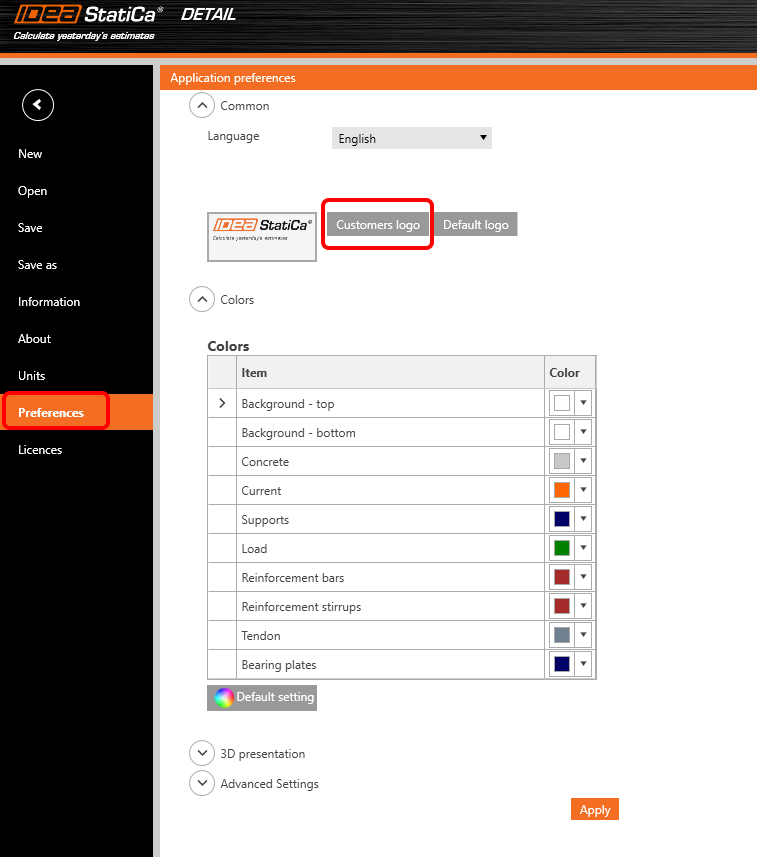
Ajout d'une nouvelle entité de projet :
- Chaque projet peut contenir plusieurs éléments de projet
- Un nouvel élément de projet est ajouté à l'aide des commandes du ruban ou du menu backstage - onglet Informations
- Il est possible de copier un élément existant lorsque l'on travaille sur des conceptions structurelles similaires

Comment travailler dans l'application Detail
L'interface graphique est très intuitive et guide les utilisateurs pour créer leurs projets efficacement. Il suffit de suivre les onglets du ruban étape par étape.
Nouveau projet
- Un assistant permet de définir un projet à partir d'un modèle (ou d'un type de structure défini par l'utilisateur) et de définir les propriétés initiales des matériaux
Conception
- Sert à concevoir l'élément structurel, y compris la charge et la définition du ferraillage
- La géométrie de la structure et le ferraillage peuvent être facilement importés depuis des fichiers DXF ou ajoutés ici via les boutons correspondants
- L'arborescence des entités contient toutes les entités définies dans un modèle. Chaque entité de l'arborescence dispose d'un ensemble de commandes soigneusement sélectionnées dans le menu contextuel. Les entités de l'arborescence peuvent être regroupées par type ou sous forme de liste d'entités ordonnées séquentiellement.
- Une fonctionnalité remarquable a été développée pour faciliter la conception du ferraillage. En désactivant la commande « Dessiner une barre » dans le ruban, seule l'entité de barre sélectionnée est affichée dans la scène, le reste étant masqué. Cela facilite le détaillage d'une barre sélectionnée sans interférer avec les nombreuses autres barres existantes.


Outils
- Pour tous les ingénieurs confrontés à la conception d'une quantité et d'une disposition suffisantes de ferraillage, cette fonctionnalité permet d'utiliser des méthodes de calcul telles que l'optimisation topologique et l'analyse linéaire pour déterminer les zones de la structure nécessitant un ferraillage
- L'arborescence des entités est réduite et ne contient que les barres existantes
- Le bouton « Dessiner une barre », dont la fonction est décrite dans la section Conception, peut également être utilisé ici
- Pour une vue réduite sur les barres décrite dans la section précédente (onglet Conception), une conception simplifiée du ferraillage peut également être utilisée dans l'onglet Outils

Vérification
- L'arborescence de navigation réduite ne contient que les combinaisons actives pour la vérification normative
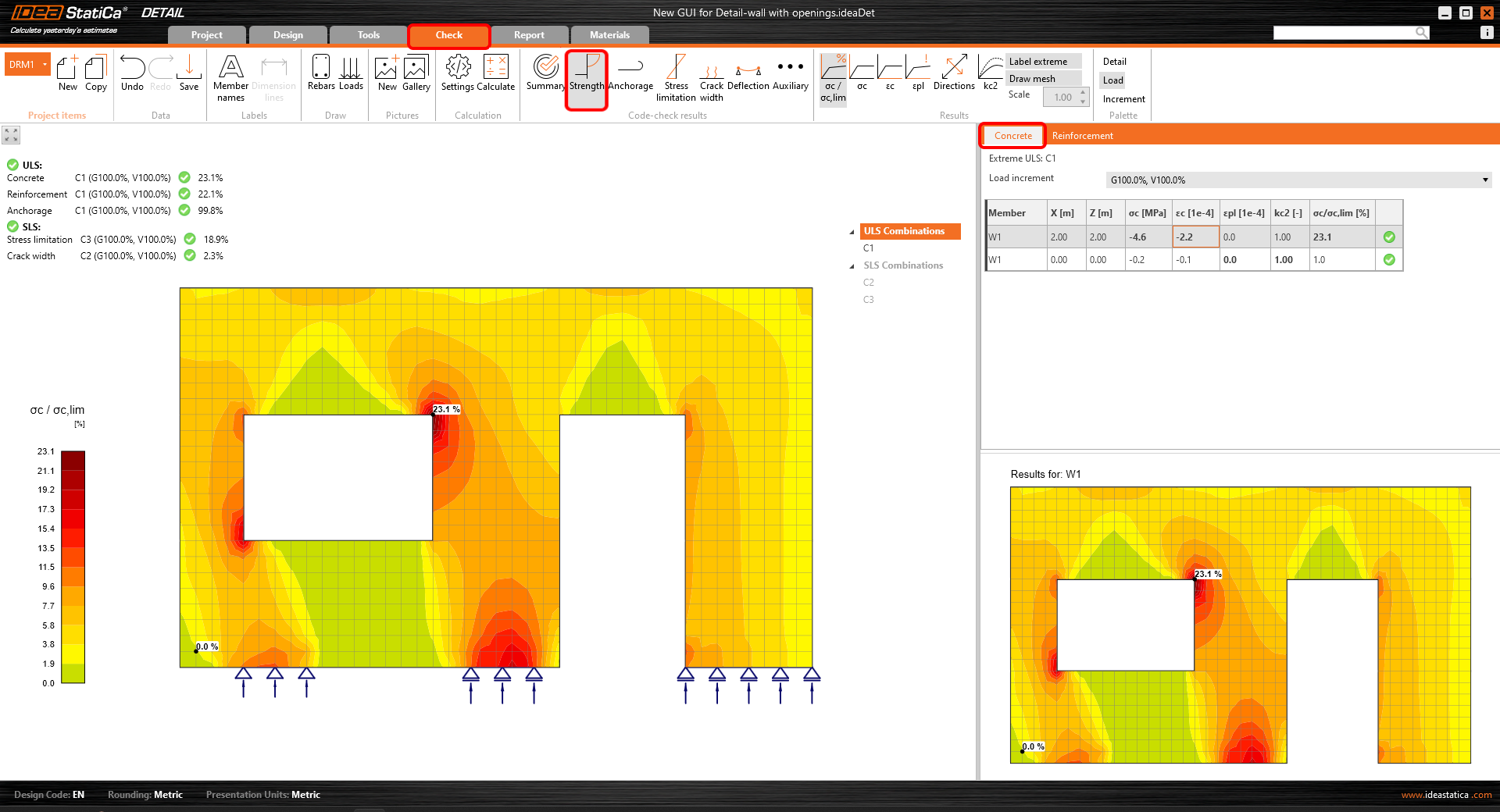
- Le type de vérification normative est sélectionné en cliquant sur le bouton du ruban (groupe Résultats de vérification normative)
- Les résultats pour chaque type de matériau sont présentés séparément dans la scène. Les utilisateurs peuvent sélectionner les résultats affichés en choisissant l'onglet Béton, Ferraillage ou Câble de précontrainte dans la grille de propriétés


Rapport
- Plusieurs types de rapports sont pris en charge – un rapport succinct et un rapport détaillé, ou un bordereau de matériaux si nécessaire
- Dans le rapport détaillé, les utilisateurs peuvent définir librement quels résultats et sorties sont présentés dans le document final, ce qui permet un rapport entièrement personnalisable
- Le rapport peut être exporté en fichier DOC ou PDF

Matériaux
- Consultez le diagramme contrainte-déformation de chaque matériau : béton, acier de ferraillage ou acier de précontrainte
- Modifiez les propriétés des matériaux si nécessaire

La conception et la vérification normative des structures en béton dans la nouvelle interface graphique de l'application Detail sont rapides et aisées. Comment le savons-nous ? Parce que cette interface utilisateur a très bien fonctionné pour des millions de clients utilisant l'application Connection, qui constitue la base de la nouvelle interface graphique de Detail.
Essayez dès aujourd'hui les nouvelles fonctionnalités d'IDEA StatiCa
Avancées de la vérification normative d'interaction dans RCS
Dans l'article suivant, nous expliquerons l'approche du calcul de la force longitudinale due au cisaillement Ftd,s. Cette méthode consiste principalement à modifier la façon dont la force est appliquée à la section transversale. Nous commençons par la définition de la section transversale soumise à N-My-Mz, puis nous ajoutons progressivement la force longitudinale due au cisaillement et à la torsion.
Réponse N-My-Mz
La section transversale est, dans un premier temps, chargée par une combinaison d'effort normal et de moments fléchissants N-My-Mz. La comparaison des résultats entre les versions du logiciel donne les mêmes résultats.

Si le ferraillage de cisaillement est dimensionné dans la section transversale, le cisaillement peut être repris par un modèle fictif de bielle-et-tirant composé d'étriers, de bielles comprimées en béton et d'armatures longitudinales.

La force longitudinale calculée due au cisaillement est appliquée à la section transversale avec tous ses composants (béton et armatures). L'état de contrainte initial issu de la réponse N+My+Mz est déjà défini pour chaque composant.
L'équation pour le calcul de la force longitudinale due au cisaillement :
\[\Delta F_{td,s} = V_{ed}(cot \theta -cot \alpha ) \]
La force longitudinale Ftd,s est, par défaut, appliquée :
- Au centre de gravité de la section résistant au cisaillement – pour les sections transversales pour lesquelles l'application est en mesure de définir une telle section (la zone rouge dans la figure suivante).

- Au centre de gravité de la section transversale – pour les sections transversales pour lesquelles l'application n'est pas en mesure de définir une telle section.
Interaction N-My-Mz-Vz
La réponse de la section due à la combinaison N+My+Mz+ΔFtd,s est calculée. On peut noter que la contrainte dans le béton et les armatures en compression a diminué tandis que la contrainte dans le ferraillage tendu a augmenté (par rapport à la réponse N+My+Mz). La section est toujours en équilibre.

Interaction N-My-Mz-Vz-T
Pour les sections également soumises à la torsion, nous appliquons un effort de traction longitudinal supplémentaire ΔFtd,t aux armatures longitudinales situées à l'intérieur de l'étrier sélectionné pour la vérification de la torsion. Le modèle de calcul est légèrement différent car nous supposons que la section est composée d'armatures longitudinales en négligeant le béton. La réponse N+My+Mz+ΔFtd,s définit l'état de contrainte initial de chaque armature. Par conséquent, ΔFtd,t est appliqué en respectant la condition d'un même incrément de déformation pour toutes les armatures résistant à la torsion.

Les hypothèses de calcul impliquent que dans certains cas, comme les sections situées au-dessus de l'appui intermédiaire d'une poutre continue, des résultats différents peuvent être observés. Lorsque la contrainte dans le ferraillage tendu due à N+My+Mz a atteint la limite d'élasticité, d'autres armatures moins sollicitées ont repris la force longitudinale due au cisaillement (par exemple, situées dans une zone comprimée).
Disponible dans les éditions IDEA StatiCa Concrete et IDEA StatiCa Complete.
Essayez dès aujourd'hui les nouvelles fonctionnalités d'IDEA StatiCa
Importation du ferraillage depuis des fichiers DXF dans IDEA StatiCa Detail
Améliorations de l'importation DXF du ferraillage dans IDEA StatiCa Detail
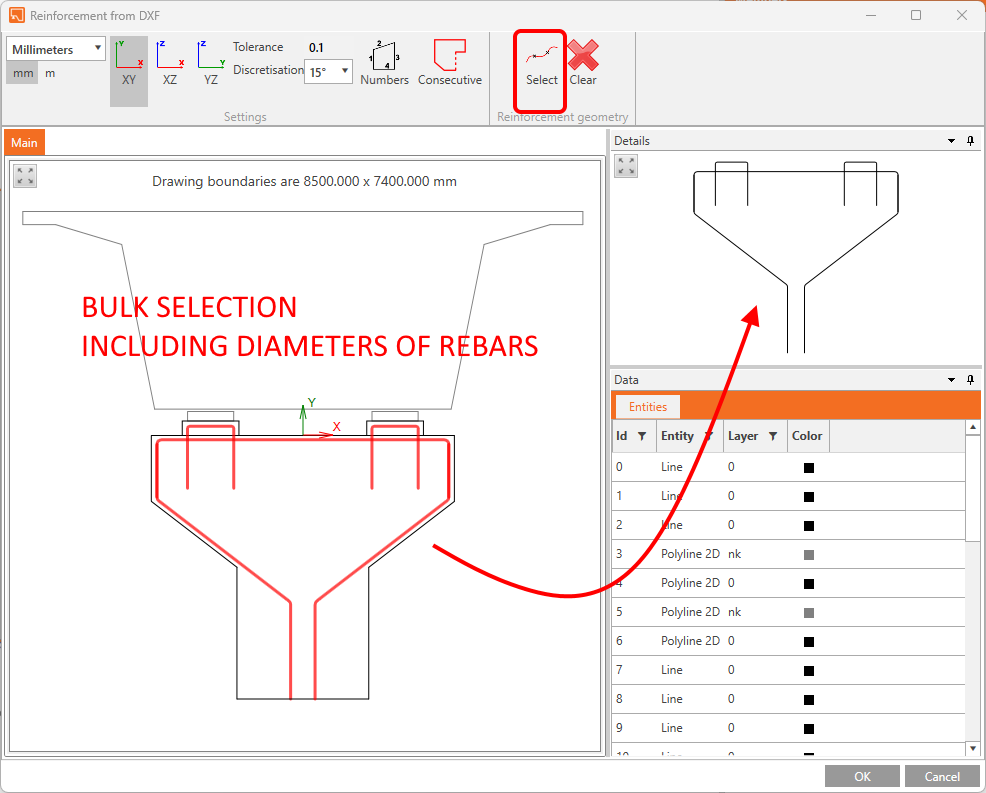
Cette fonctionnalité est disponible dans l'application Detail depuis un certain temps, et nous l'améliorons continuellement en fonction de vos besoins. Nous ajoutons désormais la possibilité d'importer l'ensemble du ferraillage dessiné en DXF en tenant compte de son diamètre, si celui-ci est défini comme largeur globale d'une courbe. Vous pouvez importer la totalité de la disposition du ferraillage avec différents diamètres de barres en un seul clic !

Essayez dès aujourd'hui les nouvelles fonctionnalités d'IDEA StatiCa
BIM links and education
BIM links reduce modeling time, decrease the number of copy-paste errors, and overcome any issues with data transference. In version 23.1, you can now access our new BIM link with SDS2 by Allplan as well as an IDEA StatiCa plugin for the Rhino Grasshopper tool.
Plugin IDEA Grasshopper
À propos de Rhino/Grasshopper
Rhino et Grasshopper constituent une puissante plateforme de modélisation CAO avec un large éventail de plugins disponibles pour les secteurs de l'architecture et de l'ingénierie. En tant qu'outil de modélisation paramétrique, Grasshopper a créé un écosystème étendu et bien maintenu de plugins tiers, interagissant via leur puissant moteur géométrique. Tekla, Revit et tous les principaux logiciels EF disposent de plugins pour Grasshopper.
Fonctionnement du plugin
Le plugin Grasshopper permet aux utilisateurs d'interagir avec IOM et l'API Connection en utilisant une approche de programmation visuelle « low code ».
La combinaison de Grasshopper avec l'Open Model et les API d'IDEA StatiCa crée une plateforme extrêmement puissante pour la définition paramétrique de géométries d'assemblages complexes, ainsi que pour l'automatisation et l'optimisation des assemblages.
Applications liées : IDEA Open Model, IDEA StatiCa Connection, IDEA StatiCa Checkbot (Standalone)
La description complète du plugin IDEA pour Grasshopper avec des exemples « Comment modéliser » est présentée sur la page web Flux de travail Rhino vers IDEA StatiCa.
Essayez dès aujourd'hui les nouvelles fonctionnalités d'IDEA StatiCa
Lien BIM avec Allplan SDS2
Le lien offre aux utilisateurs la possibilité de transférer directement des assemblages entièrement détaillés, que ce soit de manière individuelle ou en sélection groupée. L'utilisateur peut transférer des éléments d'assemblage tels que les boulons, les soudures, les raidisseurs et les coupes de plaques modélisés dans l'outil de dessin de détails SDS2 directement dans IDEA StatiCa Checkbot, puis dans l'application Connection.
L'intégration est affichée dans la liste des logiciels tiers entièrement pris en charge lors du processus d'installation BIM.
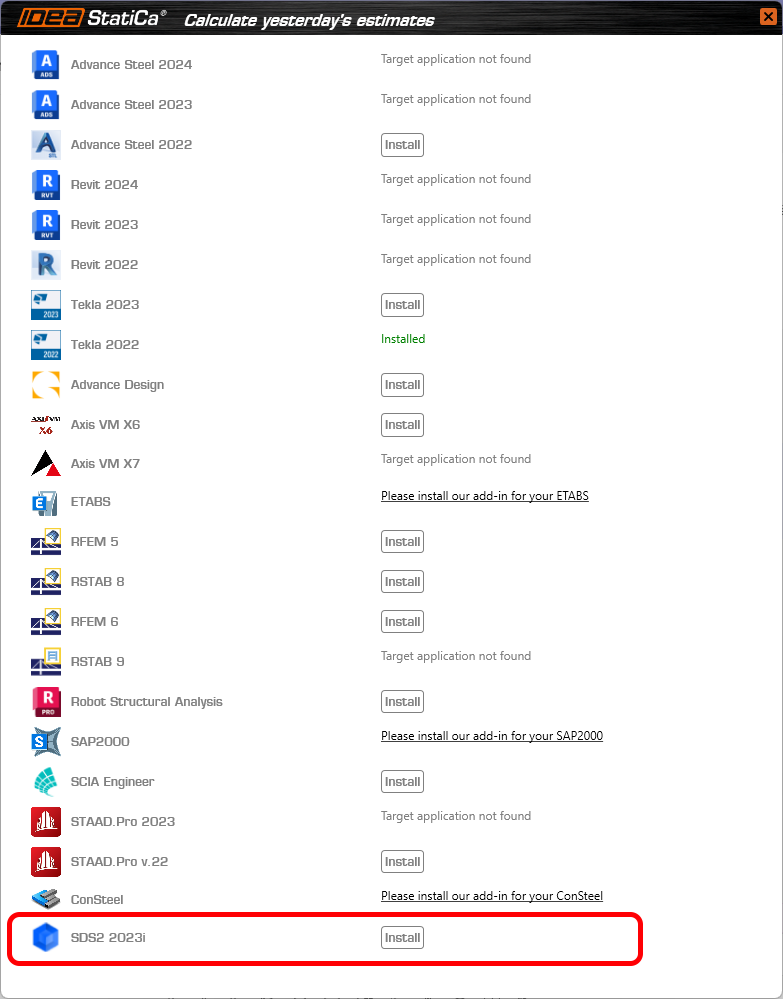
Une description complète du plugin IDEA pour SDS2 est présentée sur cette page web.
Essayez dès aujourd'hui les nouvelles fonctionnalités d'IDEA StatiCa
Fonctionnalités UX dans la conception paramétrique
Cela fait des paramètres une fonctionnalité utilisable pour piloter une modélisation paramétrique et automatisée puissante des assemblages.
UX
L'UX de l'onglet Développeur comprend des fonctionnalités importantes.
- Les paramètres et les propriétés du modèle sont désormais répartis en onglets dans le panneau latéral. Les Paramètres étant positionnés comme l'élément « principal » de cette fonctionnalité.
- Il est possible de lier des paramètres aux propriétés du modèle directement depuis cet onglet en utilisant le bouton d'ajout de lien vers une propriété du modèle.

- Une colonne Valeur de sortie a été ajoutée afin que l'utilisateur puisse voir le résultat calculé en temps réel.
- Une Validation de paramètre personnalisée est disponible pour permettre aux créateurs de modèles d'informer les autres des limitations de leurs conceptions paramétriques.
- L'utilisateur peut sélectionner un « type » de validation et choisir d'avertir l'utilisateur ou de restreindre la valeur appliquée au modèle.
- Si la validation est définie et réussie (=true), une icône de succès s'affiche.
- Si la validation est définie et non réussie (=false), une icône d'avertissement ou d'erreur s'affiche.
- Si aucune validation n'est définie, aucune icône ne s'affiche.

- Une sélection d'unité est disponible pour permettre aux utilisateurs de voir la valeur de sortie dans leur type d'unité préféré (défini par les paramètres du programme). Remarque : tous les calculs et les entrées d'expressions doivent toujours être en unités SI de base.

- La Boîte de dialogue des propriétés du modèle fonctionne de la manière suivante :
- Une colonne Est actif a été ajoutée aux propriétés du modèle pour indiquer à l'utilisateur si la propriété spécifique est visible dans l'interface utilisateur actuelle du programme.
- Un paramètre peut désormais également être modifié sur une propriété de modèle ajoutée.
L'équipe de développement d'IDEA StatiCa cherche également à aller plus loin vers des modèles paramétriques et l'application automatique d'assemblages standard et simples.
Veuillez également consulter la description d'introduction dans l'article de la base de connaissances Mise en place de la conception paramétrique avec l'onglet Développeur.
Disponible dans les éditions IDEA StatiCa Steel et IDEA StatiCa Complete.
Téléchargez la nouvelle version d'IDEA StatiCa et essayez toutes les fonctionnalités
Solution BimApi pour AXIS VM 7, Robot Structural Analysis 2024
Nouveaux liens BIMapi
Les liens vers AXIS VM7 et Robot Structural Analysis sont disponibles depuis les correctifs de la version 23.0.
Cela les rend stables, fiables, moins susceptibles de générer des erreurs inutiles, et surtout plus rapides !
En ce qui concerne Robot Structural Analysis, nous sommes désormais en mesure de lire les excentricités des éléments 1D lors de l'importation du modèle dans notre application Checkbot. Il s'agit d'une fonctionnalité très demandée par les utilisateurs de Robot. Vous l'avez demandé, nous l'avons livré !
Limitations
Veuillez noter que si vous avez un projet créé avec un lien BIM dans la version 23.0 d'IDEA StatiCa et que vous effectuez une mise à jour vers la nouvelle version 23.1, il est possible que vous ne puissiez pas ouvrir le projet en raison de la nouvelle solution BIMapi. Par conséquent, nous recommandons de terminer les projets existants avec la version 23.0.
Comment activer les liens BIM
Téléchargez et installez la dernière version d'IDEA StatiCa. Ouvrez IDEA StatiCa et accédez à l'onglet BIM. Cliquez ensuite sur Activer votre lien BIM...
Vous pouvez trouver une liste des solutions FEA/BIM prises en charge ici.

Une fenêtre s'affiche vous demandant « Voulez-vous autoriser cette application à apporter des modifications à votre appareil ? » Confirmez en sélectionnant Oui.
Les liens BIM pour AXIS VM7 et Robot Structural Analysis 2024 sont installés automatiquement. Vous pouvez consulter le statut de chaque lien BIM.

Tutoriels
Vous pouvez suivre les tutoriels pas à pas pour apprendre à optimiser votre flux de travail.
Essayez dès aujourd'hui les nouvelles fonctionnalités d'IDEA StatiCa
Site web de documentation de l'API/du développeur
Où le trouver ?
La page developer.ideastatica.com est l'endroit où vous devez aller.
Ce nouveau site de documentation pour les développeurs offre aux développeurs tiers d'IDEA StatiCa et aux scripteurs d'API un point d'accès unique aux informations relatives aux services publics et à la norme d'IDEA StatiCa.
Le site relie la documentation statique, la documentation de la norme et des exemples spécifiques.
Améliorations par rapport au système précédent
- La page web publique de GitHub fournit de nombreuses informations utiles, mais il n'est pas toujours facile d'y naviguer. C'est pourquoi ce système offre aux développeurs un point d'accès unique.
- Les notes de mise à jour sur les ruptures permettent aux développeurs de savoir quand et comment ils doivent mettre à jour leurs applications tierces.
- Il permet de faire la distinction entre les développements WIP publics (qui ne devraient pas être utilisés comme des produits) et ceux qui sont des produits fonctionnels accompagnés d'une documentation.
- Le Wiki permet de créer une documentation sur la norme et de la relier aux classes et aux concepts.
- Le Wiki est automatiquement mis à jour et entretenu.
- Les exemples sont facilement accessibles à partir de la documentation.
Le site est divisé en quatre sections distinctes :
- IDEA Open Model (IOM), relatif à la création et à la spécification du modèle de données IOM.
- Liens MIB (MIB API), relatifs à la création de liens MIB Checkbot à l'aide du cadre MIB API.
- Design API (API), relatif aux API des applications de conception.
- Extensions, relatives aux extensions créées à partir des API de l'application de conception.
API pour les mises à jour de IDEA StatiCa Connection
La mise à jour de l'API pour IDEA StatiCa Connection inclut des fonctionnalités permettant d'élargir son utilisation, telles que :
- Présentation de l'assemblage
- Positionnement des éléments
- Conception automatique des soudures
- Contrôleur de paramètres partagés
- Génération de rapports améliorés
- Conversion de la norme du projet

Disponible dans IDEA StatiCa version 25.1.
Essayez dès aujourd'hui les nouvelles fonctionnalités d'IDEA StatiCa
Check the compatibility with your software in the list of supported versions in 23.1
To help you master IDEA StatiCa, we redesigned Campus, which provides you with self-paced e-learning courses, each with the option of obtaining professional-level certification.