


SCIA Engineer enlace BIM para el diseño de elementos de acero (EN)
Cómo activar el enlace
- Descargue e instale la última versión de IDEA StatiCa
- Asegúrese de que está utilizando una versión compatible de su solución FEA
IDEA StatiCa integra enlaces BIM en su software FEA durante su instalación. Puede comprobar el estado e integrar más enlaces BIM ejecutando IDEA StatiCa y abriendo los enlaces BIM. Tenga en cuenta que algunos programas FEA requieren pasos adicionales para activar completamente su enlace BIM con IDEA StatiCa.

Puede aparecer una notificación "¿Desea permitir que esta aplicación realice cambios en su dispositivo?"; si es así, confirme con el botón Sí.
Al hacer clic en Instalar, el enlace BIM para el software seleccionado queda integrado. La pantalla también muestra el estado de los demás enlaces BIM.

Cómo usar IDEA StatiCa Checkbot
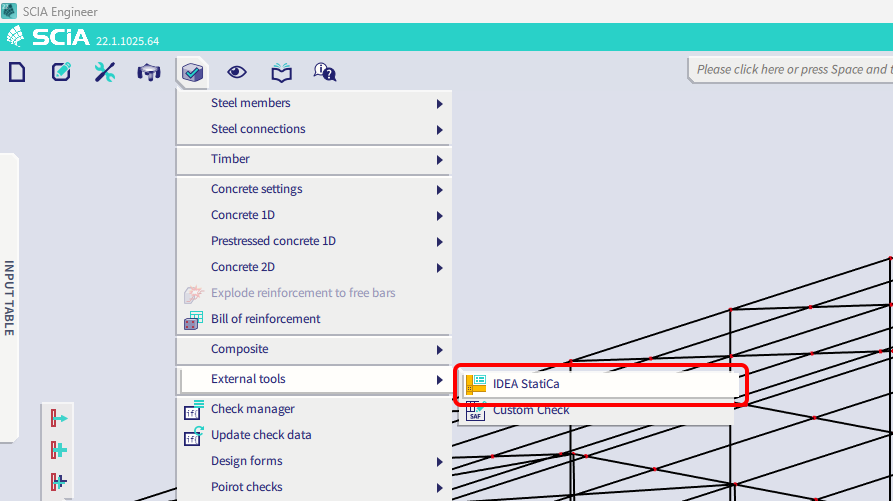
Descargue el proyecto adjunto, ábralo en SCIA Engineer y ejecute el cálculo para obtener los esfuerzos internos en la estructura.
Después, ejecute la aplicación IDEA StatiCa Checkbot.
Seleccione la opción Nuevo con tipo de proyecto Acero y código de diseño EN. Luego seleccione Crear proyecto.

El nuevo proyecto de Checkbot está listo para importar uniones y elementos desde SCIA Engineer.
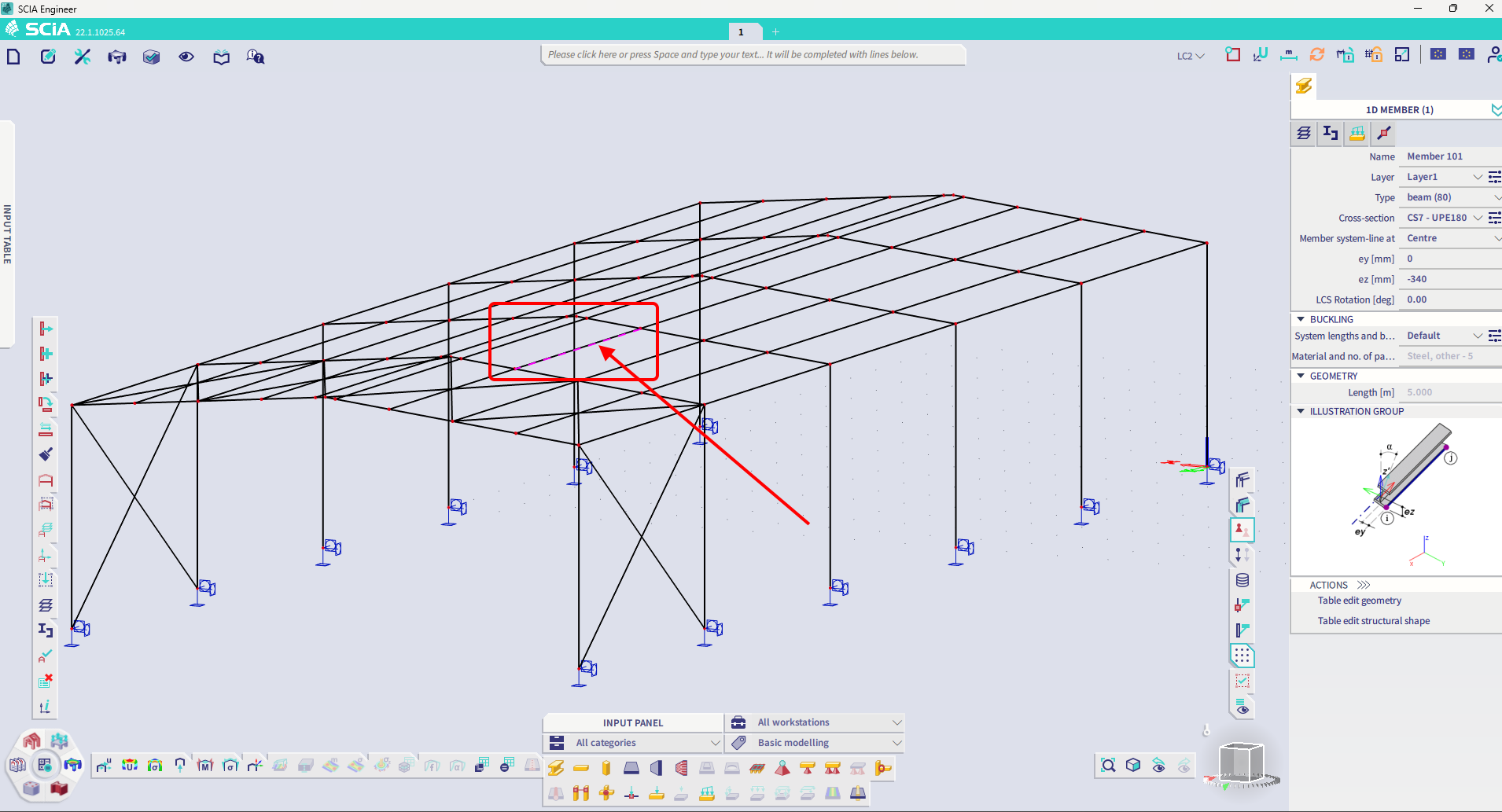
En SCIA Engineer, seleccione uno de los elementos interiores, como se muestra en la imagen.
Importar
Luego en Checkbot seleccione Member.
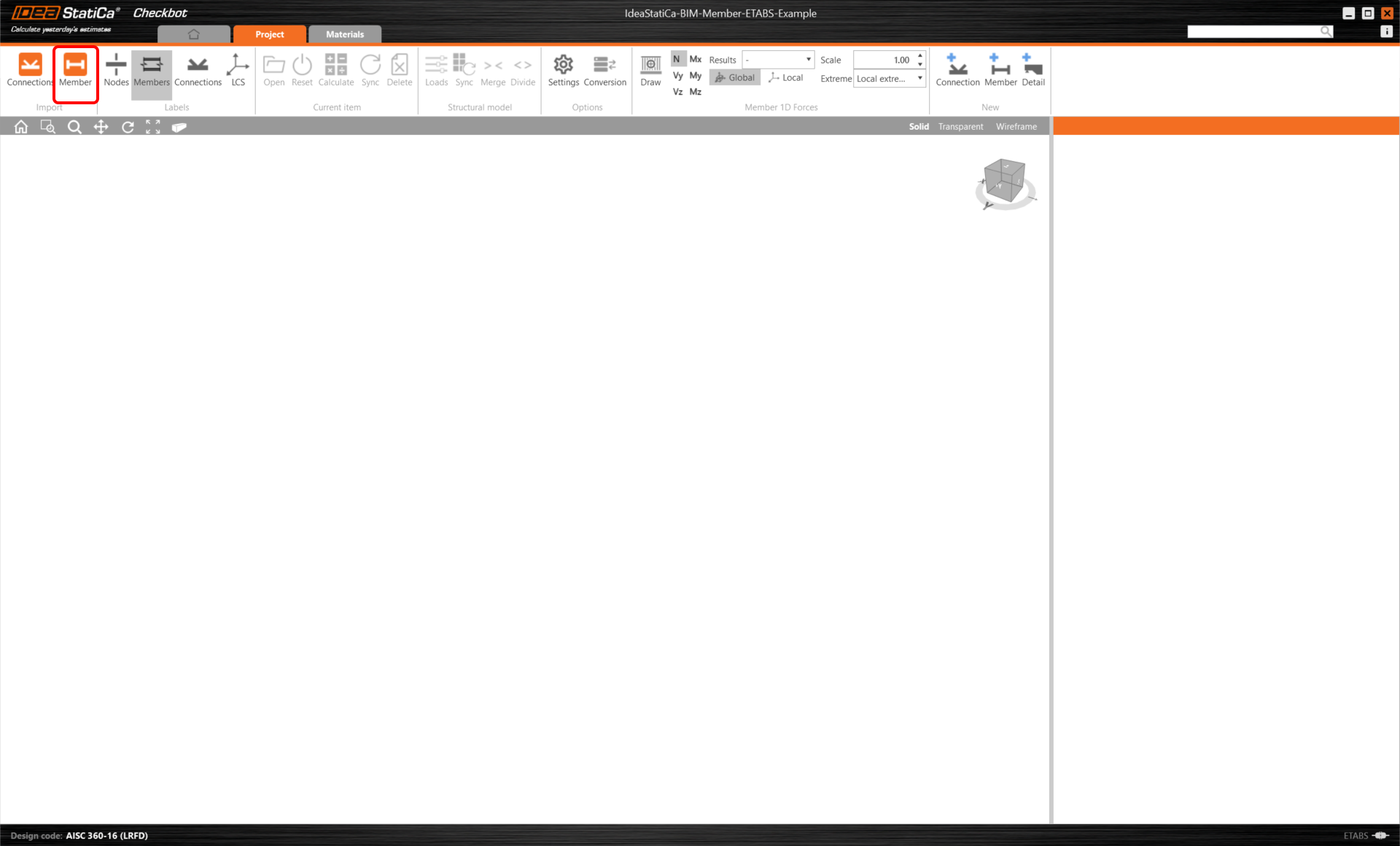
Esto importará la viga y sus efectos de carga en Checkbot - con las coordenadas exactas, orientaciones y tamaños de sección según el modelo FEA/BIM.
Tenga en cuenta que la numeración de sus nodos y elementos puede ser diferente.

Como puede ver, el elemento seleccionado con todos los elementos relacionados ha sido importado.
Puede verificar las fuerzas internas. Seleccione Draw, luego la fuerza interna y combinación deseadas, haga clic izquierdo en el cuadro de unión y siga los pasos que se muestran a continuación en la imagen.

Los elementos pueden fusionarse directamente en Checkbot, y luego en la aplicación Member serán un único elemento continuo.
Fusione ambos elementos relacionados perpendiculares. Haga clic izquierdo en el perfil en I M-82, seleccione la operación Merge, marque la casilla M83 en la ventana de diseño de fusión y siga los pasos que se muestran en la imagen.

En esta ventana verá una alerta informativa sobre la operación que se realizará; acéptela.

Realice la misma acción de fusión para otro grupo de perfiles en I. Después de los cambios, nuestro modelo debería verse como en la siguiente imagen.

Puede controlar qué caso de carga o combinación se cargará en la aplicación Member haciendo clic en Loads y gestionando las clases de resultados para las verificaciones.

Aquí en el Configurador de cargas puede añadir casos de carga para la aplicación Member. Tenga en cuenta que por defecto la función Evaluate critical results está habilitada, lo que filtra las combinaciones críticas para acelerar el cálculo. Puede desactivarla y todas las combinaciones se incluirán en el cálculo.
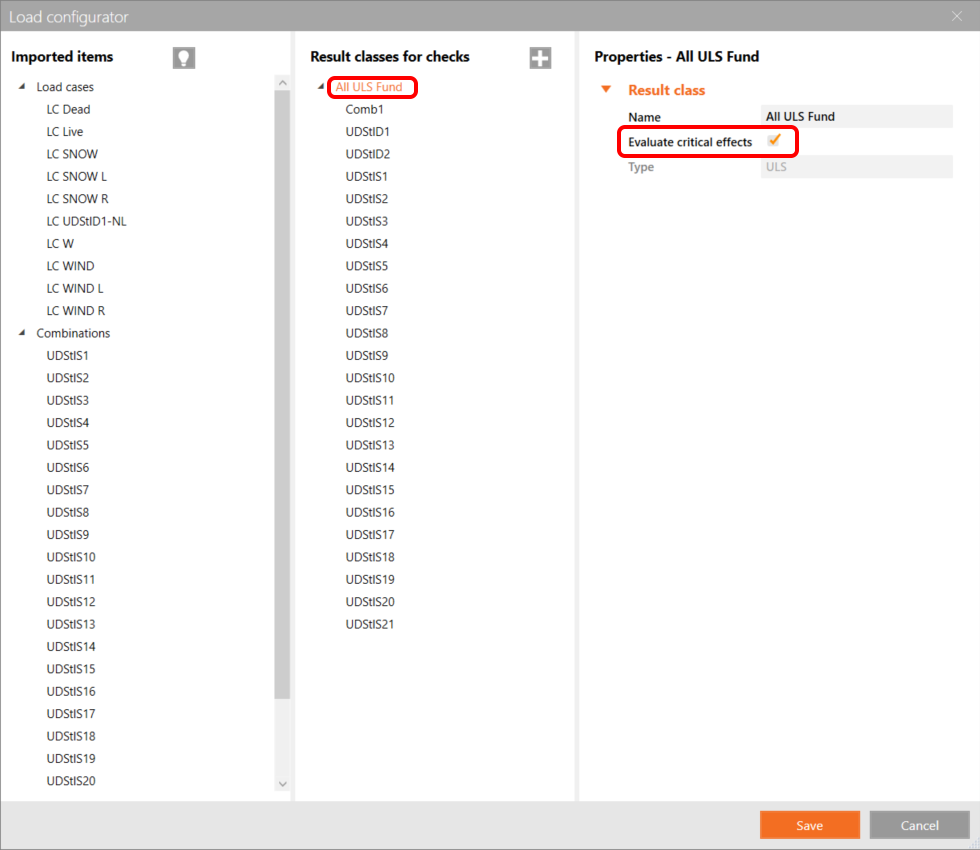
Módulo Members
Ahora podemos abrir la aplicación Member. Simplemente haga clic izquierdo en Abrir.

Aquí puede ver nuestra aplicación Member.

Al principio, diseñemos las juntas del elemento de perfil en U, así que seleccione la primera unión y haga clic en Editar unión. Como puede ver ahora, los perfiles en I están representados por un elemento continuo, gracias a la fusión que realizamos.
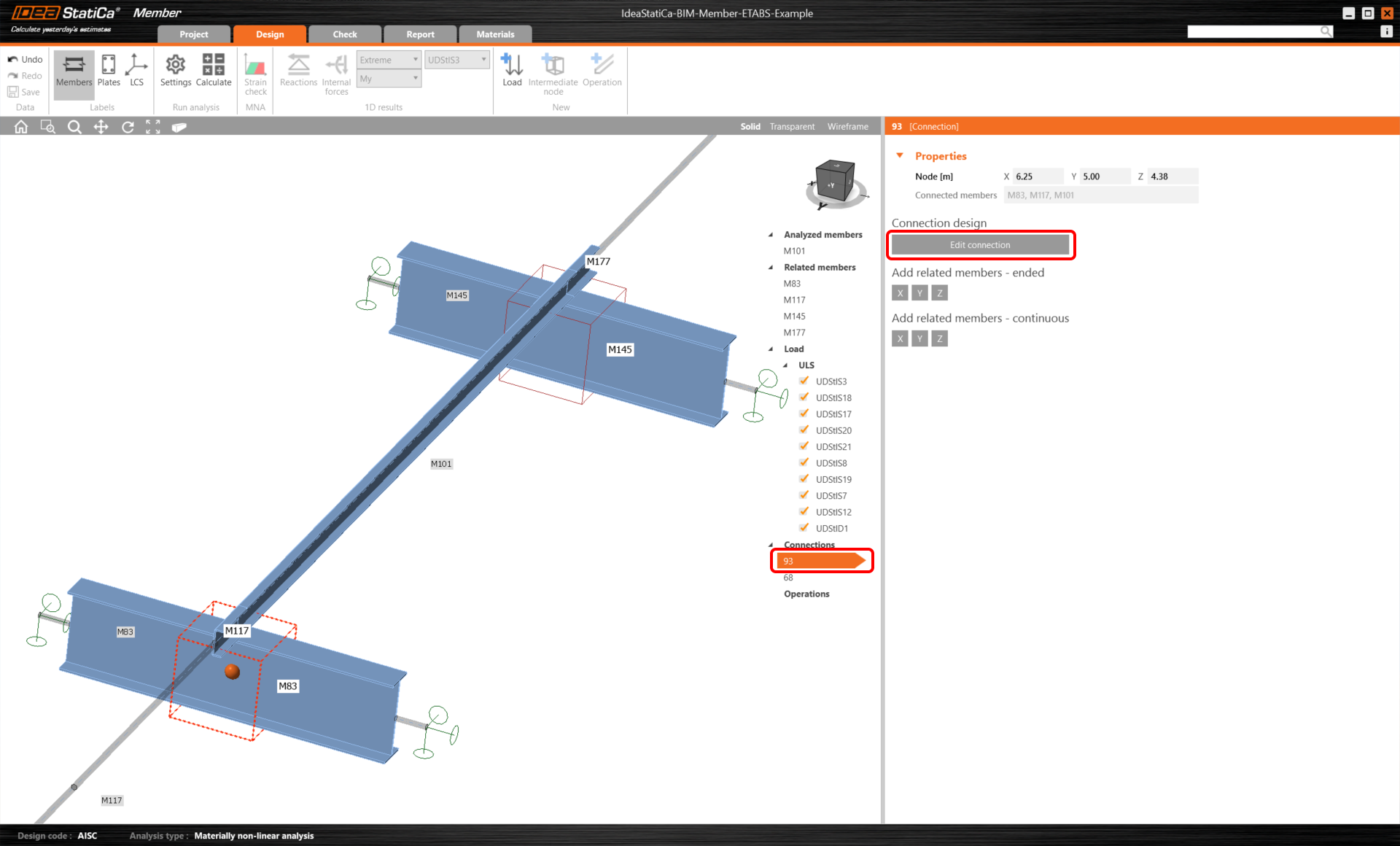
Hemos importado y verificado con éxito una correa desde SCIA Engineer.
Descargas adjuntas
- BIM-Member-SCIA-Example.esa (ESA, 3,7 MB)
- BIM-Member-SCIA-Example.zip (ZIP, 2 MB)