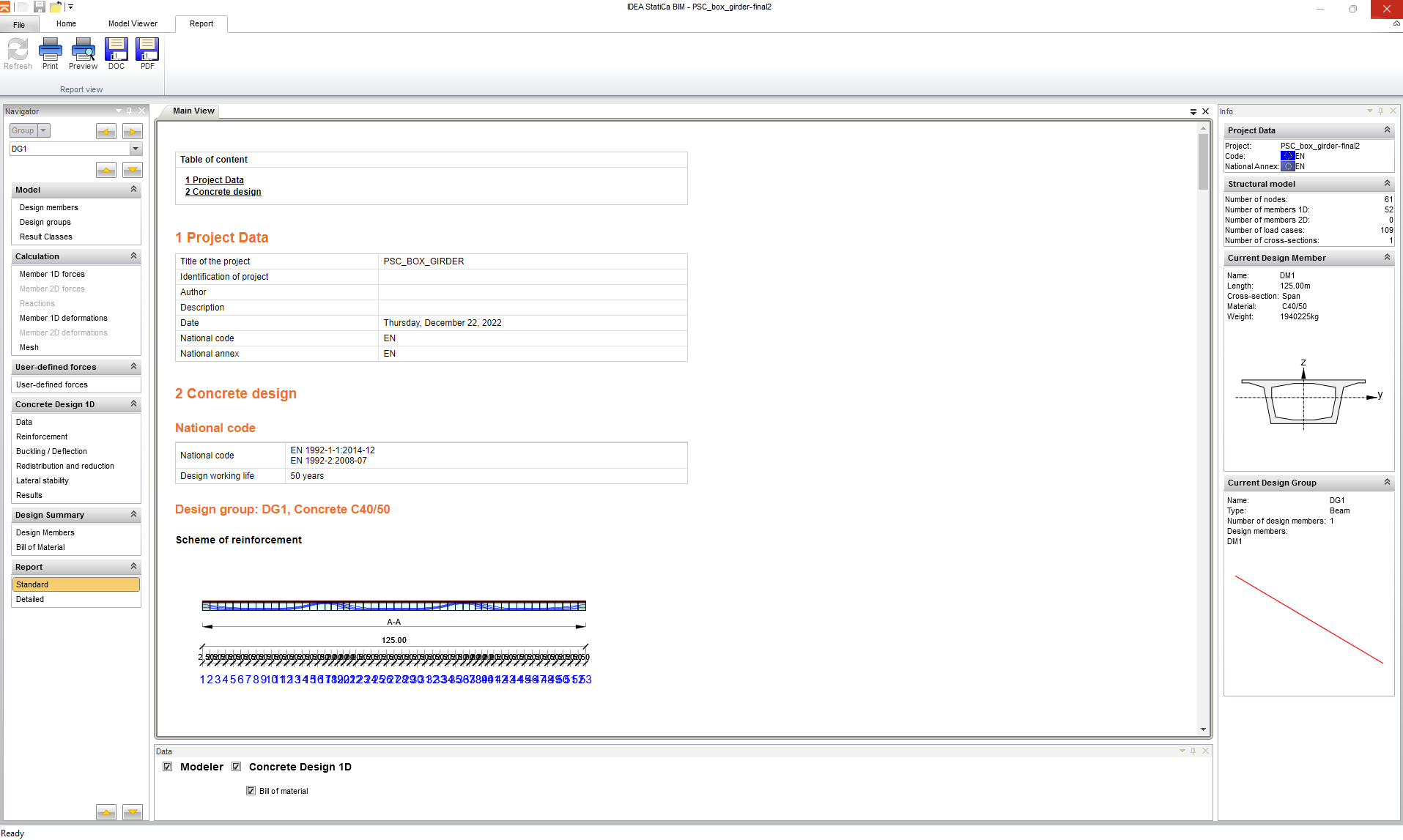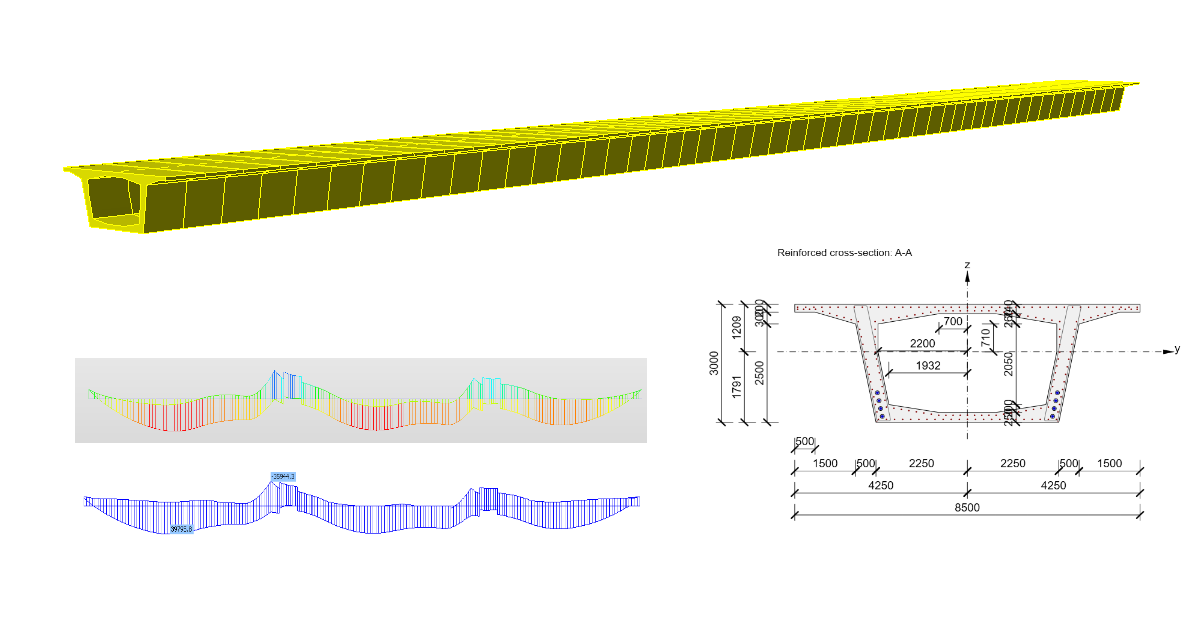
We will show the workflow on a model of a prestressed PSC box girder bridge with three spans. We have prepared a download in the form of a zip file that contains all the files you need to complete this tutorial.
1 Export
Open the Midas project available in the downloads. For a correct export and subsequent import, it is necessary to follow a few setup rules, which are mentioned below.
First, check each Stage one by one and tick the button to save the results for each Stage and Additional Stage.

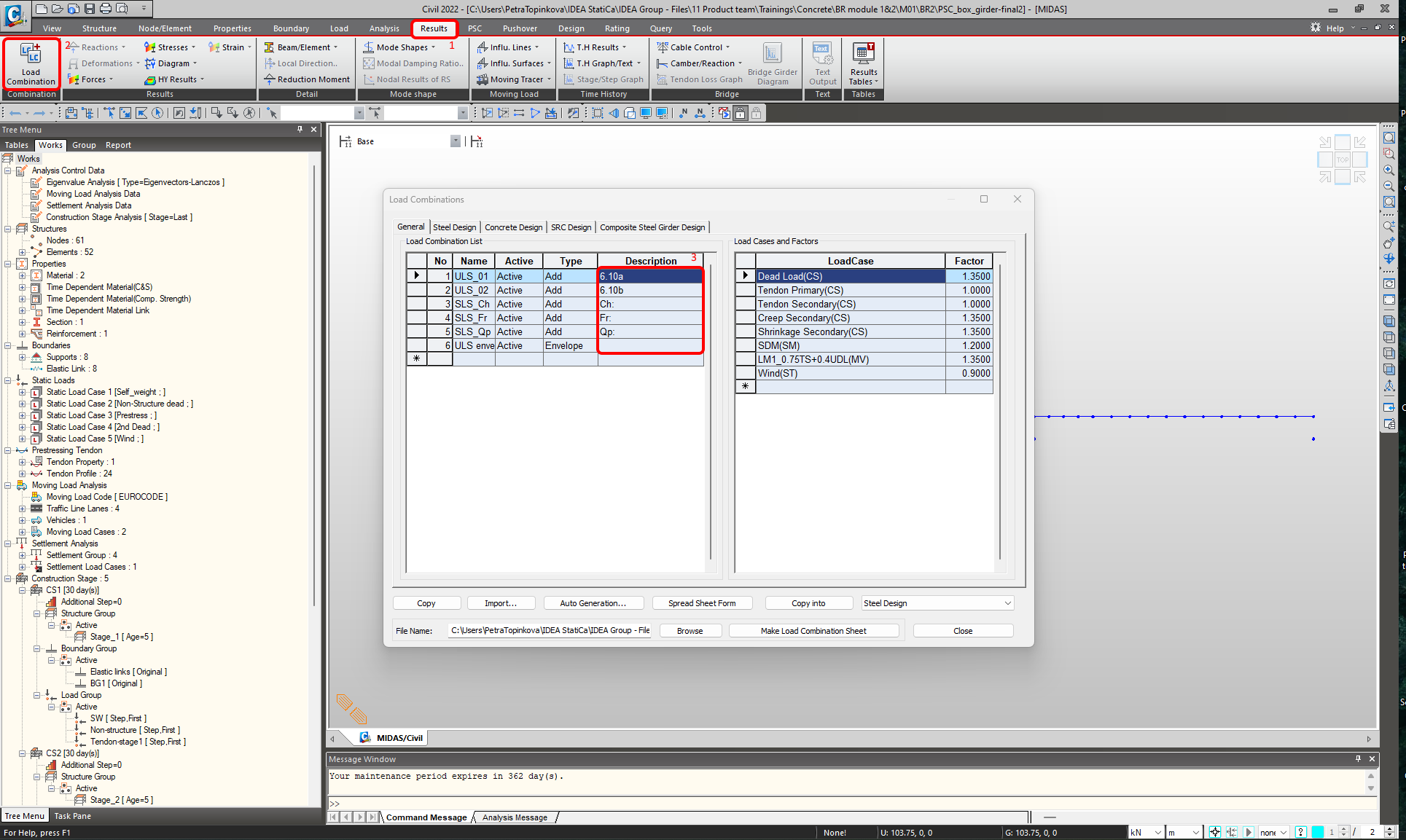
It is also advisable to modify the description of the combination as shown below. If the description field is left blank, the combination will be assigned for ULS code-check. Write Ch: for the characteristic combination, Fr: for frequent and Qp: for quasi-permanent. You can modify combinations later in IDEA StatiCa but this way it is much easier.
Now you can continue with the calculation of the internal forces and exporting the .mct file.
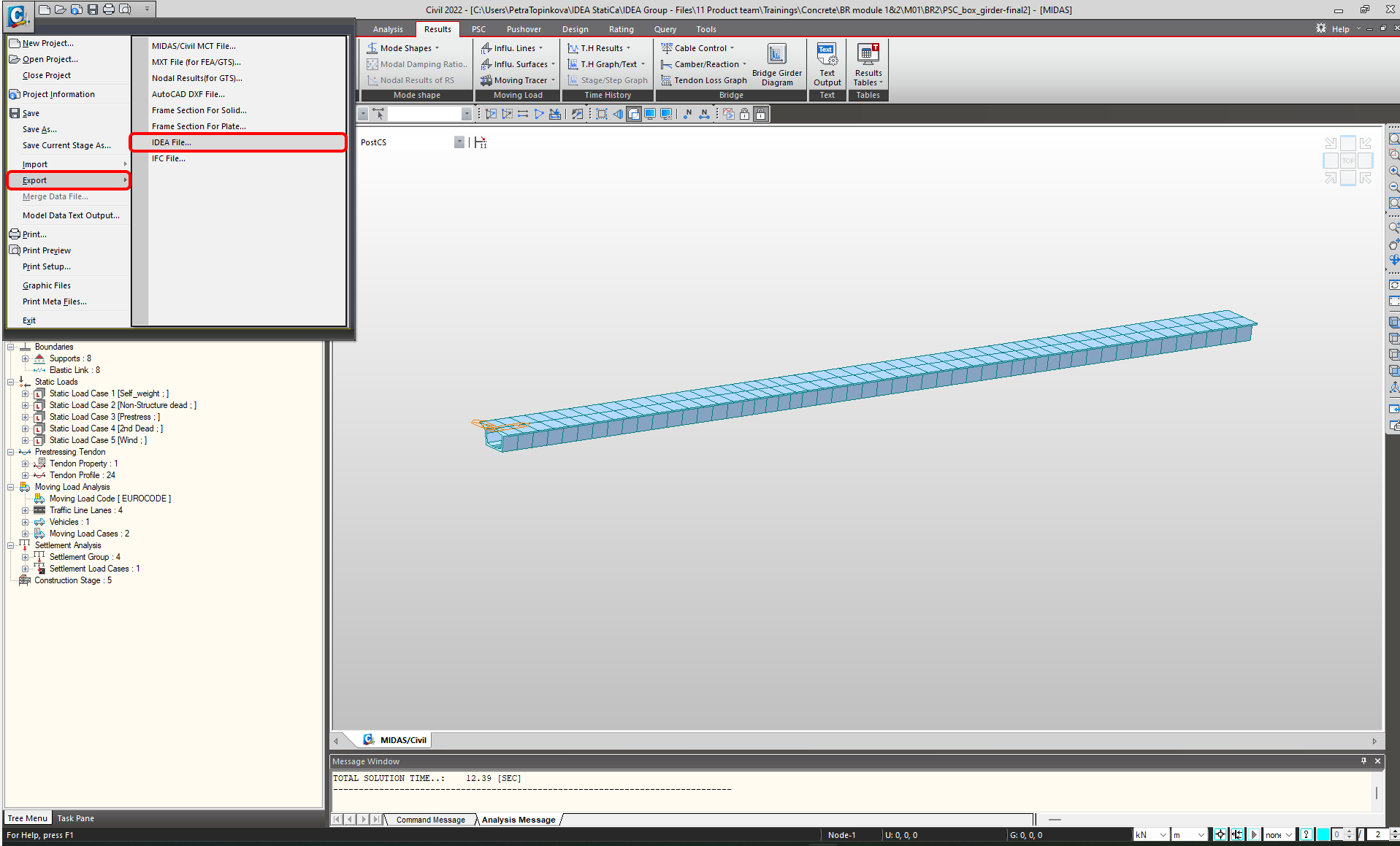
Keep the path for saving the same for both files, thick All objects, and finish with Export. Exporting from Midas is finished.

2 Import
Start the IDEA StatiCa application, select Import from other programs on the BIM tab, and select the prepared .mct file. A .mct file from Midas Civil is also available in the downloads.

If you are importing for the first time, set up the generation of design groups and design members. The program automatically joins the imported bridge superstructure into one design member. This setting can be saved and will not be displayed next time.
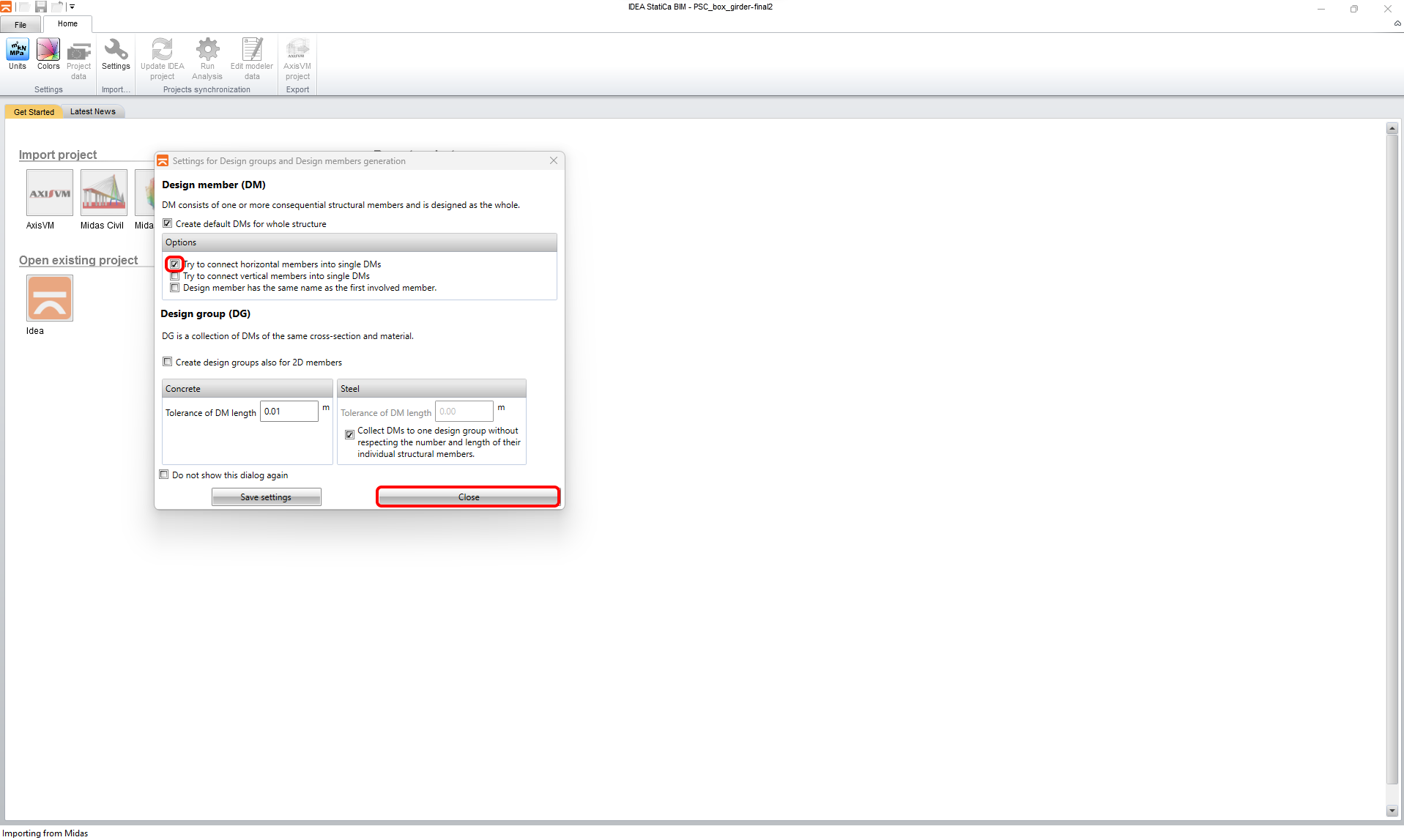
The imported model should look like this in the 3D scene.

After import, you have to set the calculation parameters in the Project Data tab. The first of them is Code, then the Type of bridge.
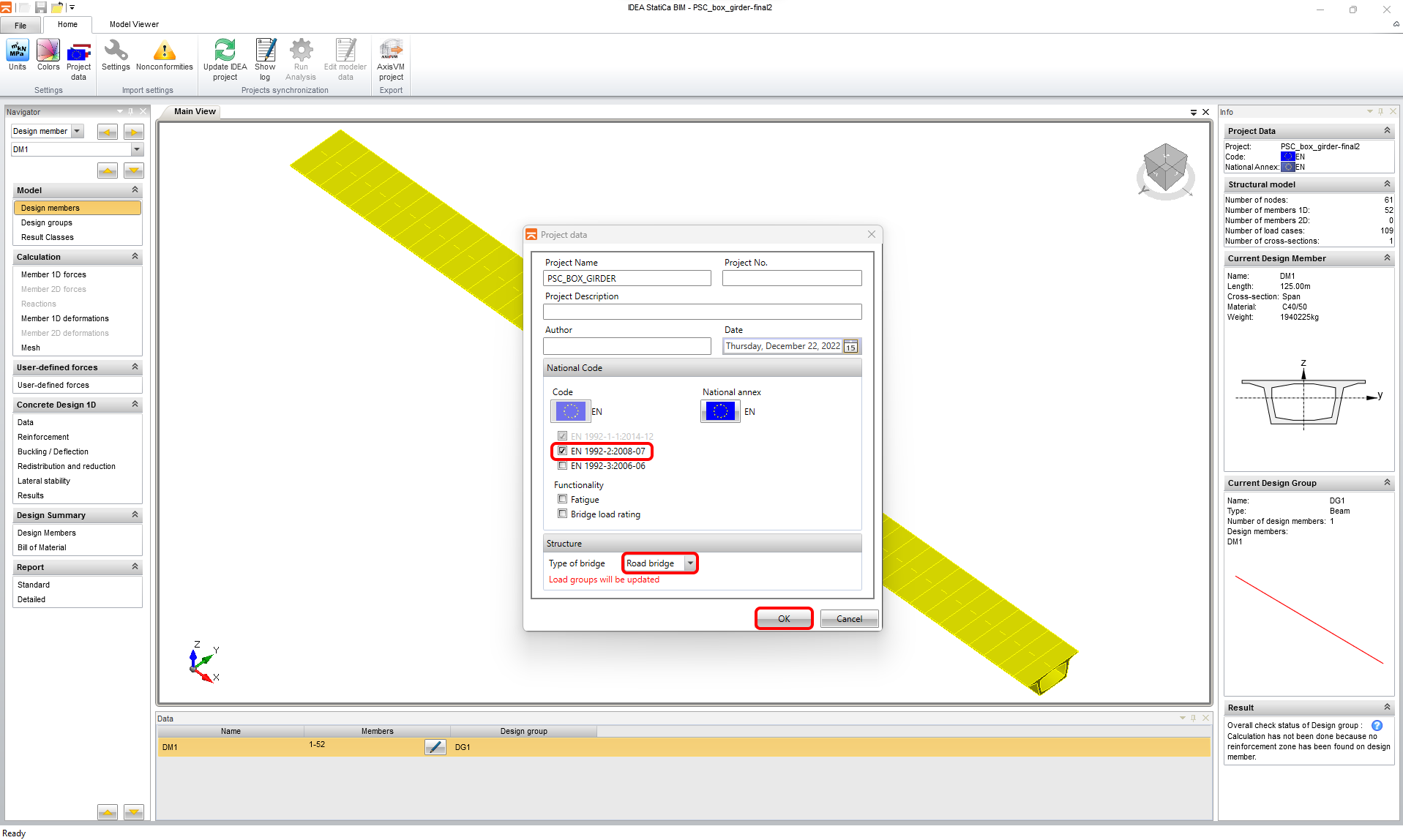
The program will warn you that it would be convenient to check the group settings and combinations after this change. We have made all setting in Midas already. The program ignores the values of load factors and combination factors for individual load cases because they were taken from the load combination settings in the Midas.
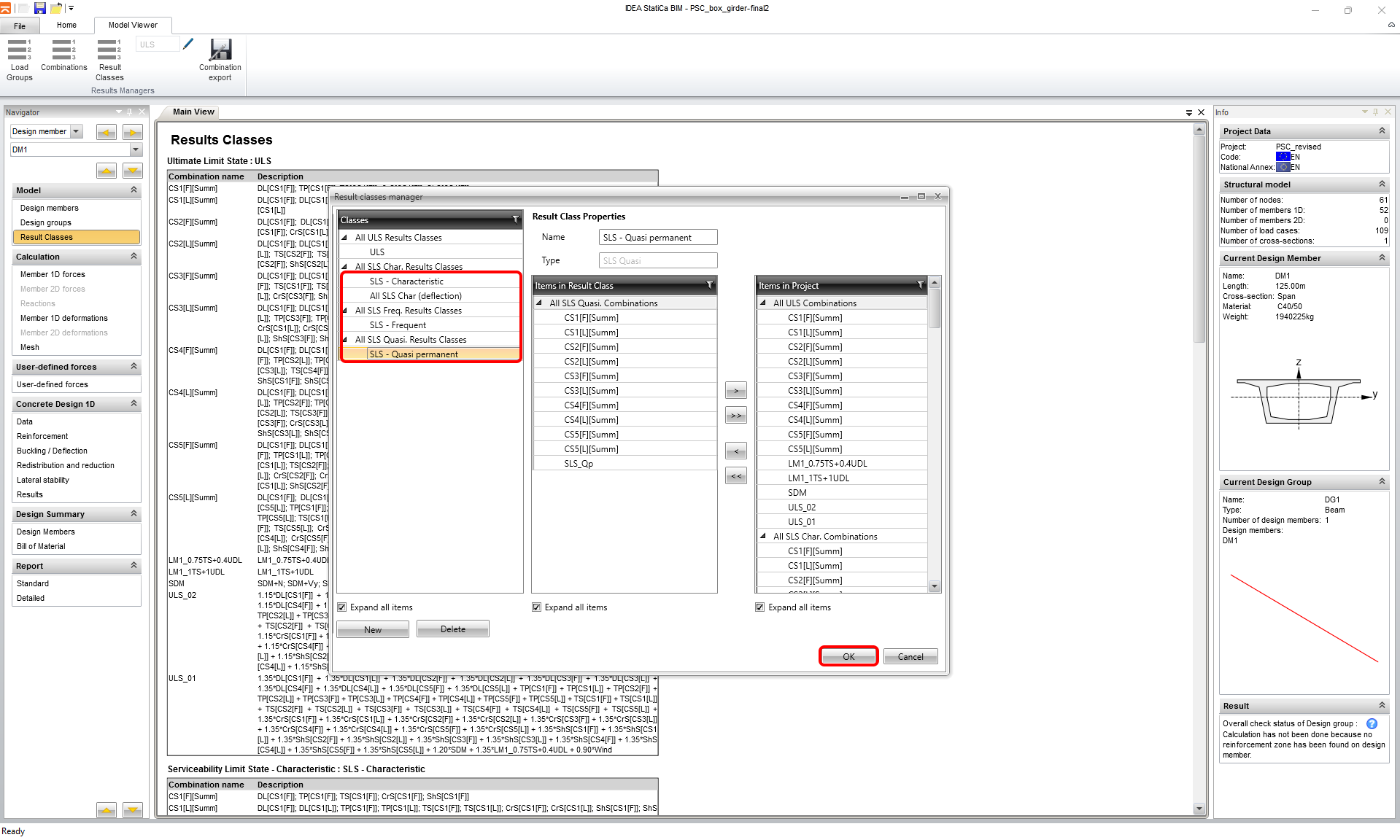
See the combination list and delete the single load cases from ULS combinations. There should be only the combinations we created in Midas and the concrete stages. Check also the SLS combinations and close the tab.

In the next step, check whether the internal forces have been imported correctly by comparing the envelope of bending moments from the combinations. In our case, we checked the ULS envelope.


3 Reinforcement definition
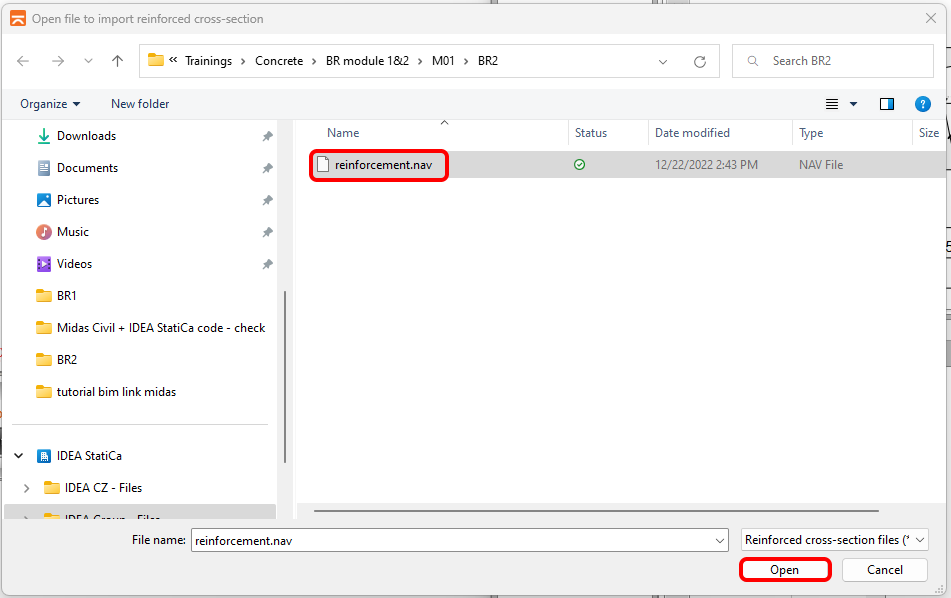
The next step is the definition of reinforcement. In our case, we use the already prepared scheme and import the reinforcement. The prepared .nav file can be found in the downloads.
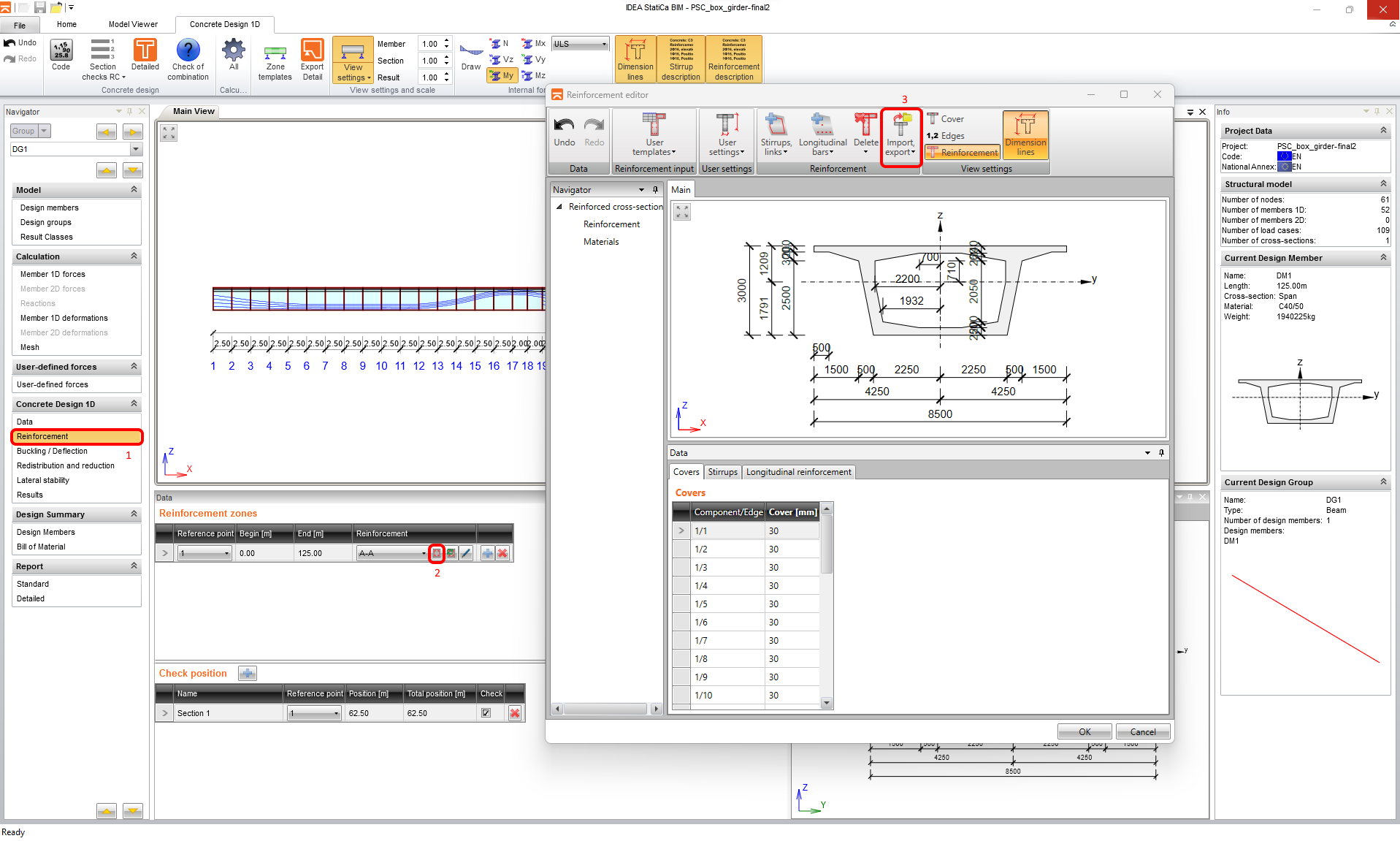
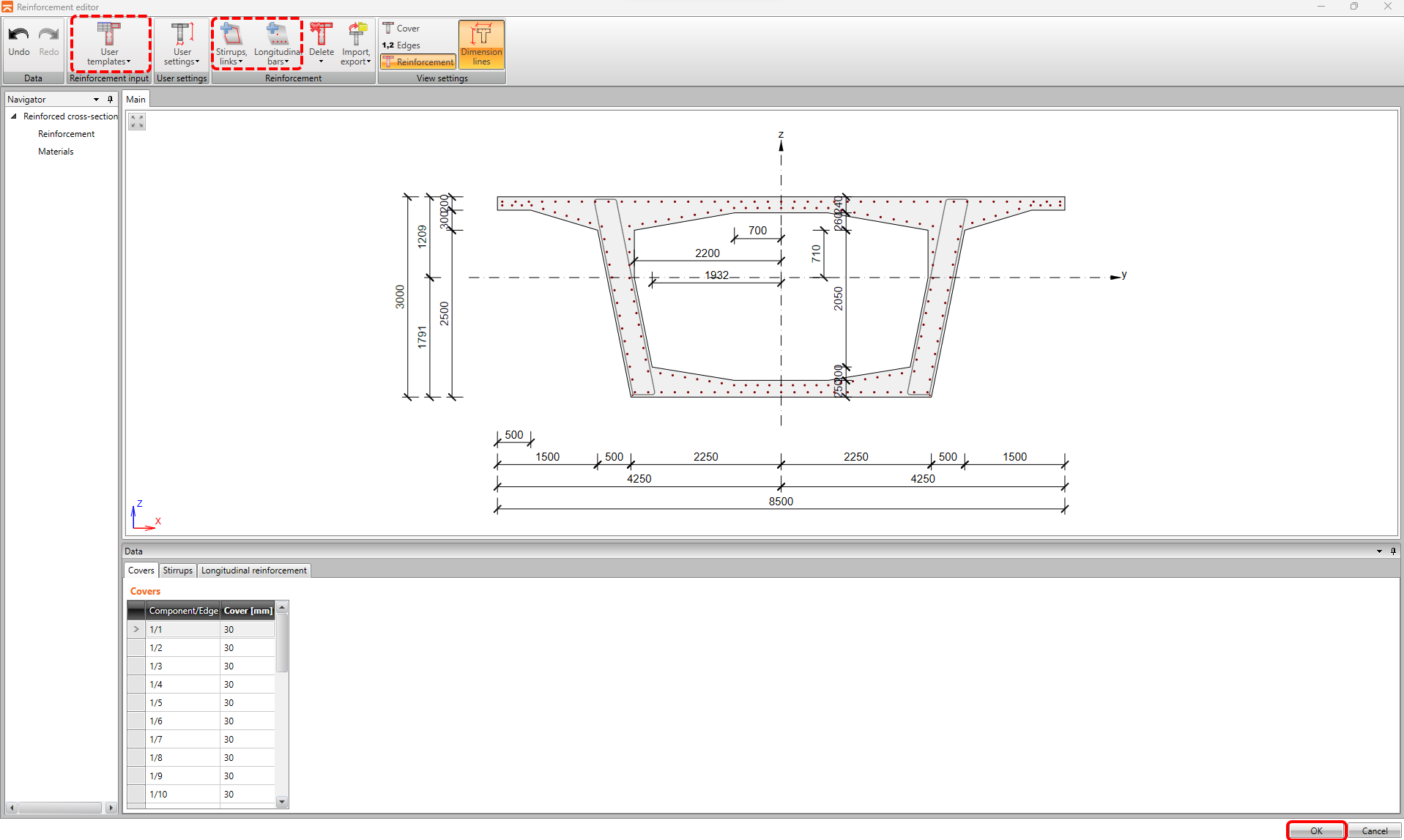
Reinforcement can be also defined or modified by other tools in the upper ribbon. But for now, we have successfully imported reinforcement for code-check in the mid-span.
4 Calculation and Report
Before checking the results come to the Data and modify the setting. Untick the Detailing and Lateral Stability.

Now you can continue to the Results to see if the design passed the code-check. For further examination, you can continue to Detailed.

There is possible to view the individual checks, also individual sections and extremes, if applicable.

5 Report
In the last step, go to the Report tab. IDEA StatiCa offers a fully editable report that you can print or export to various formats, including pdf.