Vorgespannter Träger mit Öffnungen (EN)
1 Neues Projekt
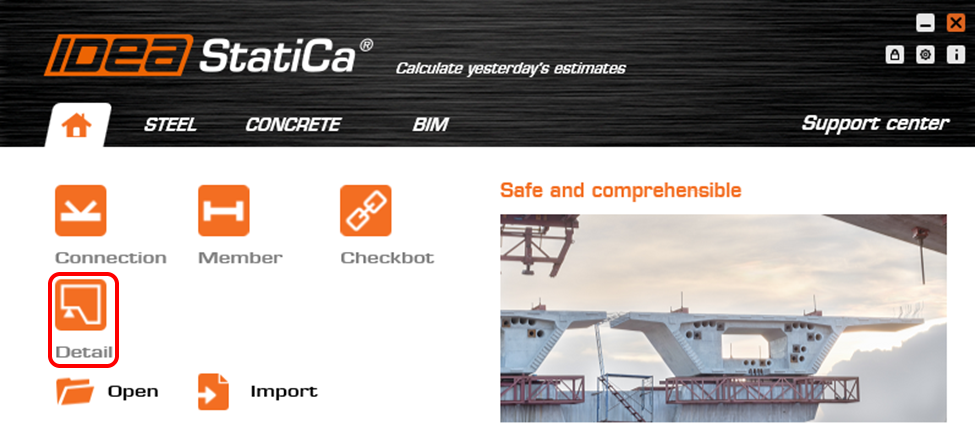
Starten Sie ein Neues Projekt in IDEA StatiCa Detail.
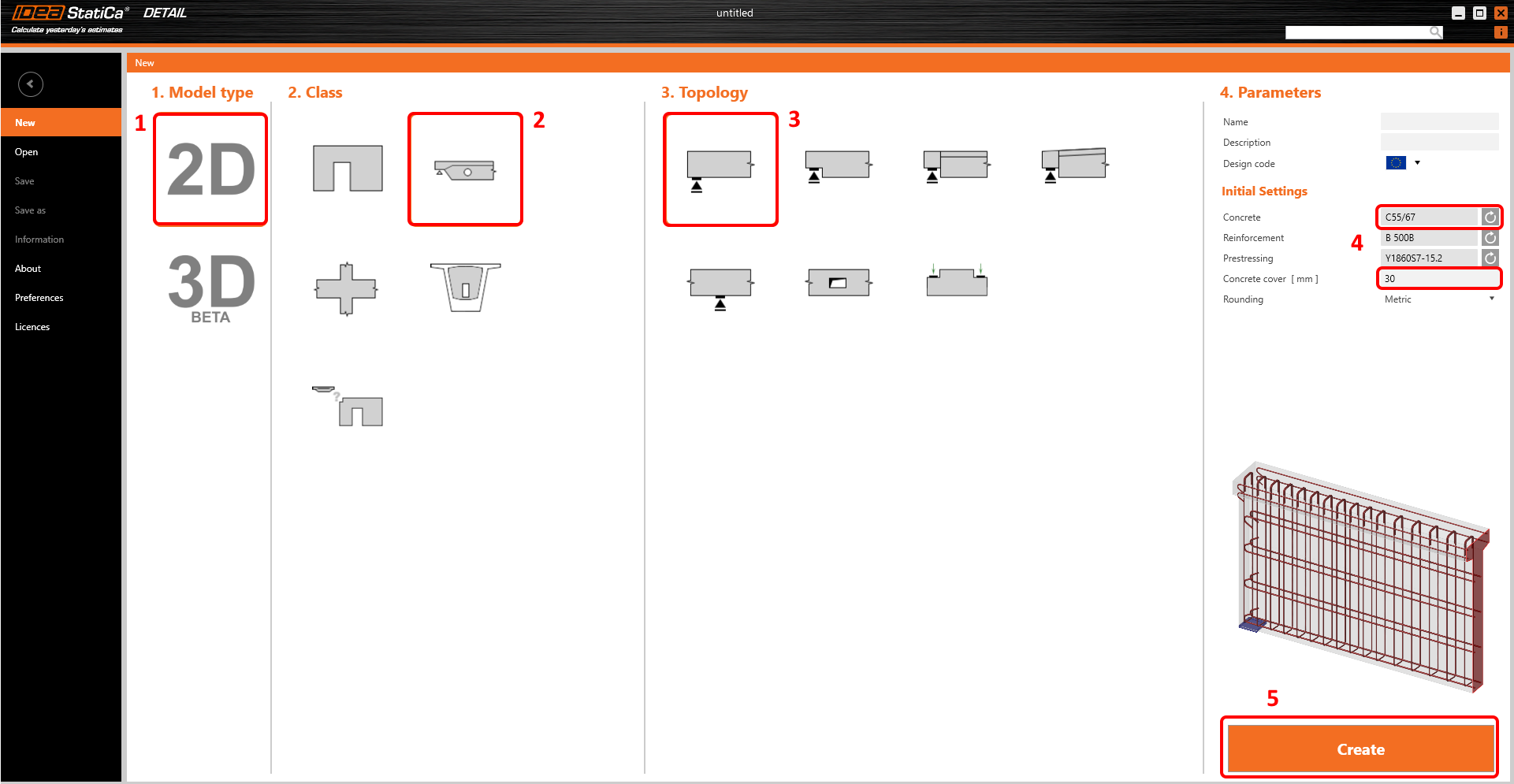
Legen Sie im Assistenten die Beton- und Bewehrungsgüte fest und definieren Sie die Betondeckung. Wählen Sie die Klasse Träger und die Topologie Endauflager.
2 Geometrie
Definieren Sie zunächst die Querschnitte. Es werden zwei I-förmige Querschnitte verwendet. Wählen Sie Bauteil M1 (1), klicken Sie auf die Plus-Schaltfläche (2) und wählen Sie den I-Querschnitt mit Voute (3). Ändern Sie anschließend die Geometrie (4) des Querschnitts.
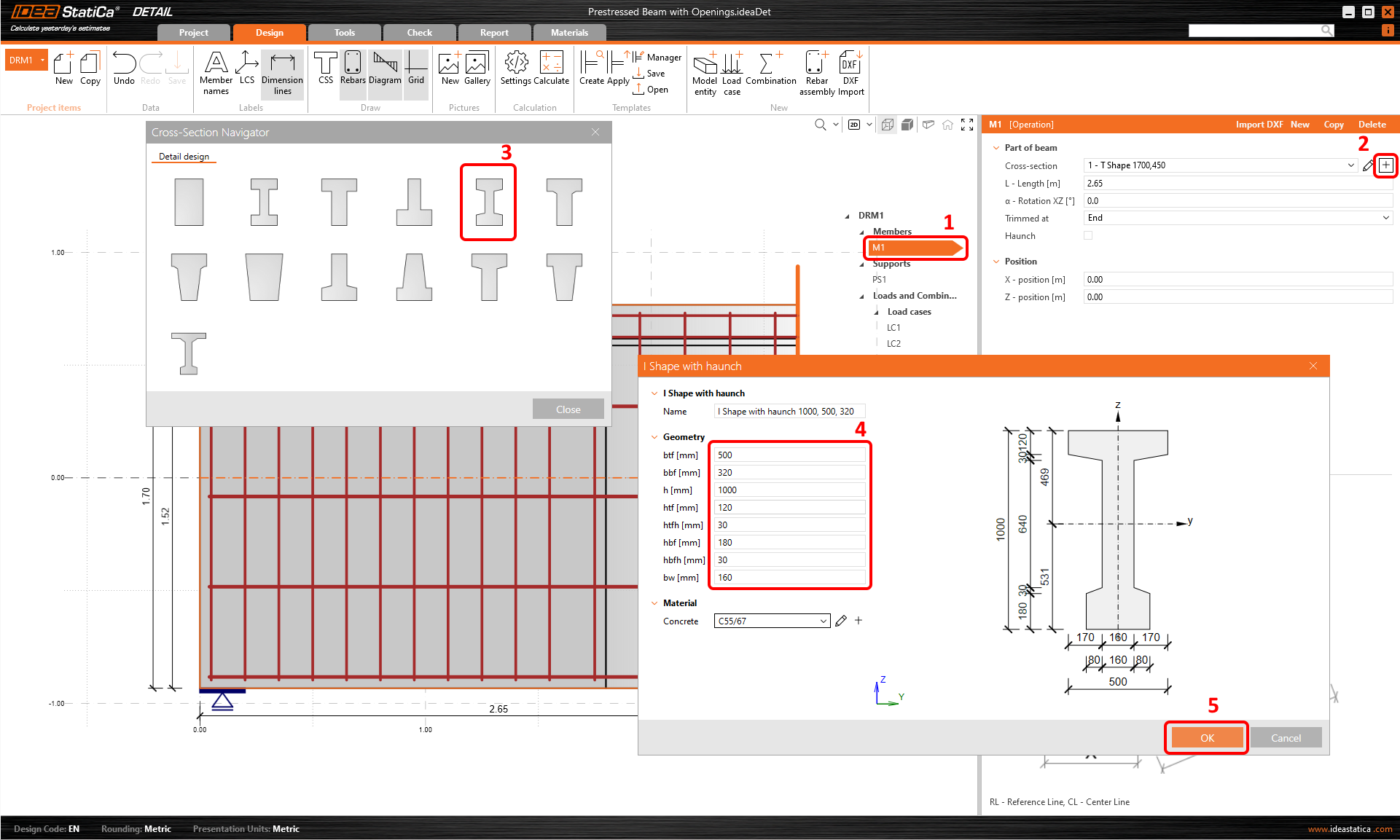
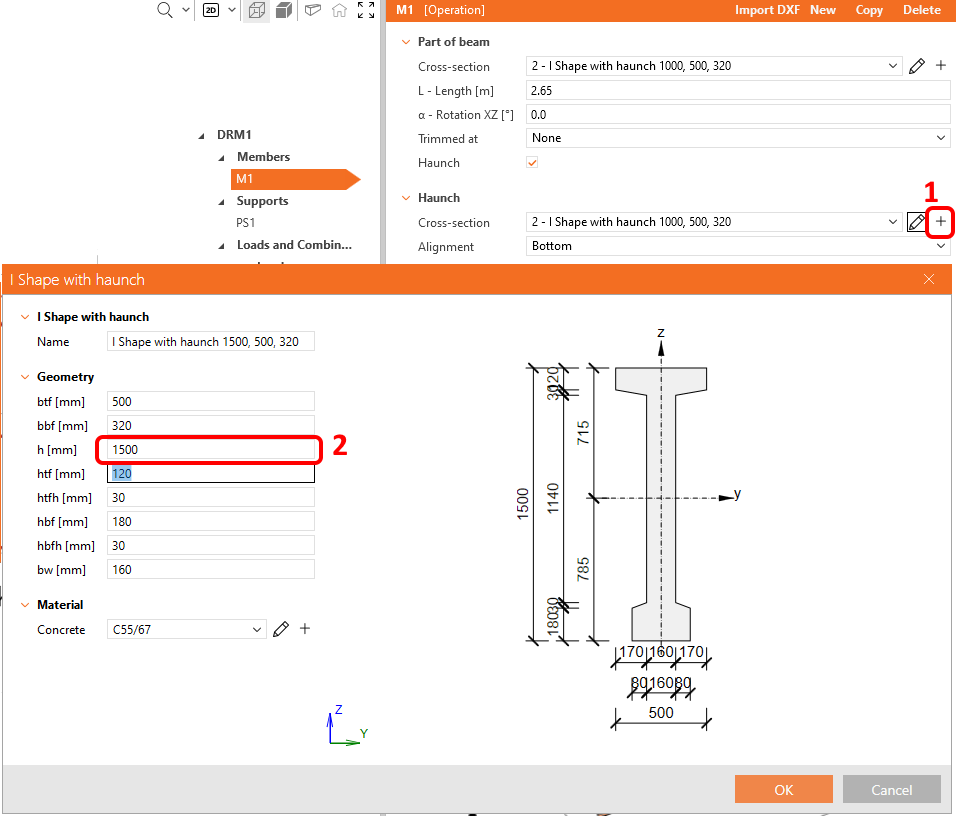
Ändern Sie Träger M1: Sie müssen das abgeschnittene Ende deaktivieren, eine Voute hinzufügen und den zweiten Querschnitt definieren.
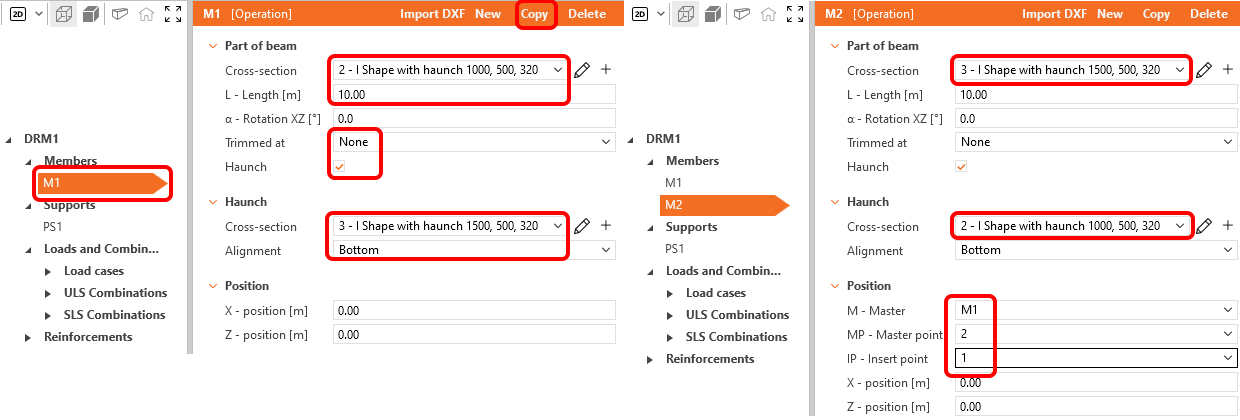
Wählen Sie die geeigneten Querschnitte aus und passen Sie Länge und Ausrichtung an. Wenn Träger M1 festgelegt ist, klicken Sie auf die Schaltfläche Kopieren, um den zweiten Teil des Trägers zu erstellen. Ändern Sie dann Träger M2.
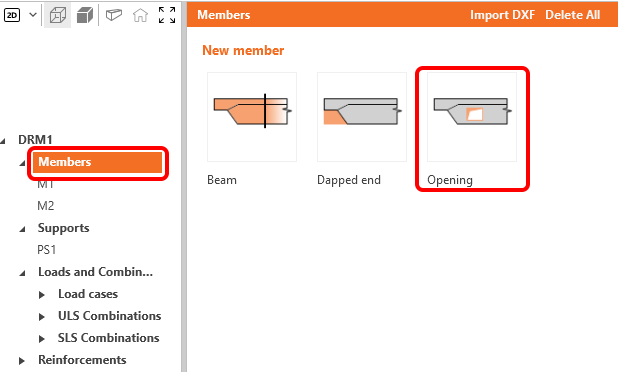
Fügen Sie eine Öffnung hinzu.
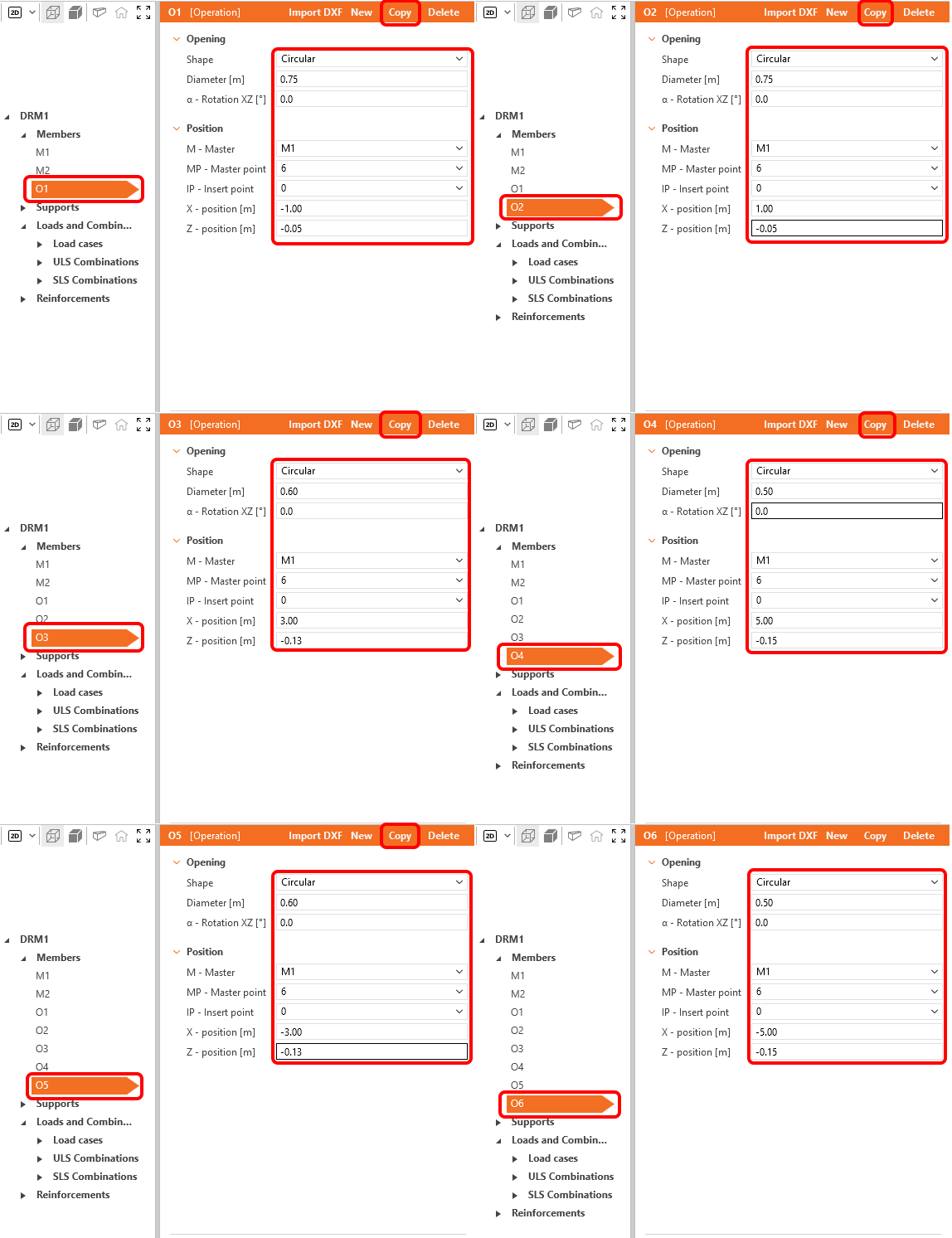
Ändern Sie die Geometrie der Öffnung O1. Wenn Sie fertig sind, klicken Sie auf die Schaltfläche Kopieren, um eine neue Öffnung O2 zu erstellen. Fahren Sie dann auf die gleiche Weise mit den weiteren Öffnungen fort. Die Geometrieeinstellungen sind nachfolgend dargestellt.
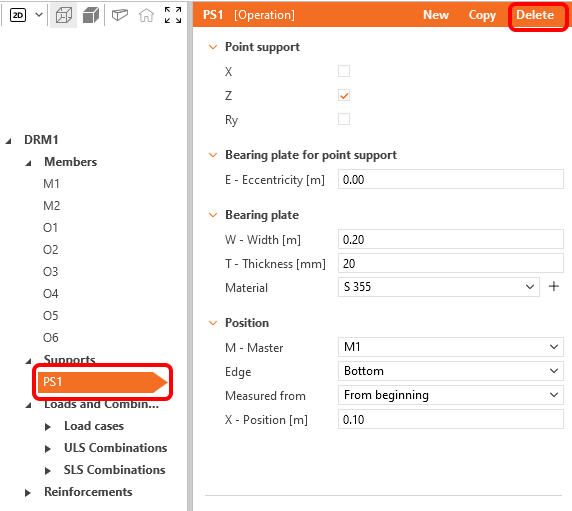
Als nächstes sind die Auflager zu aktualisieren. In der Detail-Anwendung gibt es verschiedene Auflagertypen. Löschen Sie das Punktauflager PS1, das durch die Vorlage erstellt wurde.
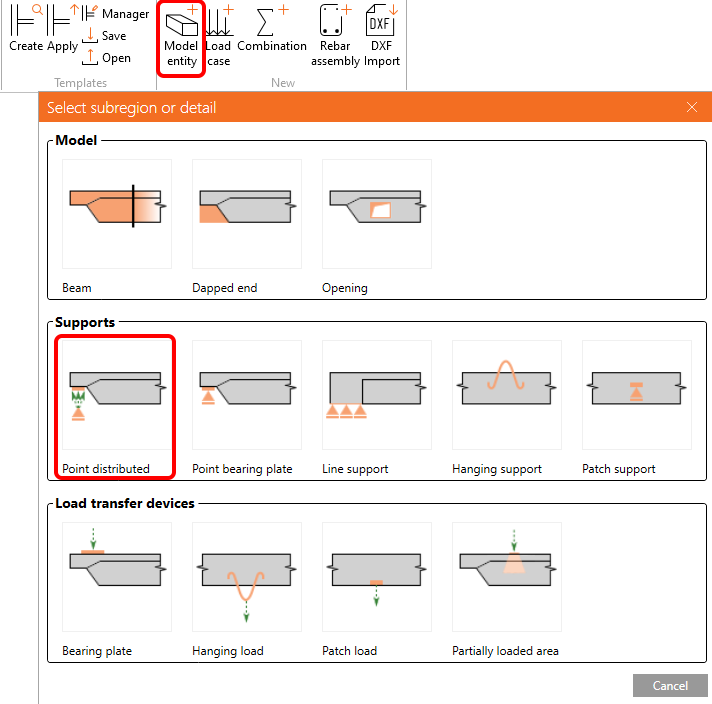
Fügen Sie eine neue Modellentität hinzu und wählen Sie das Verteilte Punktauflager, um ein neues Auflager zu erstellen.
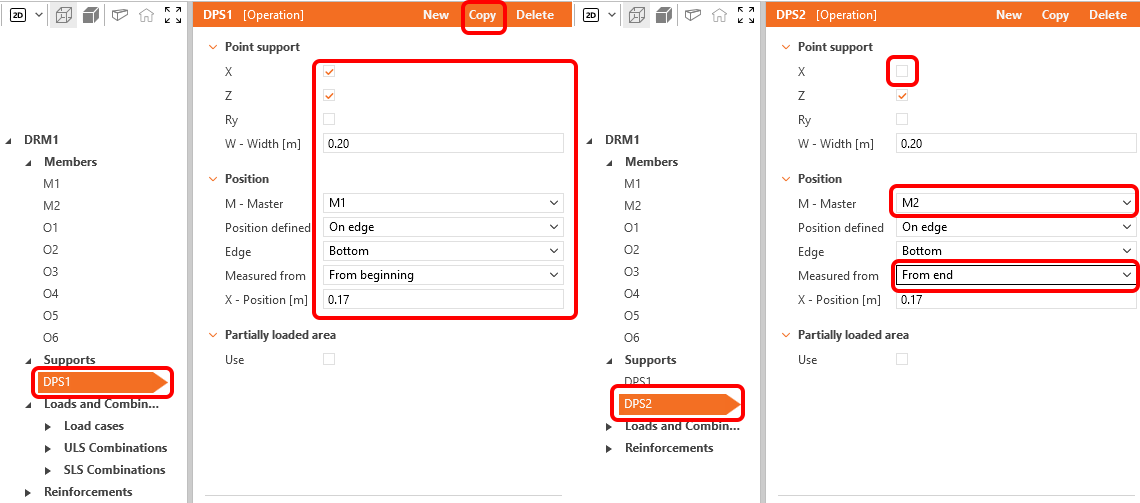
Legen Sie das verteilte Punktauflager DPS1 gemäß der nachfolgenden Abbildung fest. Kopieren Sie das Auflager und passen Sie das neue Auflager DPS2 an.
Die Geometrie des Trägers ist festgelegt; Ihr Träger sollte wie folgt aussehen:

3 Lasten
Gehen Sie im Strukturbaum zu den Lastfällen. Benennen Sie den Lastfall LC1 in P um und ändern Sie seinen Typ in Vorspannung.
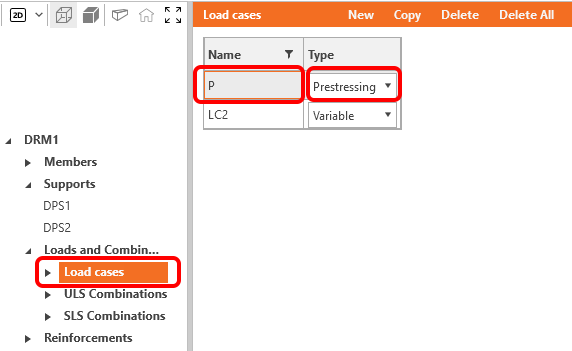
Fügen Sie zwei neue Lastfälle hinzu, indem Sie auf die Schaltfläche Neu (1) klicken. Benennen Sie alle verbleibenden Lastfälle um und legen Sie den Lasttyp (2) fest. Wählen Sie Kombination K1 (3). Klicken Sie auf die Stift-Schaltfläche (4) und ändern Sie die Kombinationsfaktoren (5). Bestätigen Sie die Änderungen (6).

Jede GZG-Kombination kann für die Rissbreitenprüfung, die Durchbiegungsprüfung oder für beides aktiviert werden. Legen Sie K2 als aktiv für die Durchbiegungsprüfung und K3 für die Rissbreitenprüfung fest.
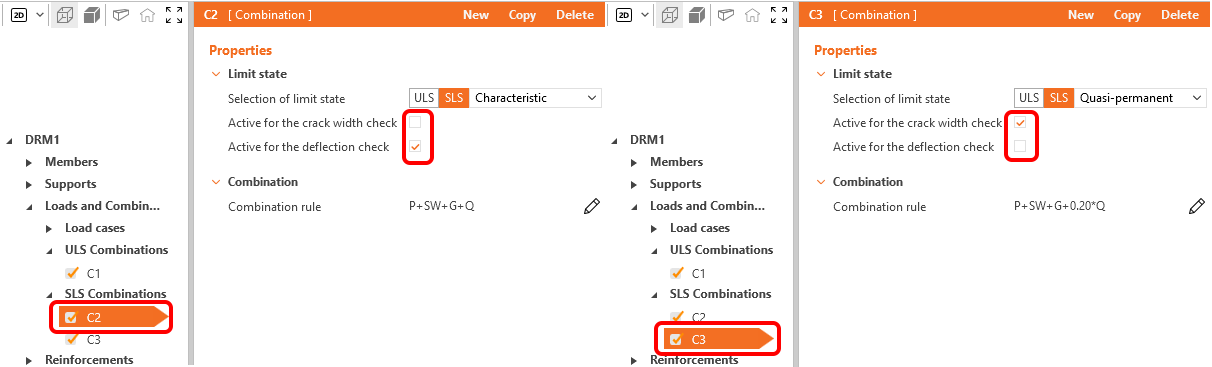
Lassen Sie alle Kombinationen K1, K2 und K3 aktiviert. Beachten Sie, dass die Berechnungen nur für die aktivierten Elemente durchgeführt werden.
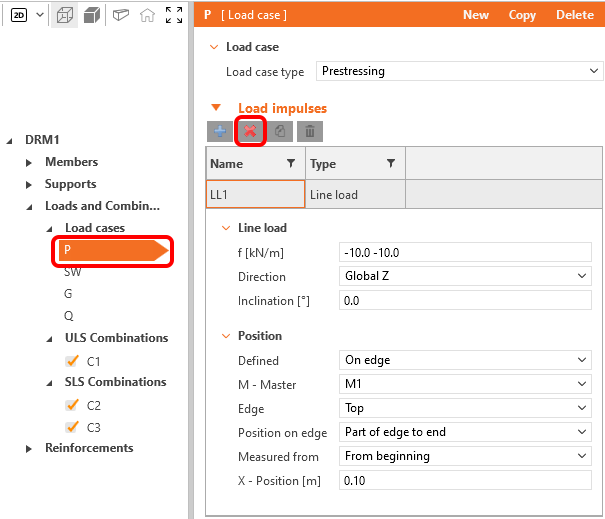
Beginnen wir mit der Bearbeitung der Lastimpulse. Löschen Sie die Linienlast LL1 aus dem Lastfall P. Dieser Lastfall bleibt leer.
Wechseln Sie den aktuellen Lastfall zu SW. Löschen Sie alle Lasten in diesem Fall. Klicken Sie auf die Plus-Schaltfläche und wenden Sie das Eigengewicht an.
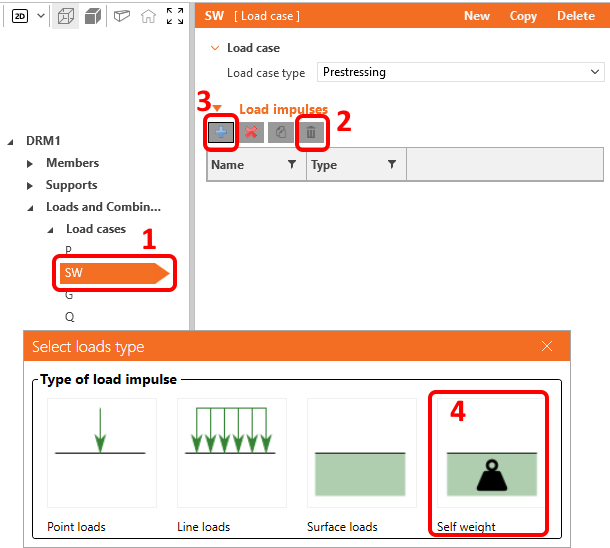
Das Eigengewicht wurde dem Lastfall SW hinzugefügt, der den Lasttyp Vorspannung hat. Es ist wichtig, den Knowledge-Base-Artikel zu lesen – Wie das Eigengewicht für einen vorgespannten Träger in Detail eingestellt wird. Sie erfahren, warum das Eigengewicht als Vorspannungslasttyp festgelegt wird.
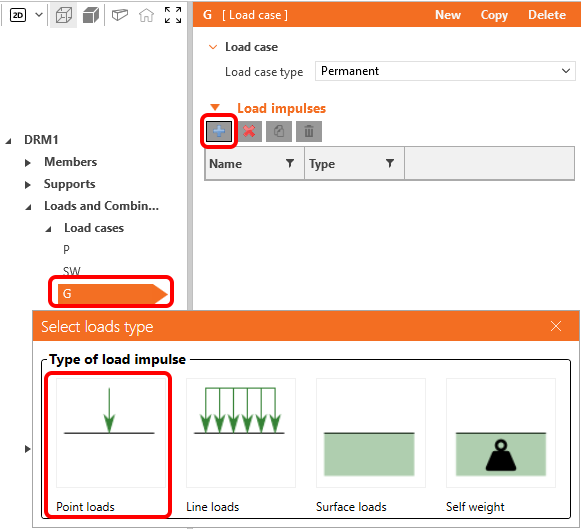
Fügen Sie dem Lastfall G eine Punktlast hinzu.
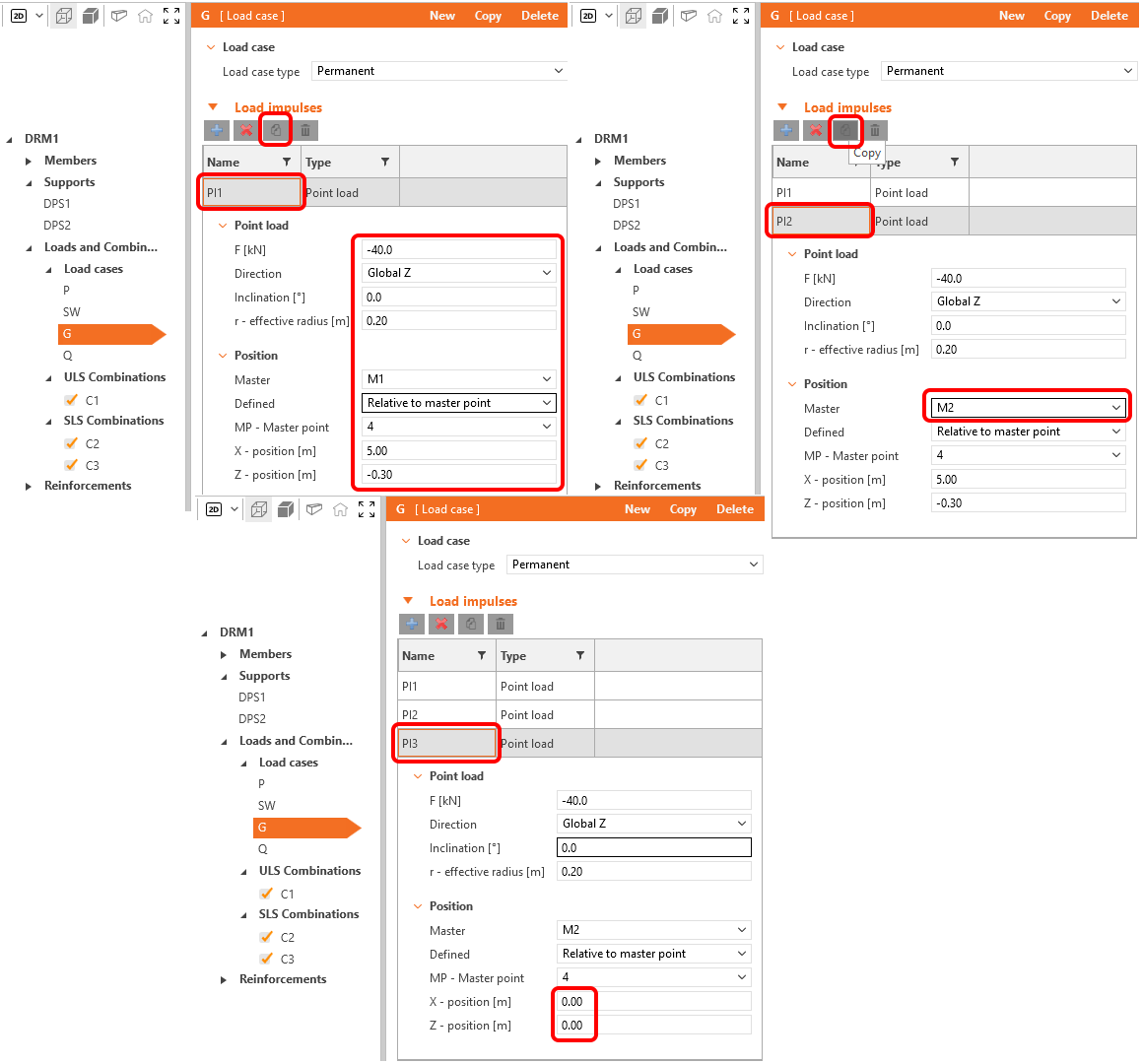
Legen Sie die Punktlast Pl1 fest und drücken Sie die Schaltfläche Kopieren. Setzen Sie dann das Hauptbauteil der Punktlast Pl2 auf M2 und klicken Sie erneut auf Kopieren. Pl3 muss in die Mitte des Feldes verschoben werden. Passen Sie die X- und Y-Positionen an.
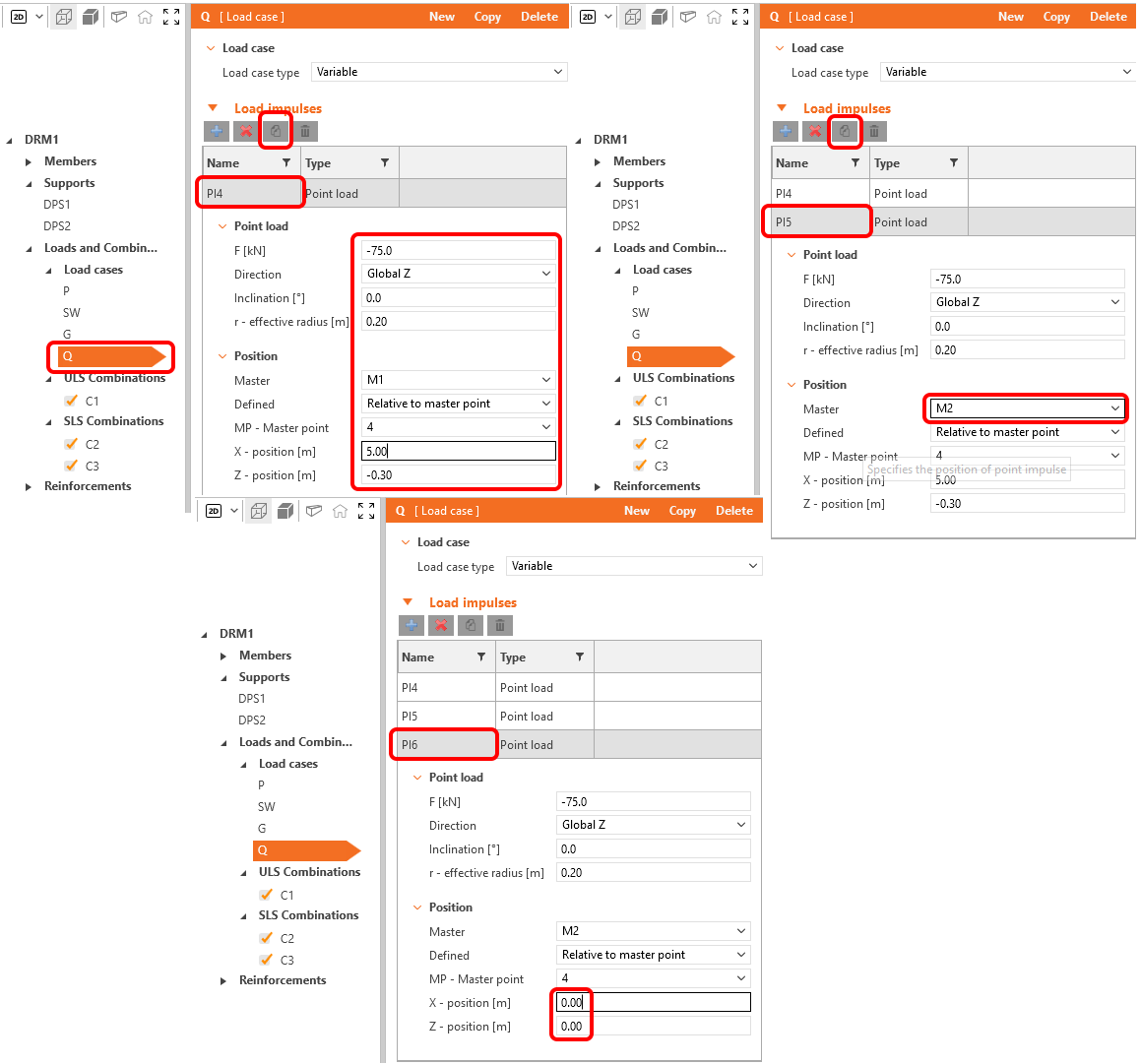
Ähnliche Punktlasten müssen für den Lastfall Q erstellt werden. Der einzige Unterschied ist der Lastwert, der -75 kN beträgt.
4 Bewehrung
Sobald die Last definiert ist, können Sie mit der Definition der Bewehrung fortfahren.
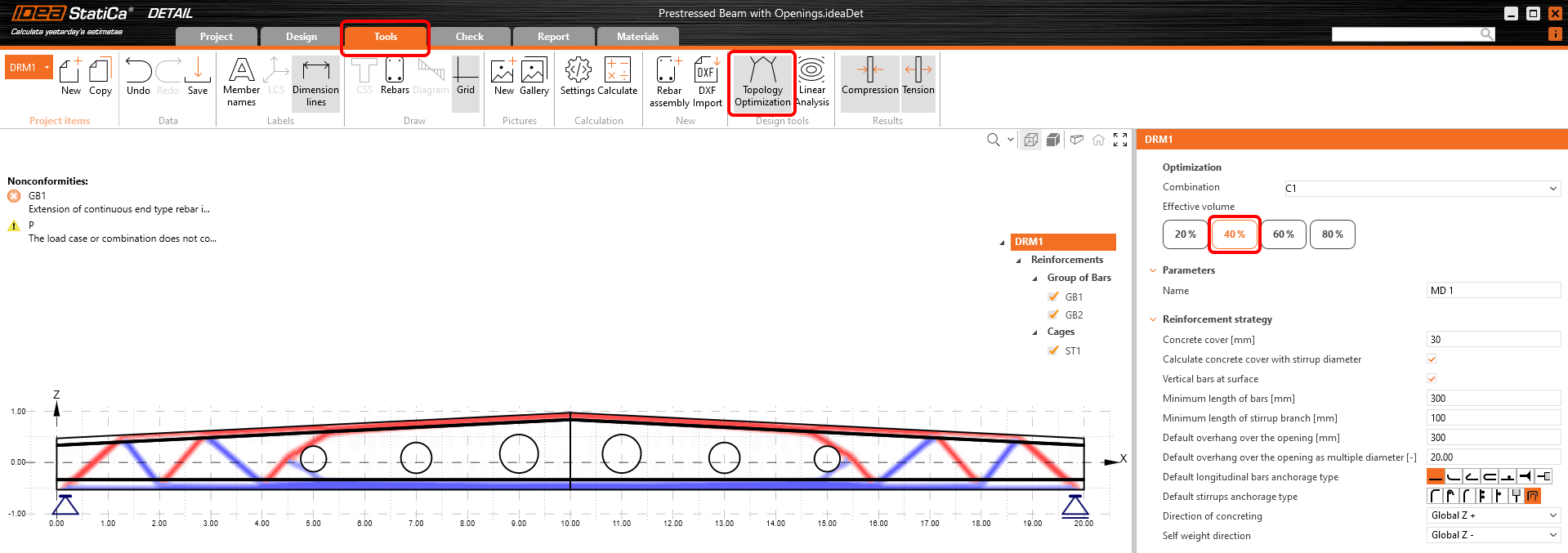
Lassen Sie die Entwurfswerkzeuge die Bereiche mit Zug/Druck anzeigen. Aktivieren Sie die Topologieoptimierung. Die Berechnung verwendet ein effektives Volumen der Struktur (20 %, 40 %, 60 % oder 80 %) und platziert dieses Volumen in mehreren Iterationen so, dass die erzeugte Topologie die größtmögliche Steifigkeit aufweist.
Kehren wir nun zur Registerkarte Entwurf zurück und deaktivieren Sie das Raster.
Ändern Sie die Bewehrungselemente schrittweise. Beginnen wir mit den Bügeln ST1, bei denen die Abstände aktualisiert werden müssen. Die Abstände sind an die Querkraftbeanspruchung angepasst, die in der Nähe der Auflager größer ist; wie Sie nachfolgend sehen werden, werden die Abstände im Bereich der Verankerung der Spanndrähte verdichtet.

Das nächste Element auf der Liste ist die längs verlaufende Stabgruppe GB1.
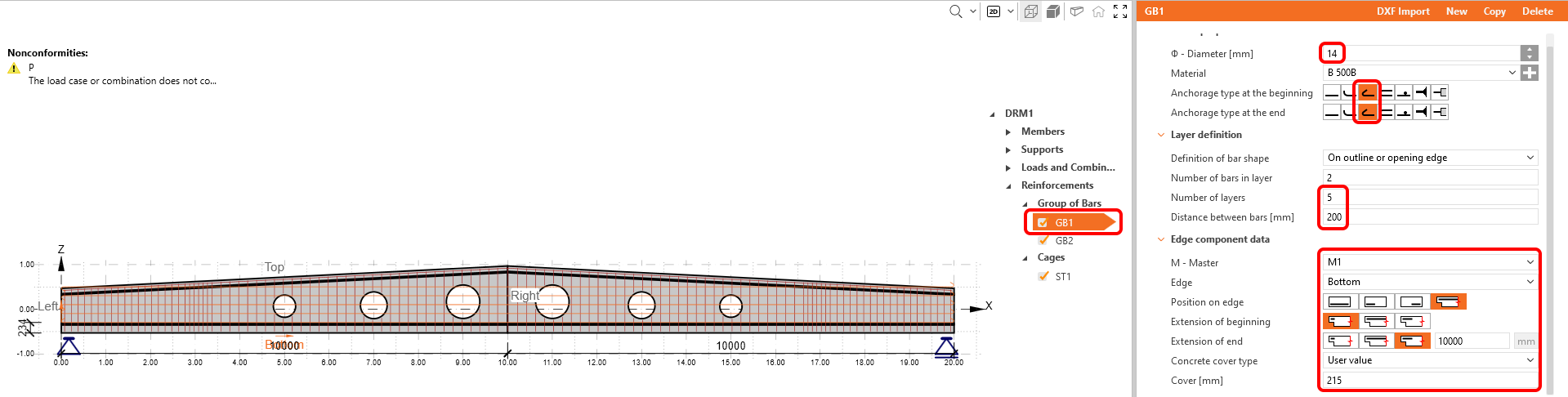
Die oberen Stäbe müssen ebenfalls geändert werden.
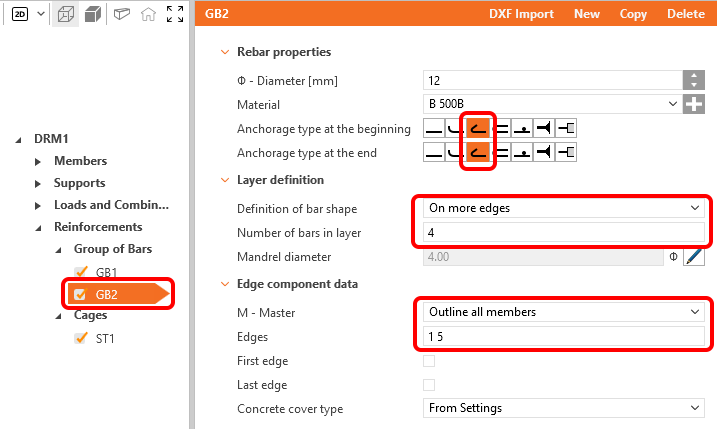
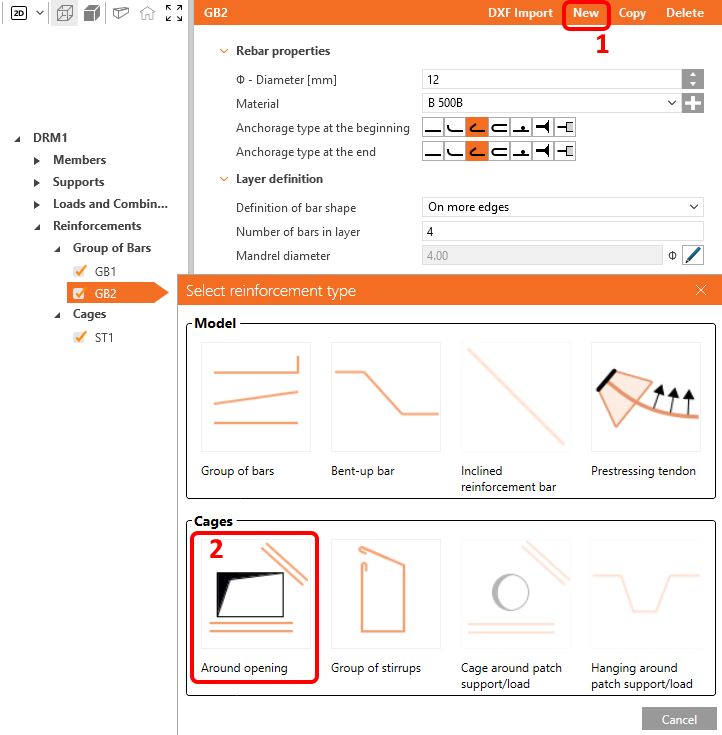
Als letzte Bewehrung sind die zusätzlichen Stäbe rund um die Öffnungen zu platzieren. Klicken Sie einfach auf die Schaltfläche Neu und wählen Sie die Bügel Um Öffnung.
Es gibt sechs Öffnungen, daher müssen Sie sechs Bewehrungselemente um die Öffnung erstellen. Alle sind gleich, nur das M – Hauptbauteil muss geändert werden. Ändern Sie zunächst RO1 wie folgt.
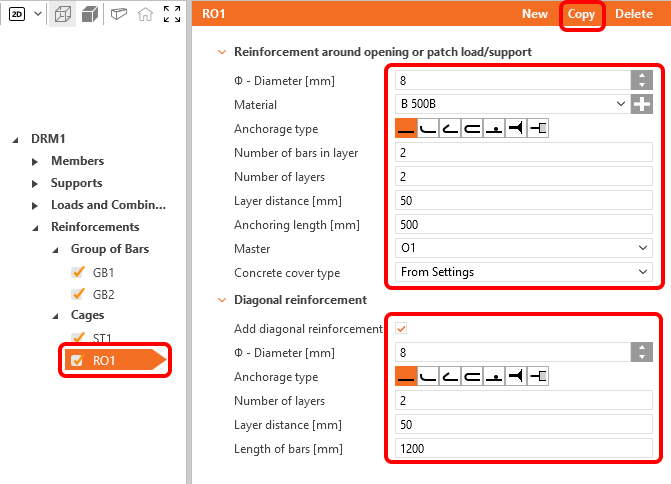
Erstellen Sie dann fünf weitere Kopien der Bügel und weisen Sie jedem Element das entsprechende M – Hauptbauteil zu.
Das Modell ist bewehrt und sollte wie folgt aussehen.

5 Vorspannung
Spannglieder und Drähte können analog zur Bewehrung hinzugefügt werden. Sie haben bereits den Lastfall P erstellt, der für die Vorspannung verwendet wird. Dieser Dachträger wird durch Vorspannung mit sofortigem Verbund Drähte vorgespannt.
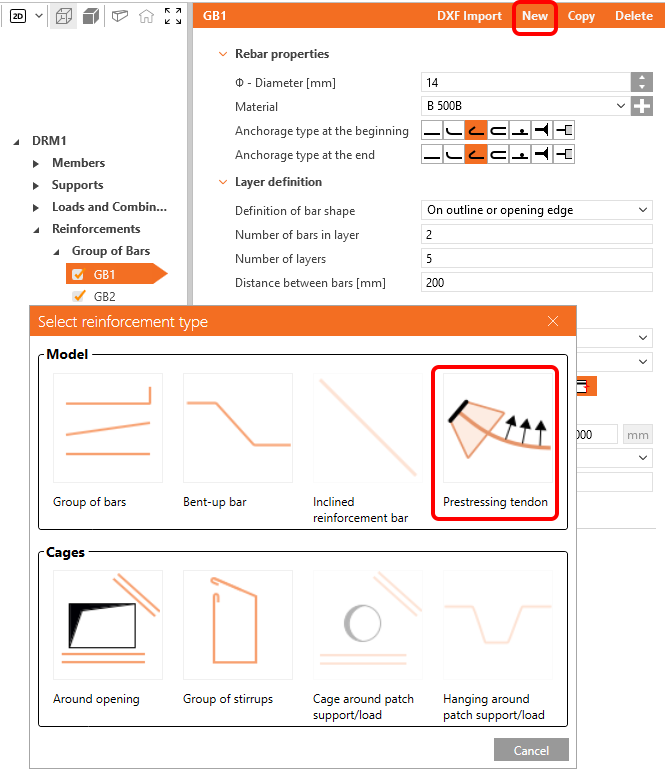
Klicken Sie einfach auf die Schaltfläche Neu und wählen Sie Vorspannspannglied, um die erste Gruppe von Drähten zu erstellen.
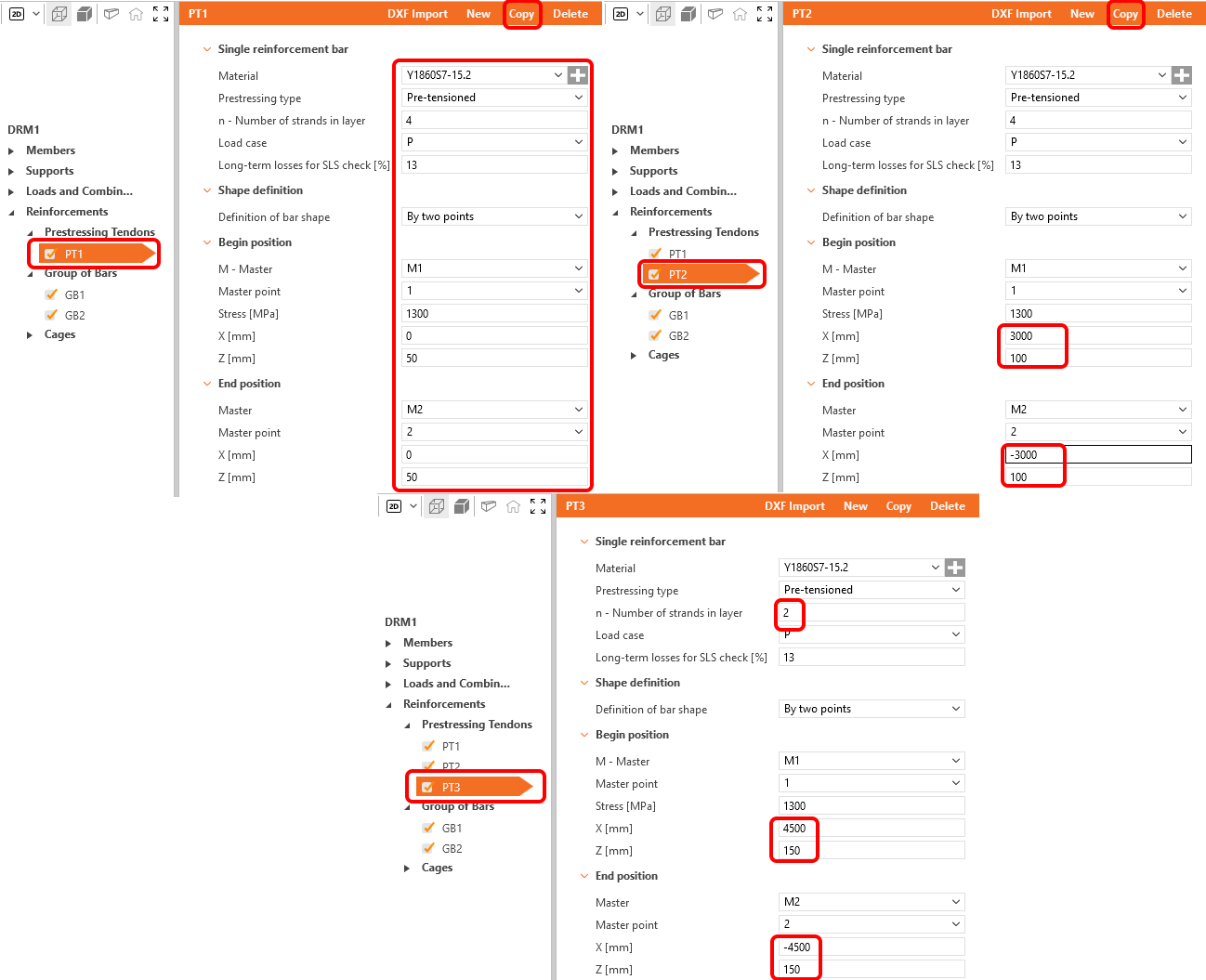
Es werden drei Gruppen von Drähten benötigt. Sobald Sie die Änderung von Element PT1 abgeschlossen haben, können Sie es kopieren, die Geometrie von PT2 anpassen, PT2 kopieren und erneut die Geometrie von PT3 ändern.
Das Modell ist nun fertiggestellt.
6 Normnachweis
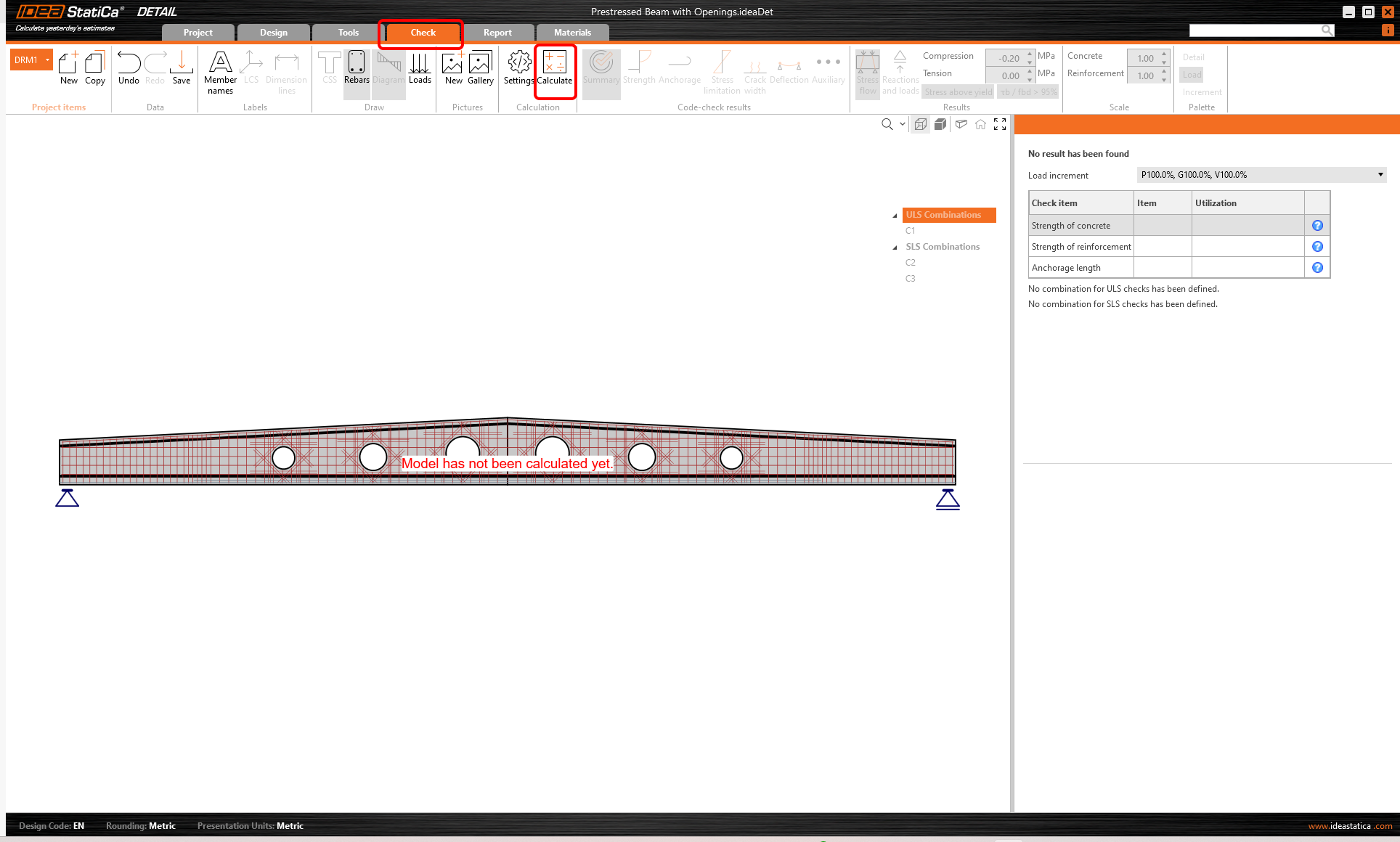
Gehen Sie zur Registerkarte Normnachweis in den Navigatorreitern und lassen Sie das Programm Ihr Modell berechnen.
Sobald die Analyse abgeschlossen ist, können Sie die Ergebnisse durchsehen.
Oben links sehen Sie eine Zusammenfassung aller Nachweise, die prozentuale Ausnutzung und den Status der Nachweise (bestanden/nicht bestanden). Oben rechts finden Sie detaillierte Berechnungsergebnisse für die ausgewählte Kombination. Hier wird der Festigkeitsnachweis des Betons in der GZT-Kombination (K1) dargestellt. Sie können den Anteil der aufgebrachten Vorspannung, der ständigen und der veränderlichen Last erkennen (P100%, G100%, V100%).
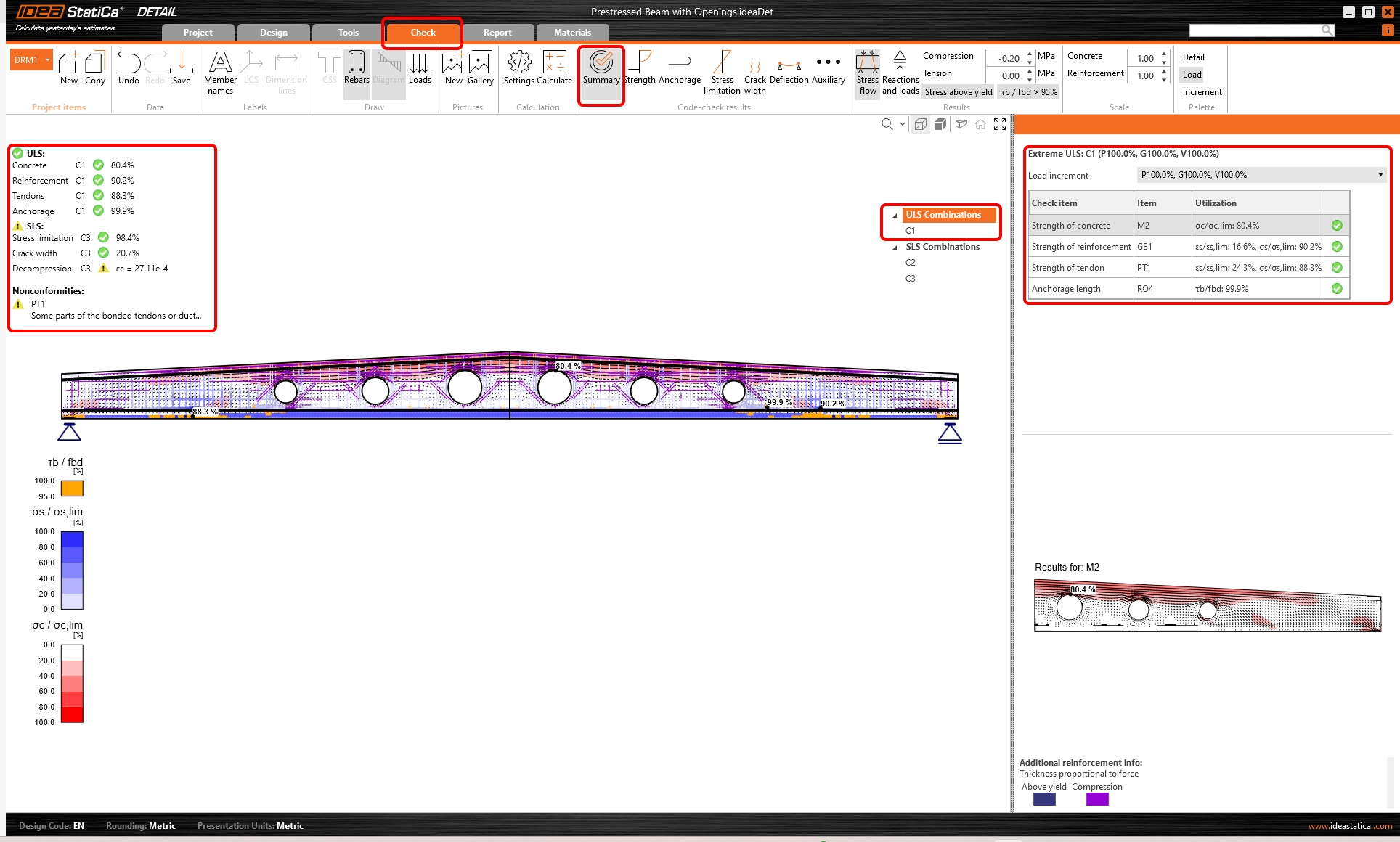
Wechseln Sie zu den Normnachweis-Ergebnissen für die Tragfähigkeit. Damit werden die GZT-Nachweise für Beton geöffnet, wie z. B. Ausnutzung der Spannung, Spannungen in Hauptrichtung, Dehnungen sowie eine Karte des Abminderungsfaktors kc. Die Kombination K1 wurde für den GZT-Nachweis verwendet.
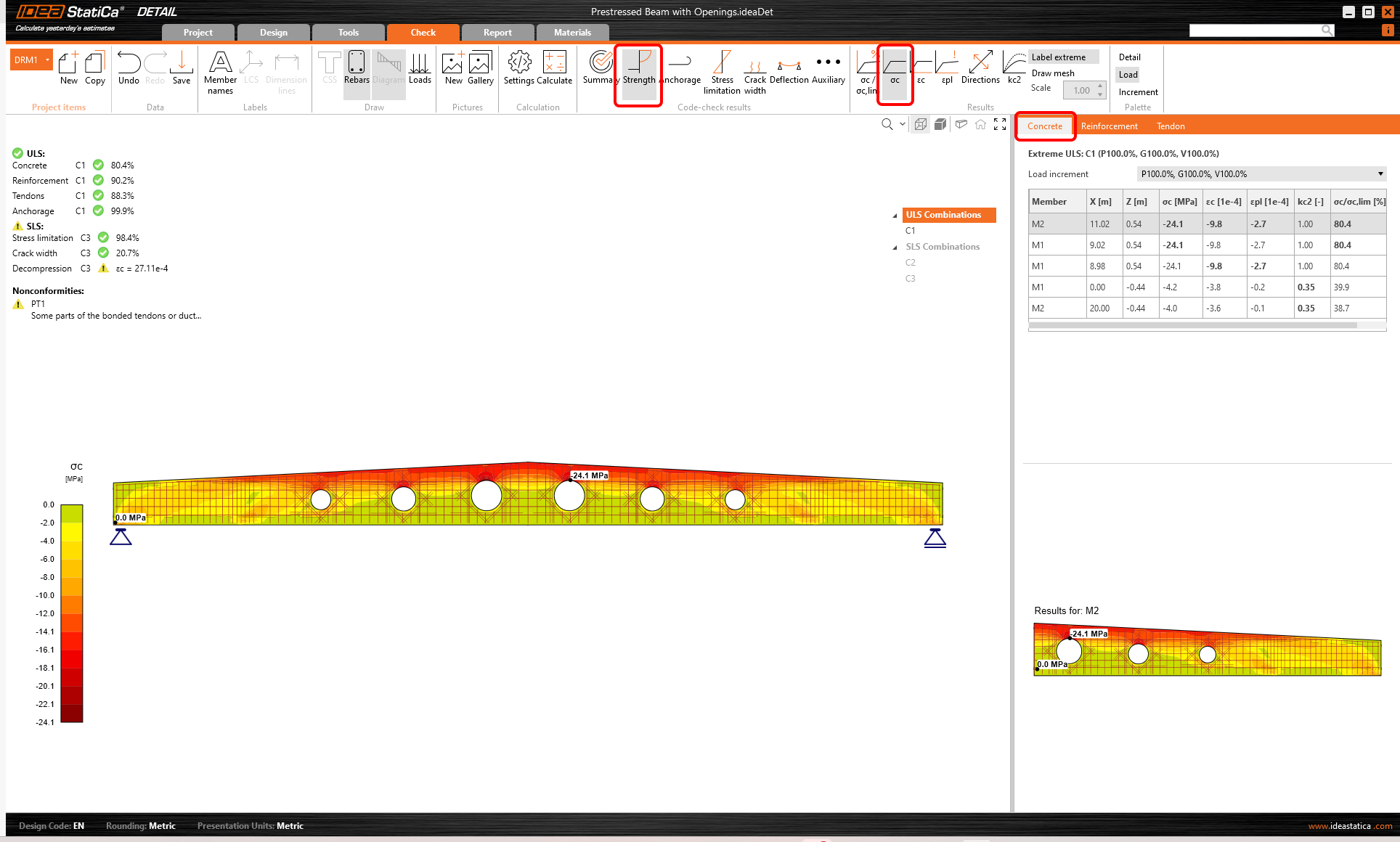
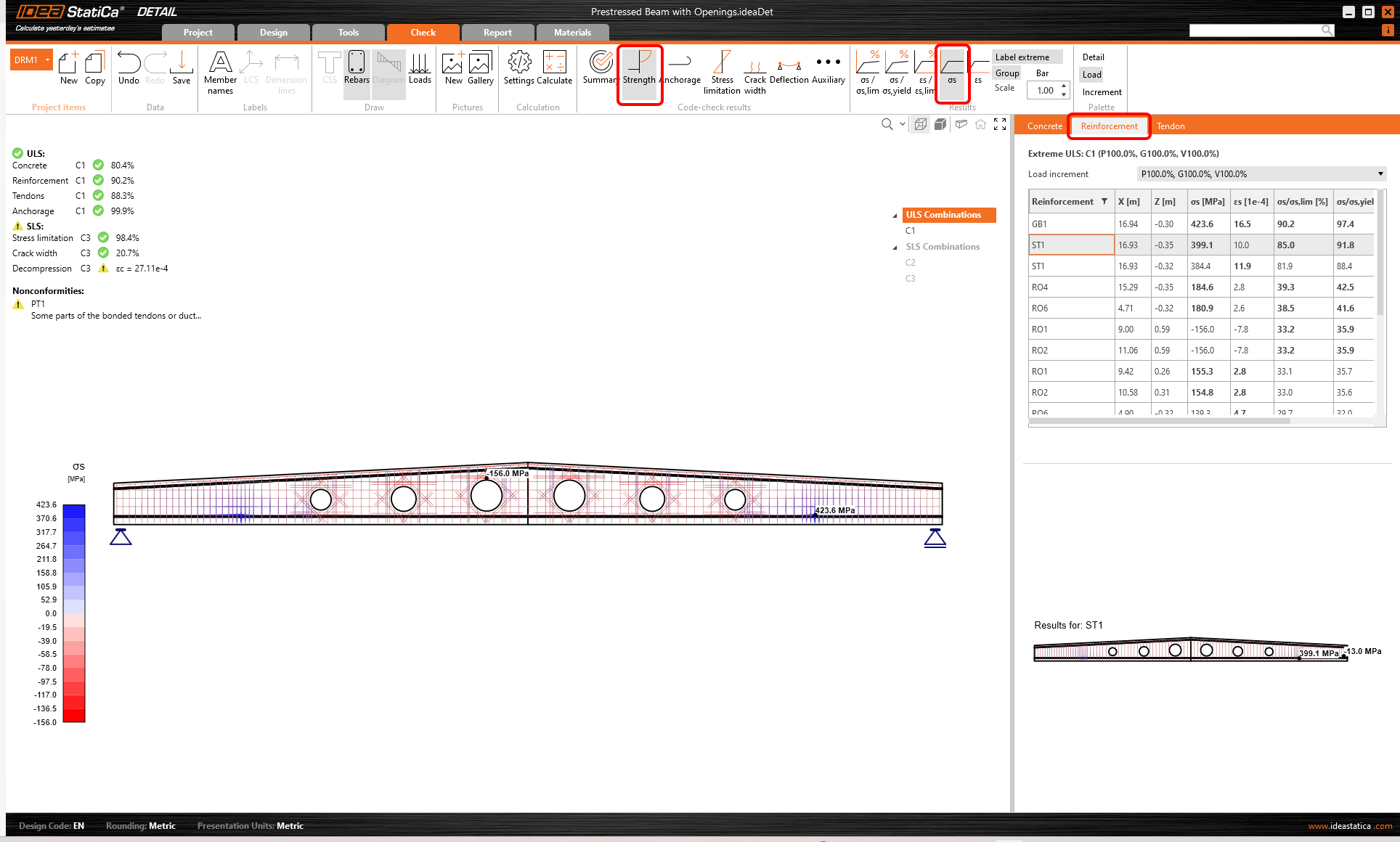
Wenn Sie solche Ergebnisse für die Bewehrung anzeigen möchten, müssen Sie auf die Registerkarte Bewehrung oberhalb der Tabelle klicken. Dadurch ändern sich die Menübandoptionen sowie die Ergebnistabelle. Sie können nun Ergebnisse für Dehnungen und Spannungen in jedem Stab sowie deren Ausnutzung anzeigen.
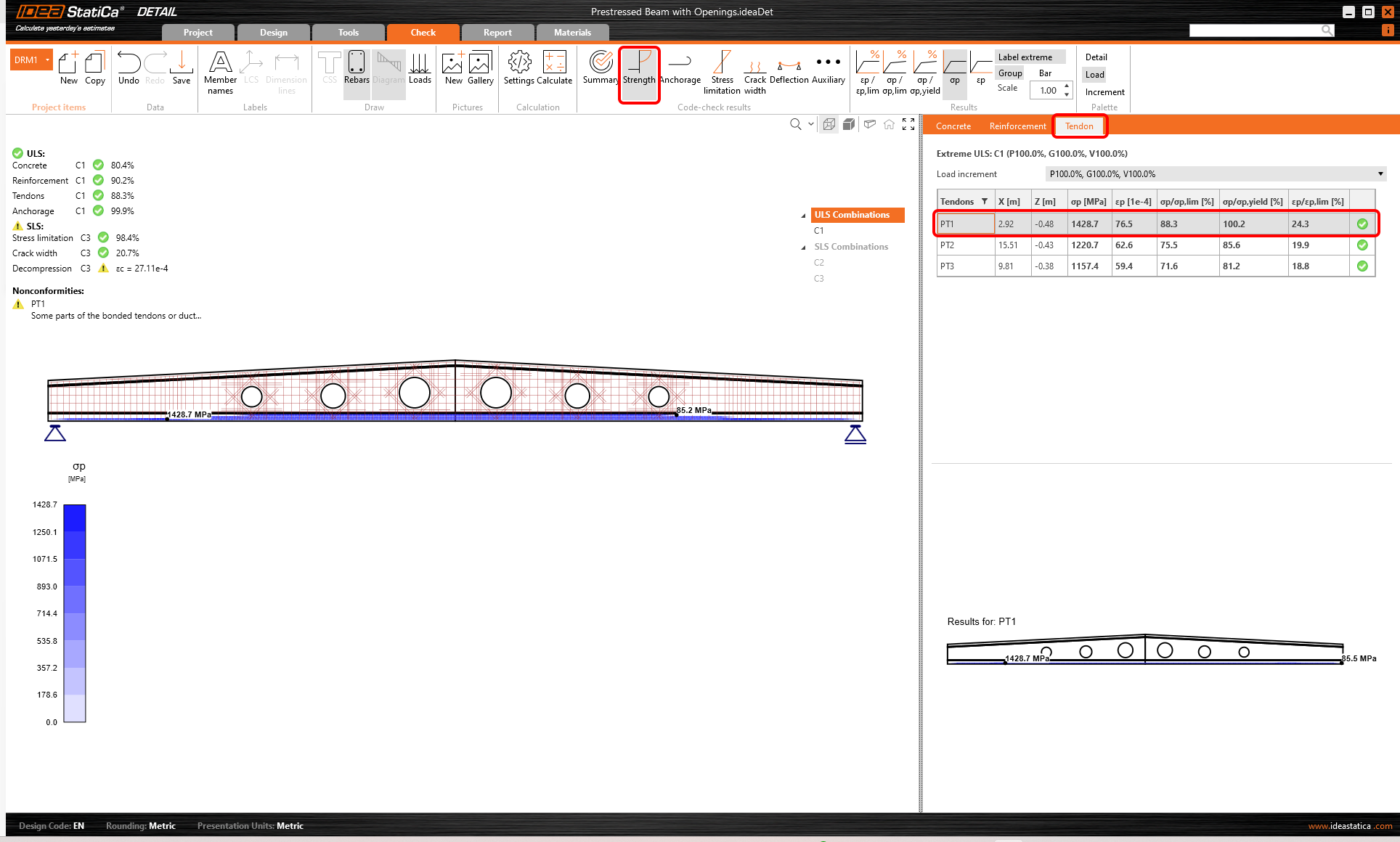
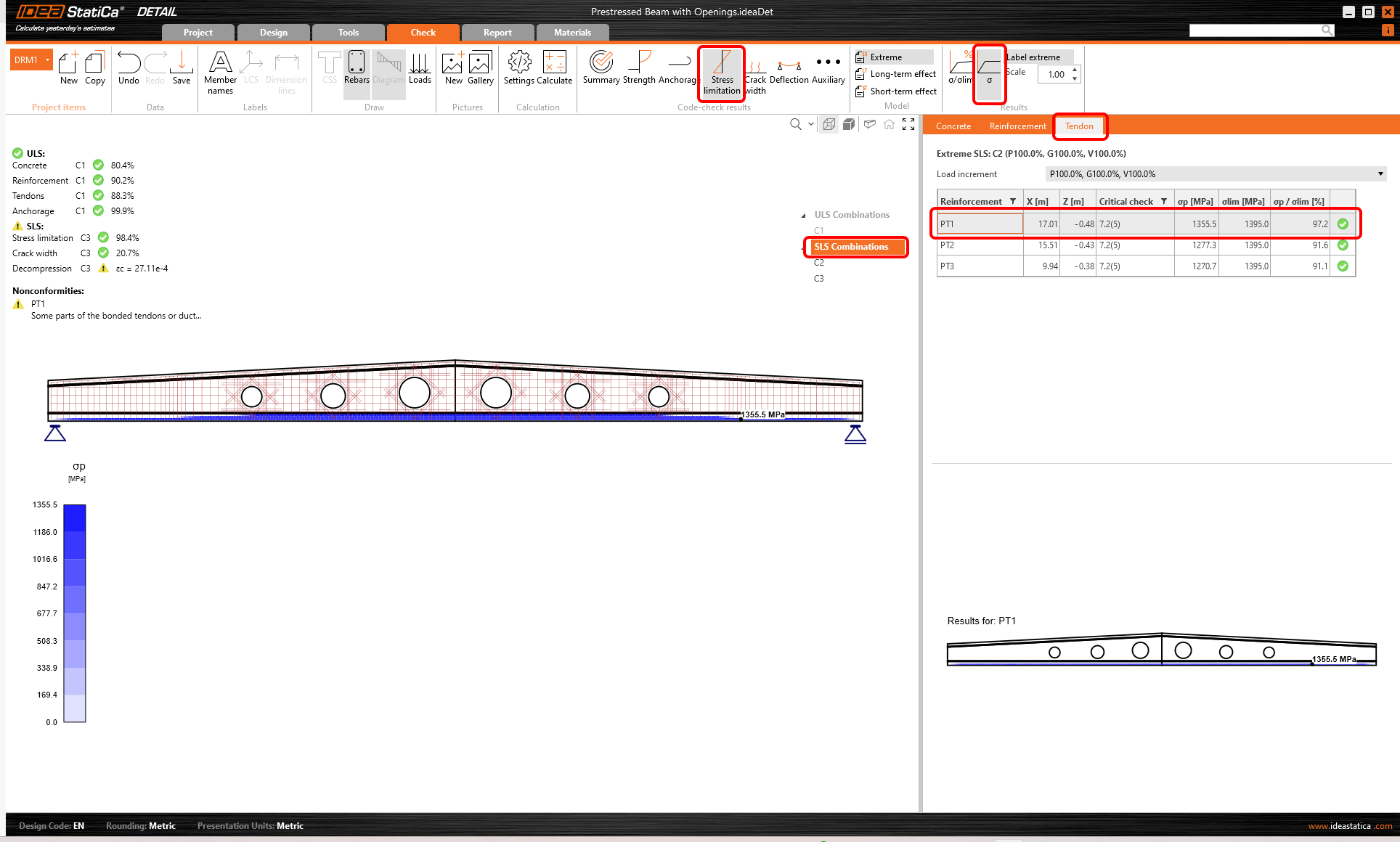
Sie können auch Ergebnisse für Spannglieder anzeigen. Die Optionen sind ähnlich wie auf der Registerkarte Bewehrung.
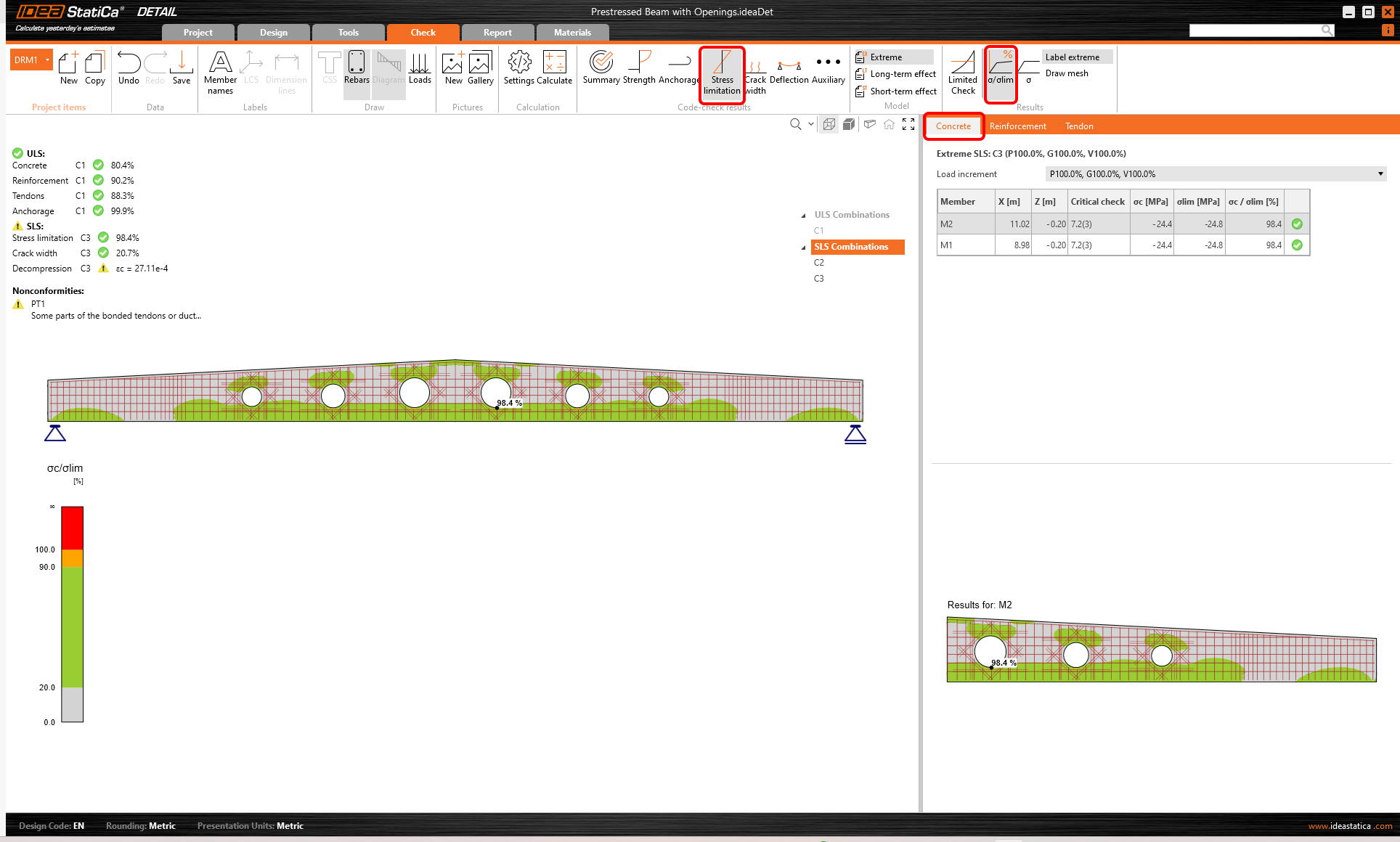
Die Ergebnisse der GZG-Nachweise finden Sie unter Spannungsbegrenzung, Rissbreite, und Durchbiegung. Für den Grenzzustand der Spannungsbegrenzung wurde die Kombination K3 für den Betonnachweis maßgebend, während K2 auch für den Nachweis der Bewehrung verwendet wurde.
Wählen Sie die Registerkarte Spannglied. Der Normnachweis wird angezeigt. Die Lasten müssen den Lasttypen korrekt zugewiesen werden, um korrekte Spannungen in den Spanngliedern zu erhalten. Wie oben erwähnt, ist das Lesen des Knowledge-Base-Artikels – Wie das Eigengewicht für einen vorgespannten Träger in Detail eingestellt wird – erforderlich.
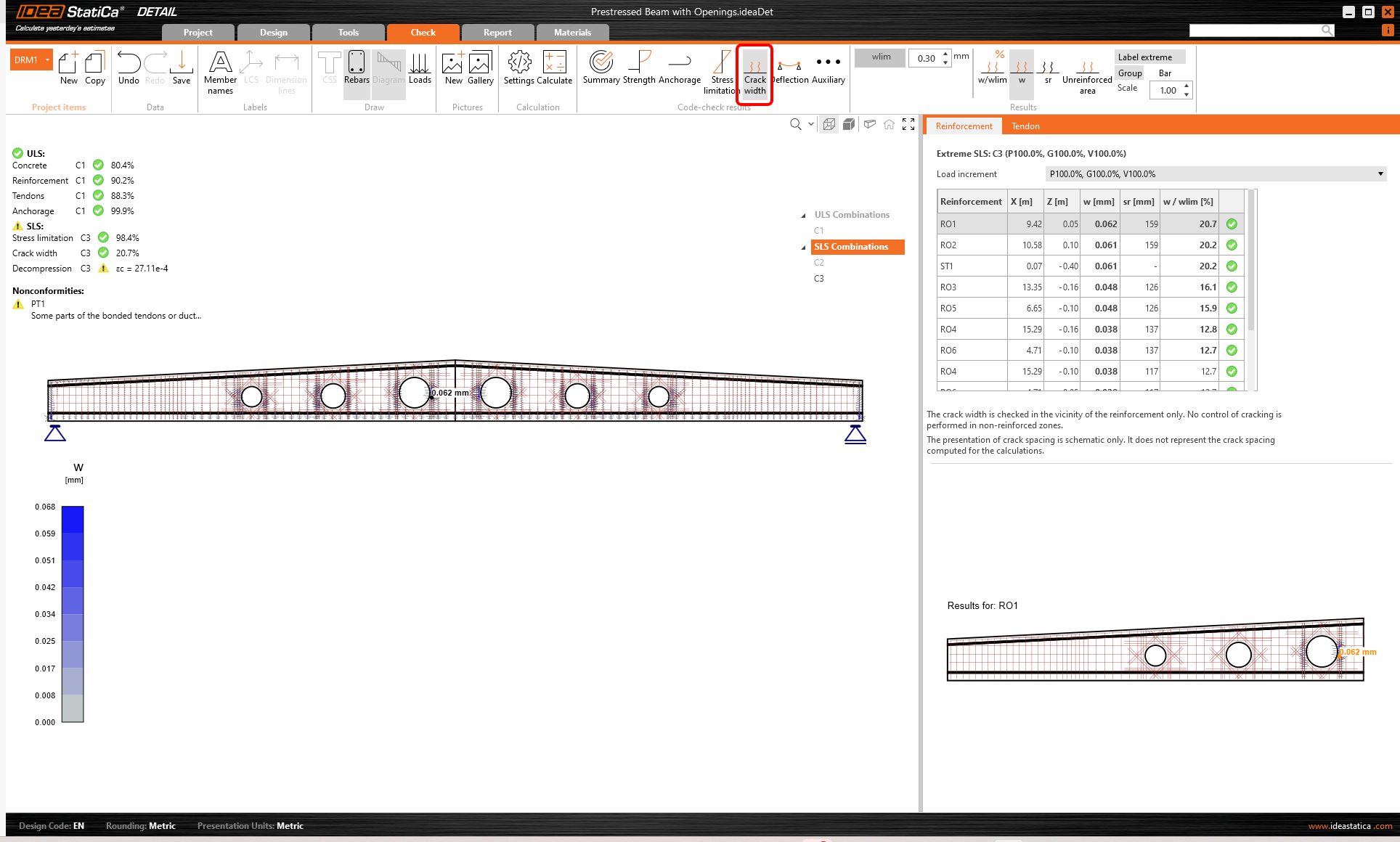
Berechnete Rissbreiten können auf der Registerkarte Rissbreite (Kombination K3) angezeigt werden. Die berechneten Werte werden mit dem Grenzwert wlim verglichen.
Sie müssen sich keine Sorgen über die Warnung bezüglich des Dekompressionsnachweis machen. Wie Sie sehen können, ist der Beton entlang des gesamten Spannglieds gedrückt; die Warnung wird lediglich durch eine numerische Singularität am Anfang des Spannglieds ausgelöst.

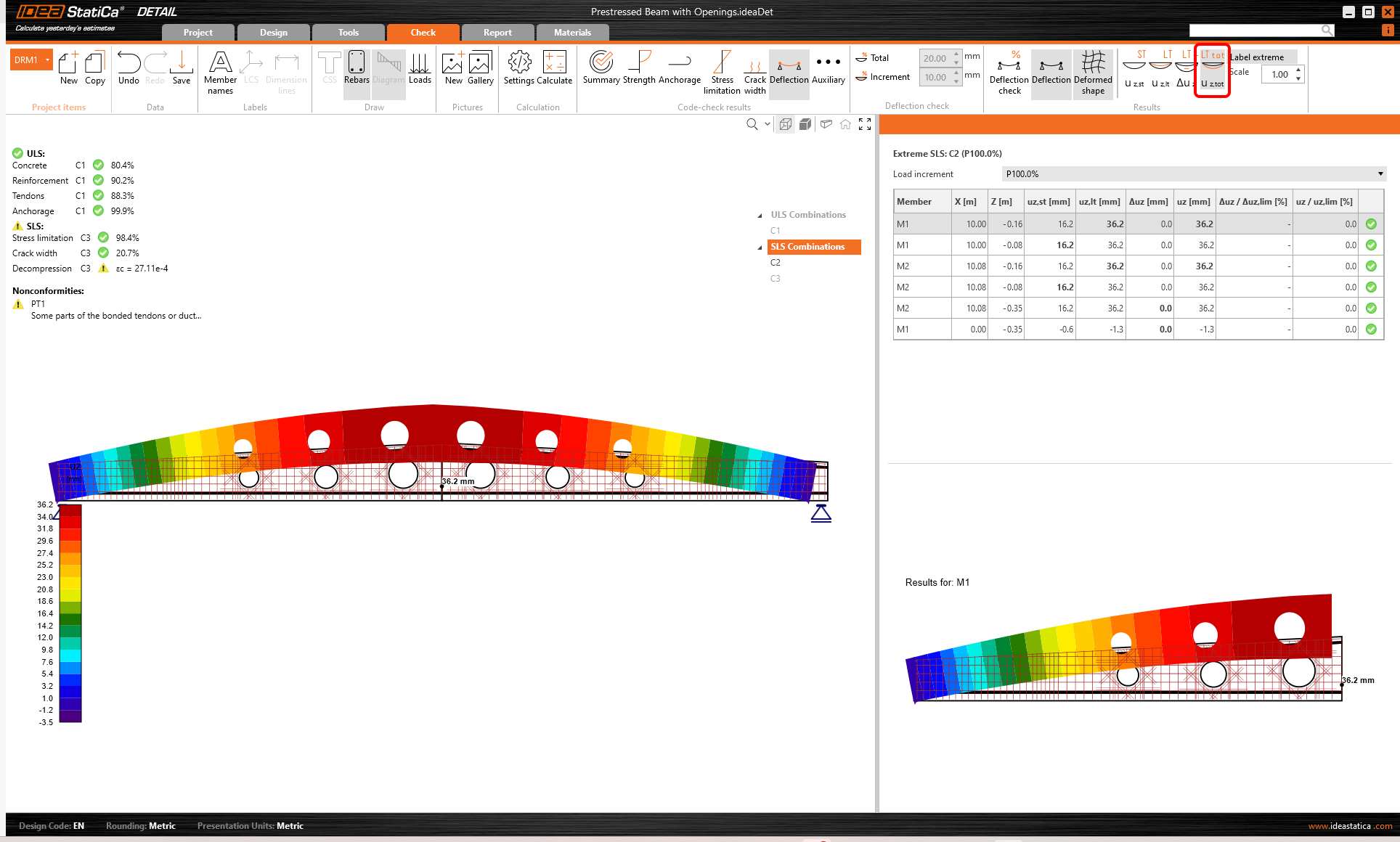
Abschließend ist der Durchbiegungsnachweis zu betrachten. Durchbiegungen sind nur für die Lastkombination K2 verfügbar, da wir zuvor nur K2 als aktiv für den Durchbiegungsnachweis festgelegt haben.
Sie können Kurz- und Langzeitdurchbiegungen anzeigen. Zeigen wir nun die kurzfristige verformte Form für den Lasttyp Vorspannung an. Bitte beachten Sie, dass Sie das Eigengewicht als Lasttyp Vorspannung festgelegt haben. Die angezeigten Verformungen werden daher durch Eigengewicht und Spannglieder verursacht.

Die Langzeitverformungen werden unter Verwendung der Kriechbeiwerte berechnet. Sie können unterschiedliche Koeffizienten für den Lasttyp Vorspannung φpres und für den Lasttyp Ständige Last φperm festlegen, um die unterschiedlichen Aufbringungszeitpunkte dieser Lasttypen zu simulieren. Die Koeffizienten können in den Materialien & Modellen in der Projektübersicht im Navigator eingestellt werden. In diesem Projekt wurden die Standardwerte beibehalten.
Um zu den Gesamtdurchbiegungen zu wechseln, klicken Sie einfach auf die Schaltfläche uz,tot.
7 Bericht
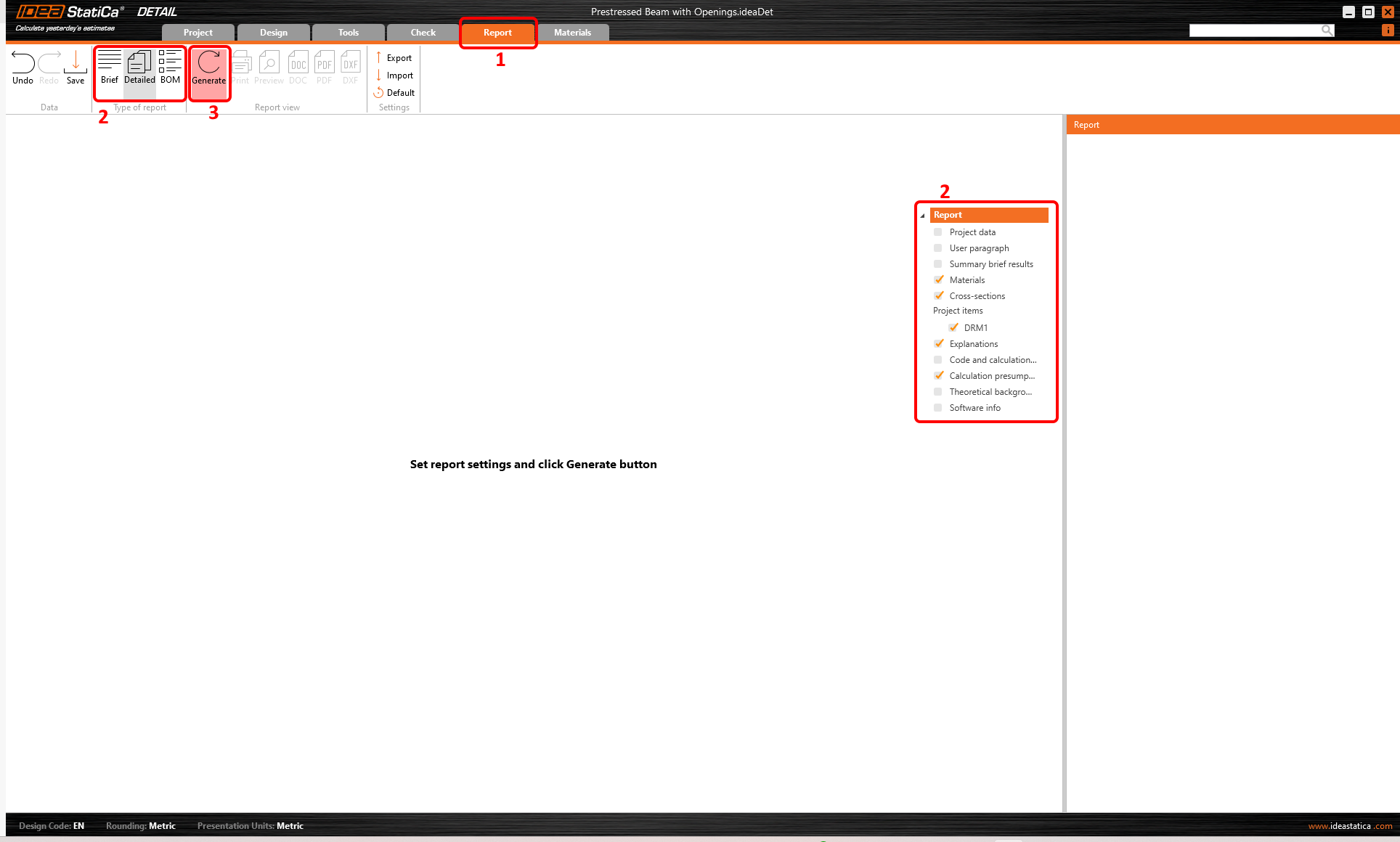
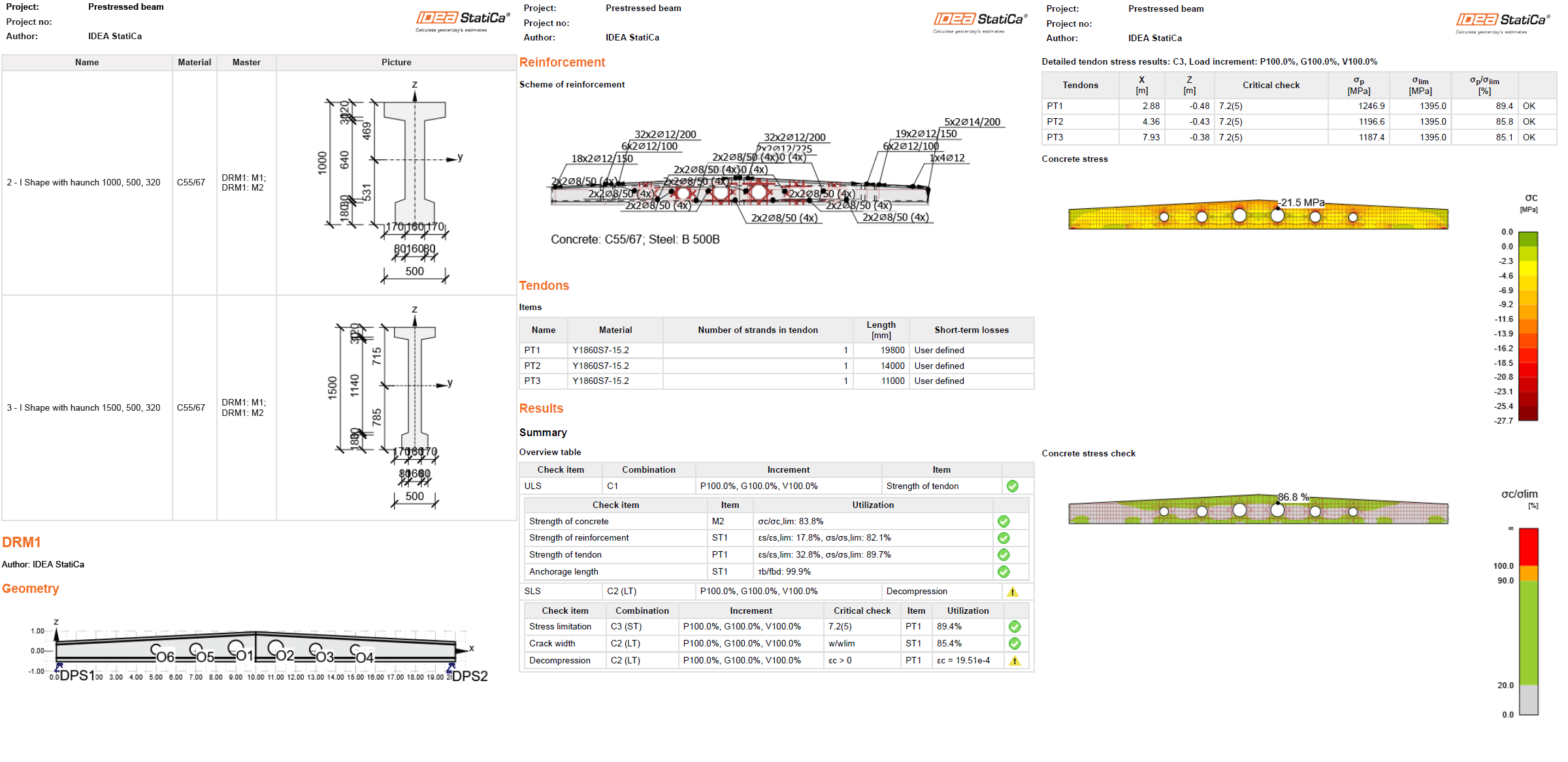
Gehen Sie abschließend zur Registerkarte Bericht. IDEA StatiCa bietet einen vollständig anpassbaren Bericht zum Ausdrucken oder Speichern in einem bearbeitbaren Format.